
Two-factor authentication
Protect your account with a code from an authenticator app at every sign-in, and keep recovery codes for a lost phone.
5 min read Updated
Two-factor authentication (2FA) adds a second step to signing in to Rabbitflare: after your password, Google or GitHub, you enter a 6-digit code from an authenticator app on your phone. Someone who learns your password still can't open your account, your servers, sites, backups or billing without your phone.
Before you start
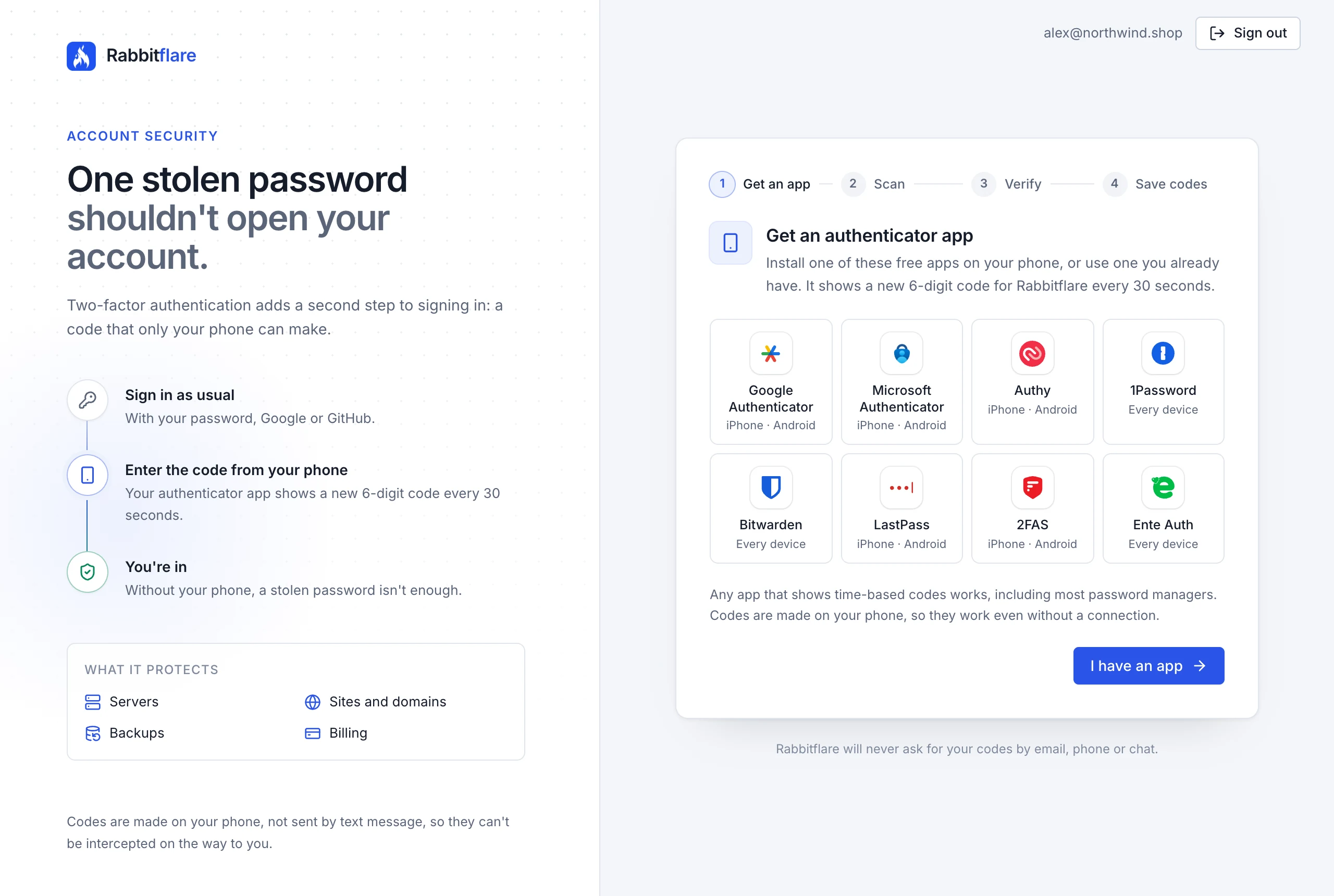
You need your phone and an authenticator app. Google Authenticator, Microsoft Authenticator, Authy, 1Password, Bitwarden, LastPass, 2FAS and Ente Auth all work, as does any app that shows time-based codes. The app makes the codes on your phone, so they work even without a connection, and they're never sent by text message.
Turn it on
-
Open the setup
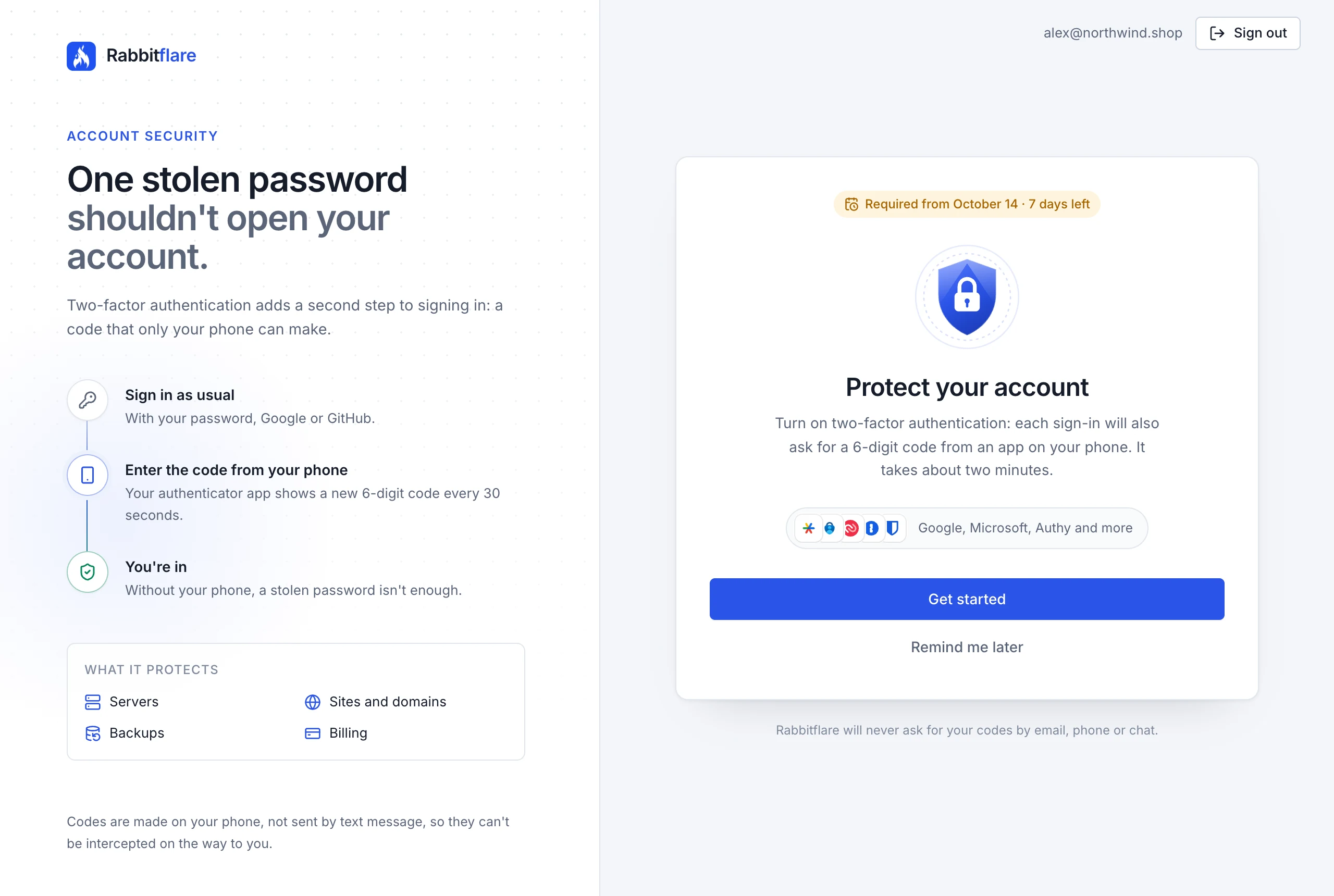
After you sign in, the panel shows Protect your account: choose Get started. Any time before then, open Settings Security and choose Set up under Two-factor authentication.
-
Choose your app
Install one of the apps shown on your phone, or open one you already have, and choose I have an app.
-
Scan the QR code
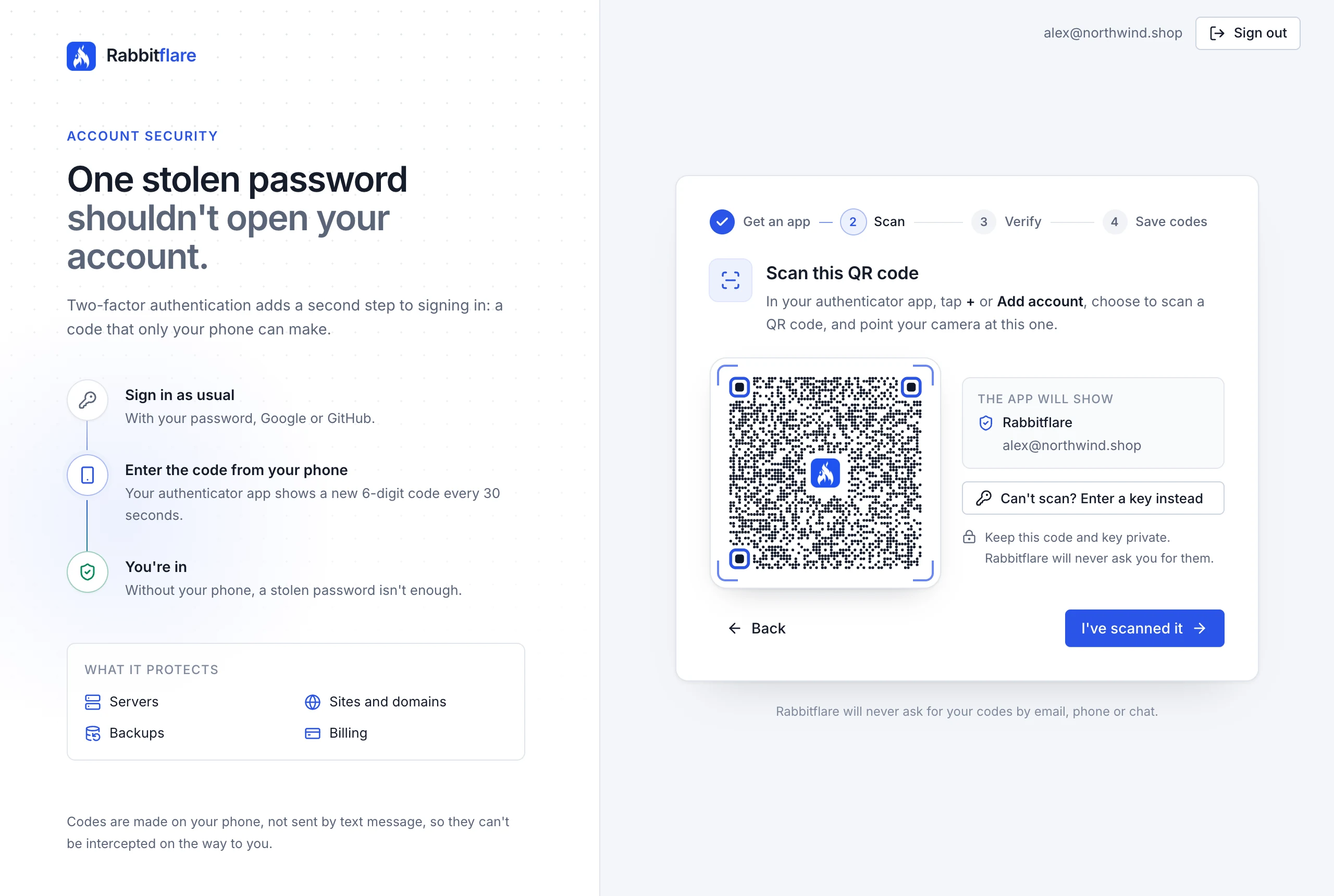
In your app, tap + or Add account, choose to scan a QR code, and point your camera at the code on the screen. The app adds Rabbitflare with your email address. If you can't scan it, choose Can't scan? Enter a key instead and type the key into your app. Then choose I've scanned it.
-
Enter the code
Type the 6-digit code your app now shows for Rabbitflare, and choose Turn on. Nothing changes until the code is right, so if it doesn't match, wait for the app's next code and try again.
-
Save your recovery codes
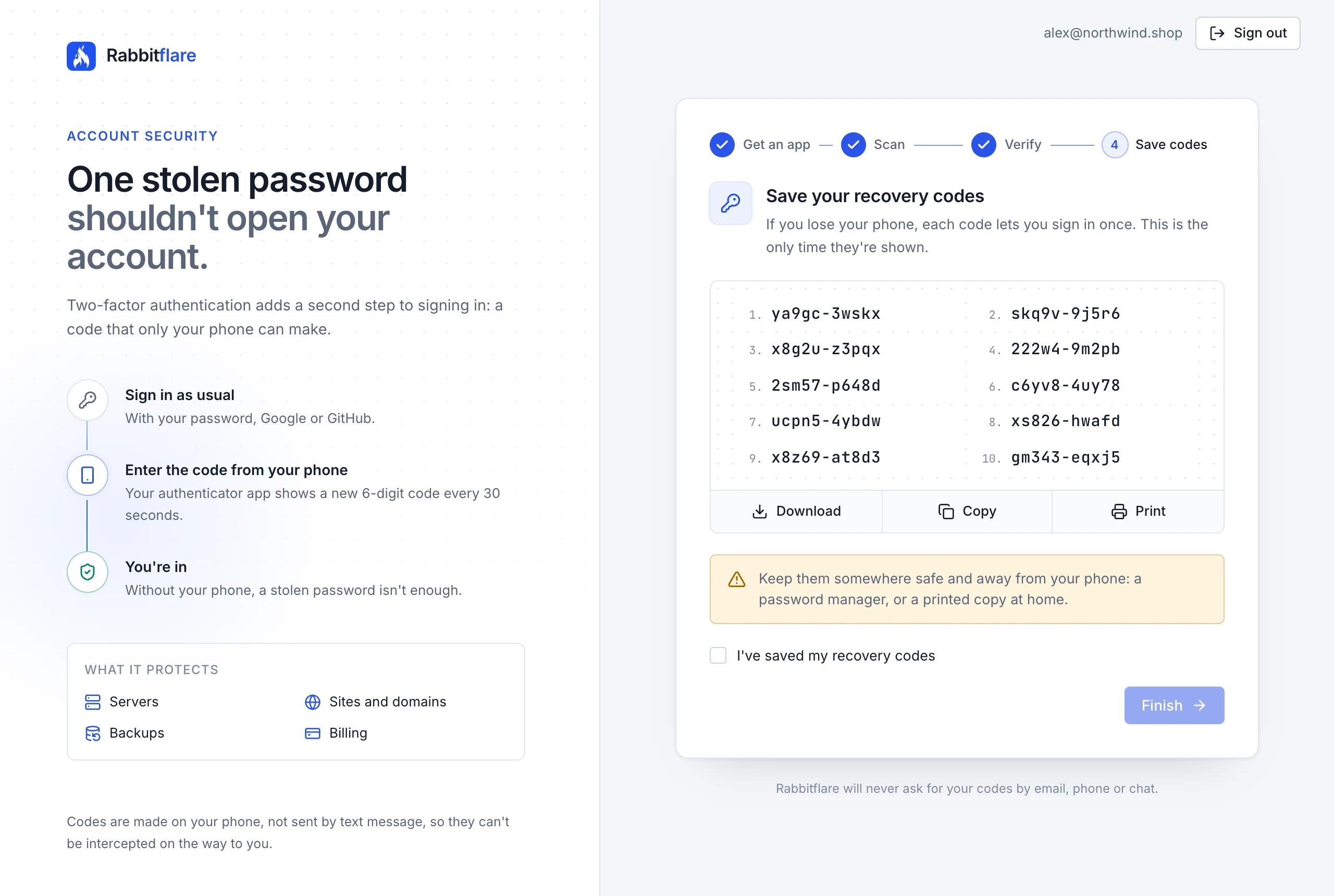
You get 10 recovery codes. Each one lets you sign in once without your phone, and they're shown only this once. Download, Copy or Print them, keep them somewhere safe away from your phone, tick I've saved my recovery codes and choose Finish.
That's it: your account is protected. For your security, Rabbitflare signs out every other device where you were signed in, and emails you to confirm that two-factor authentication is on.
Signing in
Sign in as usual, with your password, Google or GitHub. The panel then asks for the code from your authenticator app: type it and choose Verify and sign in. Setting a new password with a reset link also asks for the code.
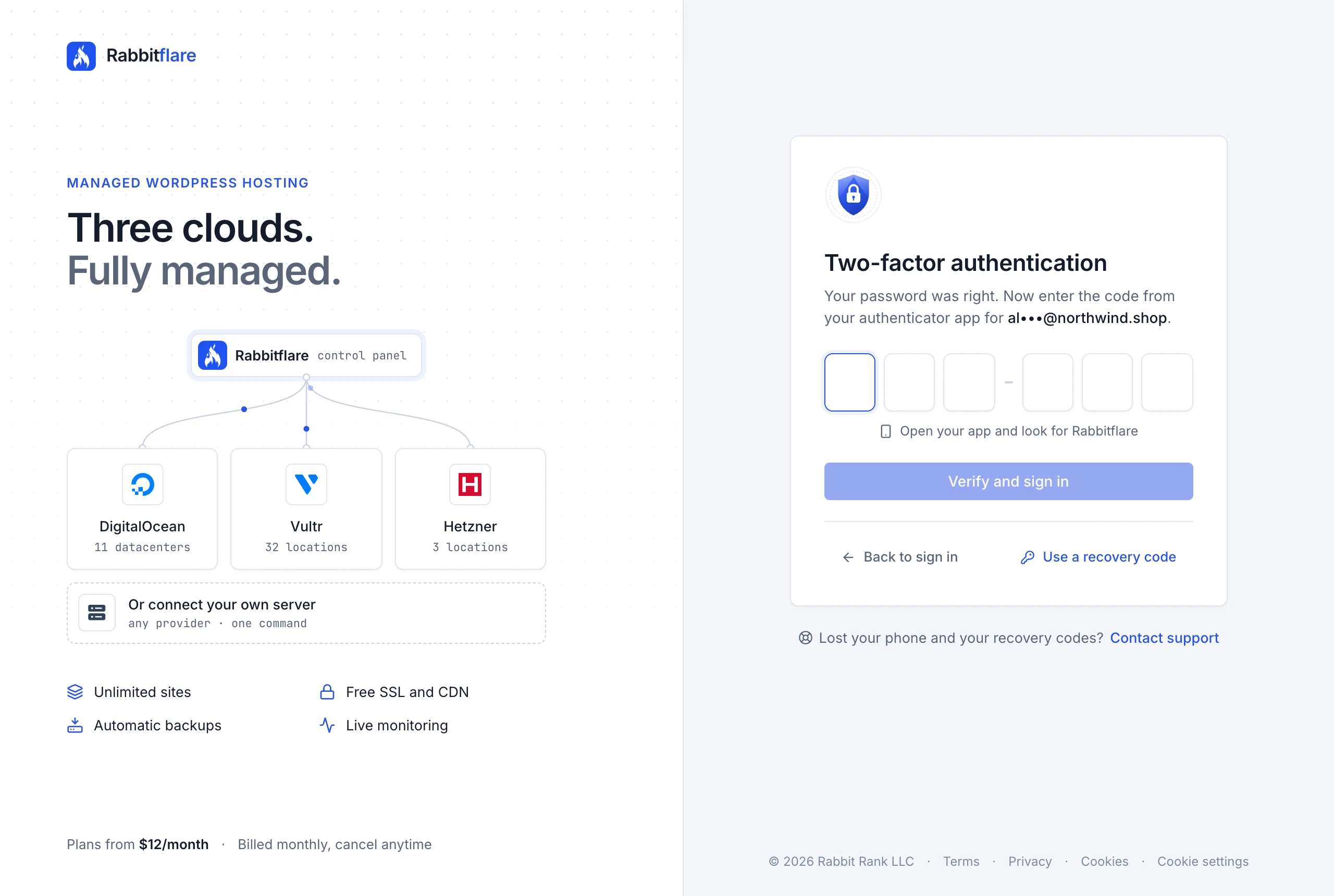
- Each code works once. If a code was just used, wait a few seconds for the next one.
- After 5 wrong codes, the sign-in stops and you start again. We email you when that happens, because it means someone got past the first step.
- After several stopped sign-ins in a short time, your account takes no codes for an hour, to protect it.
Use a recovery code
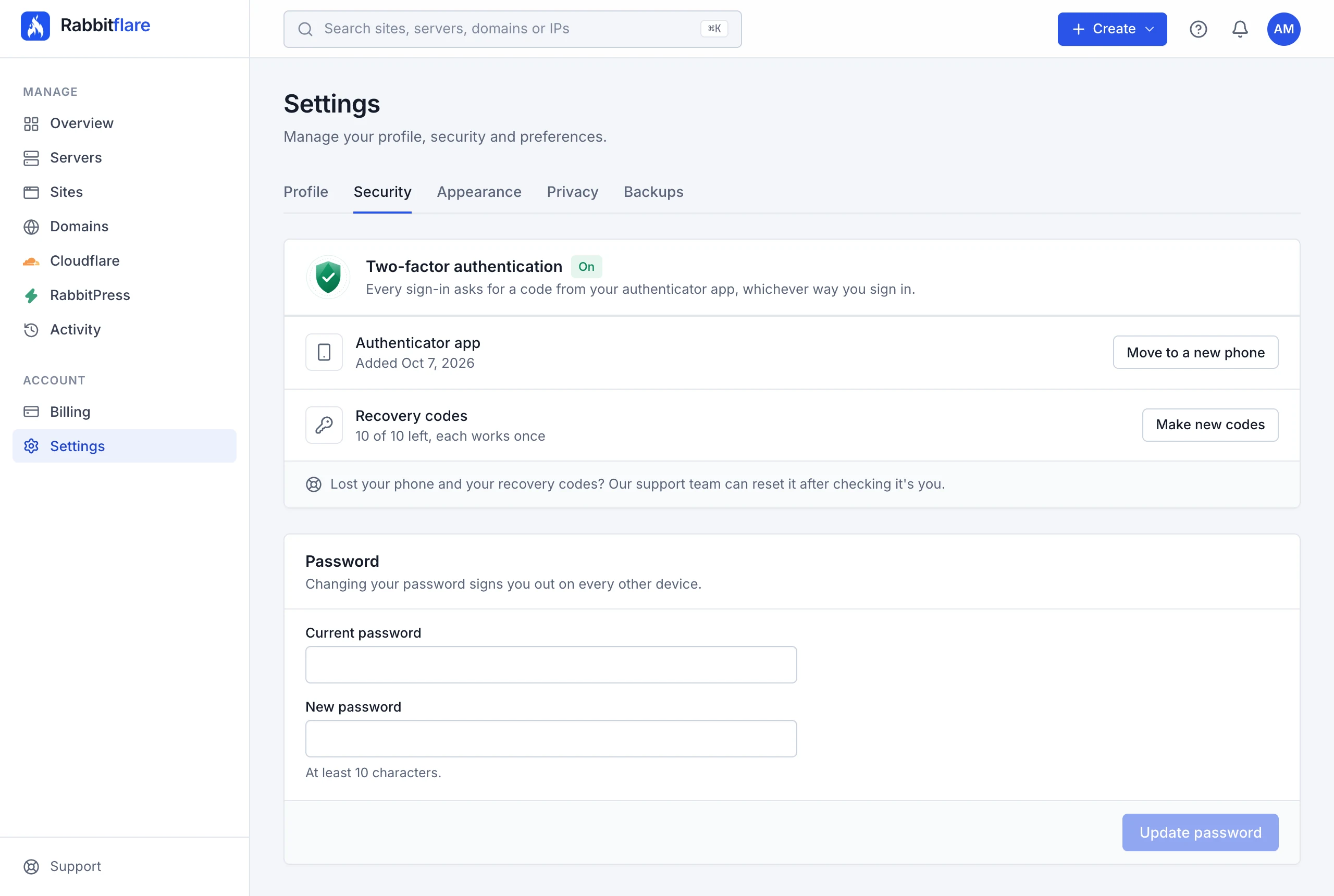
Without your phone, choose Use a recovery code on the sign-in page and type one of your codes. Each code works once, and we email you whenever one is used. Settings Security shows how many you have left.
Running low, or think someone may have seen them? Choose Make new codes, enter a code from your app, and save the new set. The old codes stop working straight away.
Move to a new phone
Open Settings Security and choose Move to a new phone. Enter a code from your current app, or a recovery code, then scan the new QR code with the app on your new phone and enter its first code. Codes from the old app stop working, and you get a new set of recovery codes to save.
Lost your phone?
- You still have your recovery codes: sign in with one, then move two-factor authentication to your new phone as above.
- You've lost your recovery codes too: contact support. Once we've checked it's really you, we reset two-factor authentication on your account, sign it out everywhere, and email you. You set it up again the next time you sign in.
Security emails
We email you when two-factor authentication is turned on or moved to a new app, when new recovery codes are made, when a recovery code is used, when a sign-in is stopped after too many wrong codes, and if support resets it for you. If one of these wasn't you, change your password and contact support straight away.
Questions
- Do I need it if I sign in with Google or GitHub?
- Yes. Two-factor authentication protects your Rabbitflare account however you sign in, so a stolen Google or GitHub account alone can't open it.
- Can I turn it off?
- No, it's required on every account. You can move it to a new phone or make new recovery codes at any time.
- My codes are always wrong
- Codes depend on your phone's clock. Check that its date and time are set automatically, then try the next code.
- Can I use the same app for other accounts?
- Yes. An authenticator app holds codes for many accounts; Rabbitflare's is the one labelled Rabbitflare with your email address.