
Clone a site
Copy a site, every file and its whole database, to a new site on the same server or another of yours.
4 min read Updated
Cloning makes a full copy of a site, every file and its whole database, as a new site with its own address. Put it on the same server or on another of your servers, in any region. The site you copy keeps running and isn't changed, and the copy's links point to its new address. Cloning is free on every plan.
Clone a site
-
Choose Clone
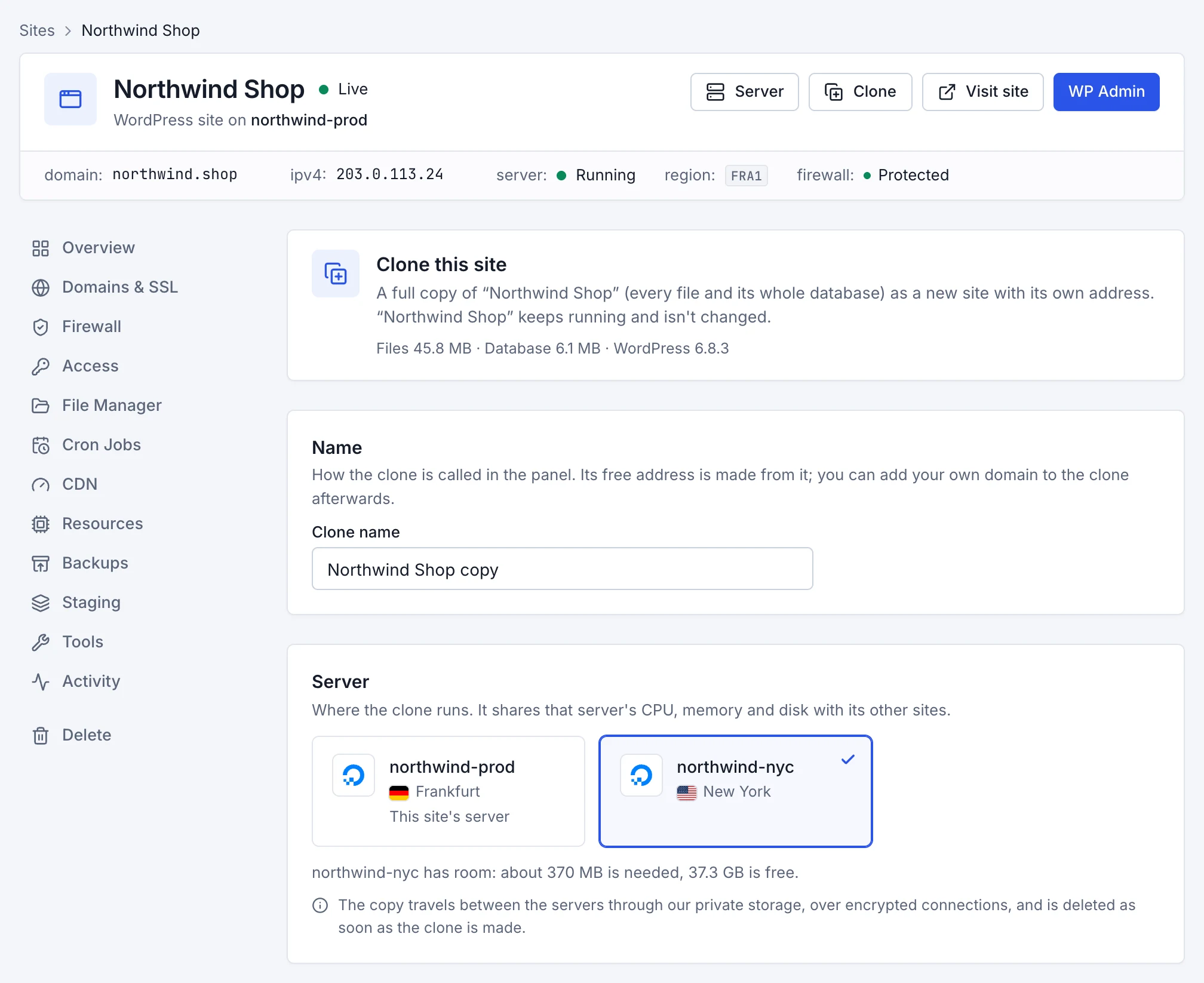
On the site's page, choose Clone at the top, next to Visit site.
-
Name the clone
The Clone name is how the clone is called in the panel; its free address is made from it. You can connect your own domain to the clone afterwards.
-
Choose its server
Pick the site's own server or another of yours. The panel checks that the server has enough free disk space before anything starts. Between two servers, the copy travels through our private storage over encrypted connections, and is deleted as soon as the clone is made.
-
Choose what comes along
Every file and the whole database are always copied. These settings of the site in Rabbitflare can come too:
- PHP and resource settings
- The site's CPU, memory and process limits, CPU priority and PHP settings, when they fit the server. Shown when the site has its own settings.
- Firewall settings
- Its mode and sensitivity, login protection, blocked and allowed addresses, and exceptions.
- Cron jobs
- Copied paused, so nothing runs twice. Turn them on from the clone's Cron Jobs tab when you want them.
- Ask search engines not to index the clone
- Turns on WordPress's “Discourage search engines”. Recommended for test copies.
-
Choose Clone site
You're taken to the new site's page, which shows the copy as it's made. You can leave the page; we email you when the clone is ready.
What isn't copied
Your own domains stay with the original site: the clone gets its own free address and SSL certificate. The CDN, backup schedules and any staging copy aren't copied either; turn them on for the clone when you want them.
While it copies
The new site's page shows each step: setting up the new site, then copying the site in (from another server, it's packed there first), then finishing. Most sites take a few minutes; large ones take longer.

- The site you're copying keeps running as usual. Until the clone is made, it can't be deleted, restored from a backup or updated from staging.
- The new site can't be changed until the copy is in.
- Cancel stops the clone and removes the new site. In its last moments, while the copy is switched into the new site, it can't be cancelled.
When it's done
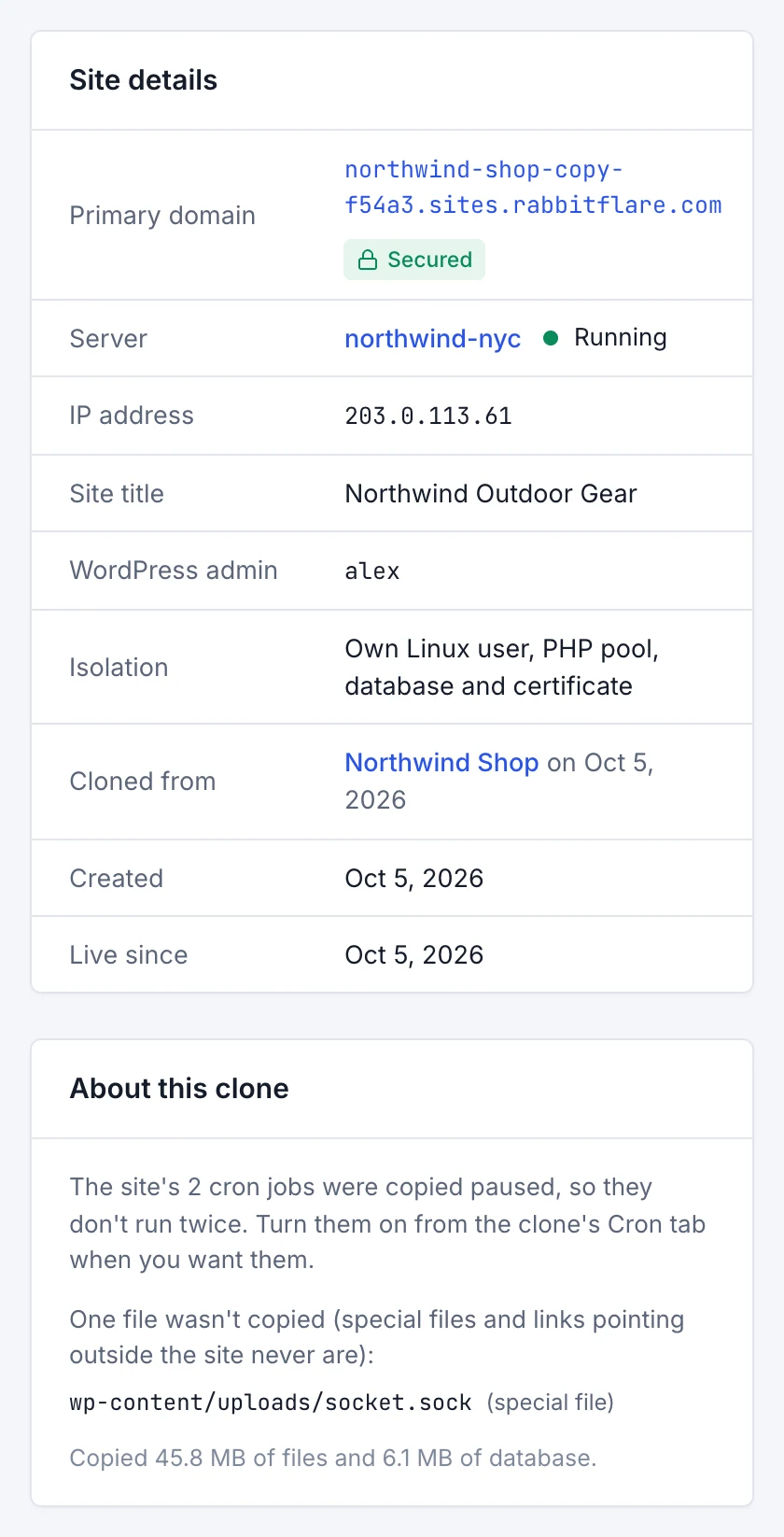
The clone is live at its free address. Its WordPress has the same users as the site you copied, so you sign in with the same login; its Access tab shows it. On the clone's Overview, Cloned from names the original, and for two weeks About this clone lists anything you should know: cron jobs copied paused, files that weren't copied (special files, links pointing outside the site, or files holding the site's database password), or pages that answered with an error right after the copy.
Move a site to another server
-
Clone it to the other server
Check the clone at its free address.
-
Move your domain
A domain belongs to one site at a time: remove it on the original's Domains & SSL tab, then connect it to the clone and update your DNS as the panel shows. See Connect your domain.
-
Delete the original
When everything works, delete the original site. See Site tools and deleting a site.
If a clone fails
The new site's page says why, and the site you copied isn't changed. Choose Try again, or Delete to remove the new site. We email you too. If it fails again, open a ticket and we'll look into it.
What can't be cloned yet
- Staging copies: clone the live site instead.
- WordPress multisite networks.
- Sites whose
wp-config.phpisn't in their web folder.
A site has one clone being made at a time; start the next when it finishes.