
Securing a mailbox
Two-factor sign-in, passkeys, app passwords, sessions, what the warnings mean and what a genuine message from us looks like.
3 min read Updated
Email is where most account break-ins begin, so every mailbox has its own protection. Find it in the webmail, under Settings, then Security. Administrators choose what's required for the domain in the control panel, on the domain's Settings tab.
Two-factor sign-in
After the password, you enter a 6-digit code from an authenticator app on your phone. Google Authenticator, Microsoft Authenticator, Authy, 1Password, Bitwarden, LastPass, 2FAS, Ente Auth and any other app that shows time-based codes all work. You also get 10 recovery codes, for when your phone isn't with you.
It's on by default for every new domain: each person has 7 days to set it up. A mailbox without it sends at most 20 messages a day to people outside. You can switch the requirement off for your domain, but we don't recommend it.
Passkeys
A passkey uses your device's fingerprint, face or PIN, or a security key. There's nothing to type, and it can't be phished. Administrators can turn passkeys off for a domain.
App passwords
Mail apps use an app password instead of your main password, one for each device. Revoke one, and only that device stops working. See Set up mail apps. Administrators can turn app passwords off for a domain.
Where you're signed in
- Where you're signed in lists the browsers signed in to your mailbox now, and those that skip the code because you chose "Remember this browser for 30 days". Sign any of them out, or sign out everywhere.
- Recent sign-ins shows your last 50: when, how and from where.
- Recovery address: where a reset link goes if you forget your password. Use an address outside this mailbox.
What the warnings mean
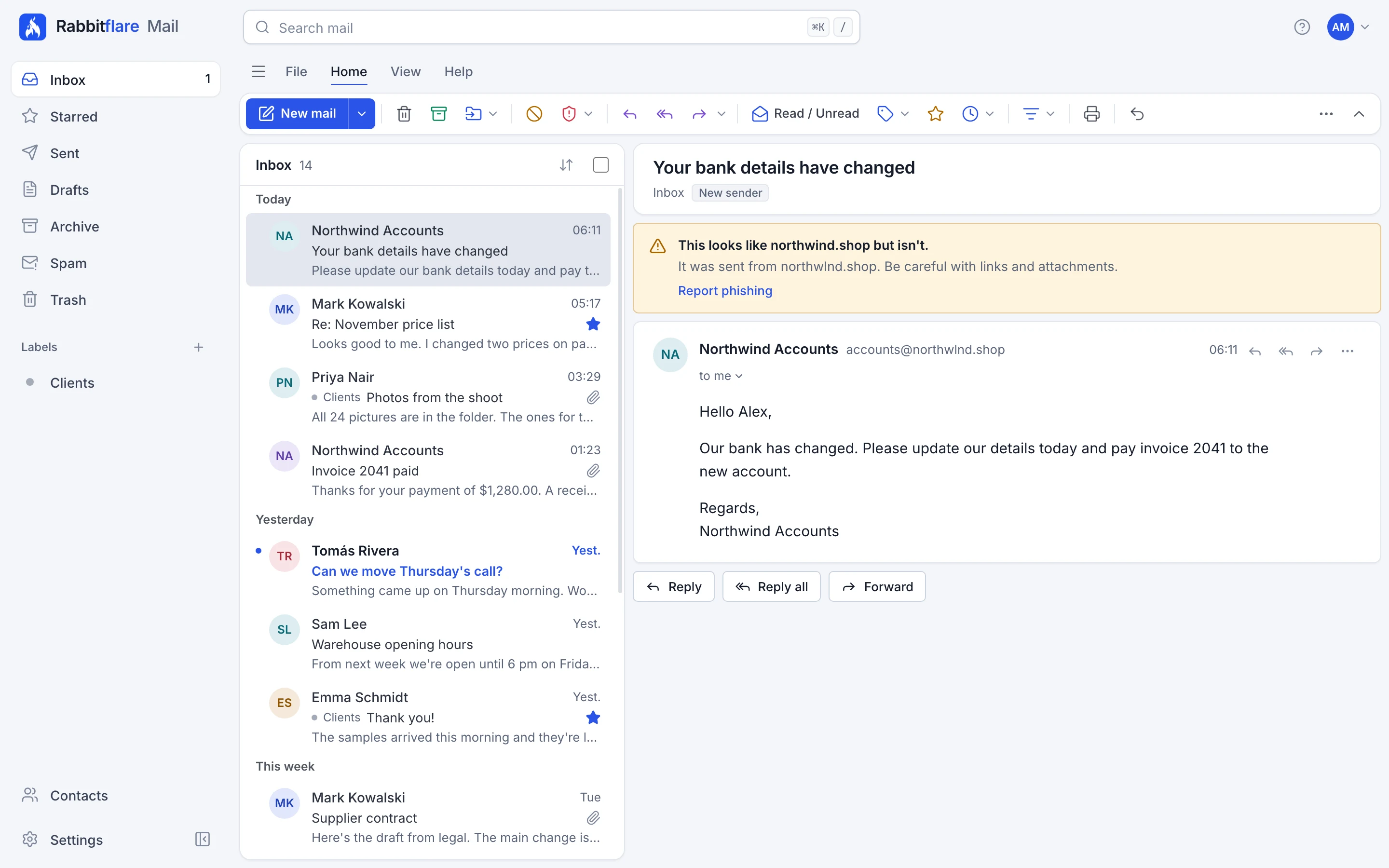
- New sender: you haven't had mail from this address before. It's a reminder to look twice, not an accusation.
- This looks like your domain but isn't: the address is one letter or so away from one you know, a common trick. Check it before you trust it.
- A name that doesn't match: the sender uses the full name of someone at your domain, from another address. It goes once you've written to that address.
- The sender's checks failed: the message couldn't be shown to come from where it says.
- Phishing suspected: the message is hidden, with its links off, until you choose to see it. Don't sign in, pay or reply from it.
When you're unsure, choose Report phishing.
What a genuine message from us looks like
When Rabbitflare Mail writes to you, such as with a setup link or a password reset, the message:
- comes from
[email protected]; - names your company and your administrator;
- never asks for your password;
- links only to
https://mail.rabbitflare.com/.
Anything else claiming to be us is worth reporting. See Report abuse.
Blocked attachments
Files that are often used to spread malware can't be sent, and every message is scanned for viruses in both directions. If a file you need is refused, put it in a shared folder and send the link.
If a mailbox is taken over
When our systems see signs of a takeover, we sign the mailbox out everywhere, end its app passwords, ask for a new password and hold its outgoing mail until it's secured. The account owner is told. If you suspect one yourself, change the password, sign out everywhere, revoke its app passwords and check its rules, in case someone added one, then tell us by opening a ticket.