
Set up Outlook, Apple Mail, iPhone, Android and Thunderbird
Connect your phone and mail apps with an app password, and the server settings if an app asks.
2 min read Updated
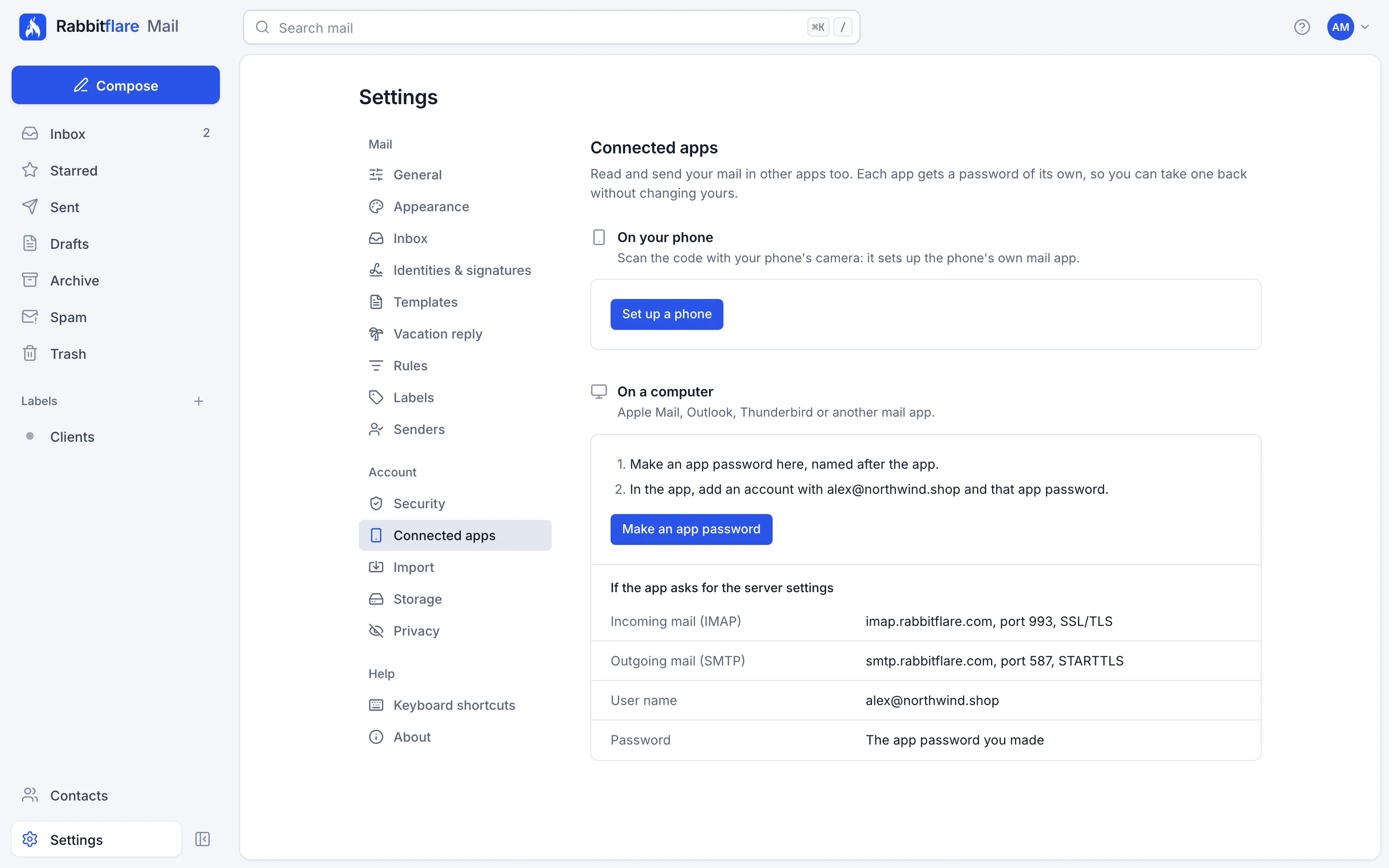
You can read and send your mail in other apps too. Each app gets an app password of its own, so you can take one back without changing your main password. Find everything in the webmail, under Settings, then Connected apps.
On your phone
-
Choose Set up a phone
On a computer, the webmail shows a code to scan with your phone's camera. On the phone itself, it takes you straight there.
-
Follow the steps on your phone
On an iPhone or iPad, this installs a profile that sets up Mail, Contacts and Calendar. On Android, the page says how to add the account in your mail app, with the app password to paste.
On a computer
-
Make an app password
Choose Make an app password and name it after the app, like "Outlook at work". Copy it: it's shown only once.
-
Add the account in your app
In Apple Mail, Outlook, Thunderbird or another mail app, add an account with your address and that app password. Most apps find the rest by themselves.
If an app asks for the server settings
| Incoming mail (IMAP) | imap.rabbitflare.com, port 993, SSL/TLS |
| Outgoing mail (SMTP) | smtp.rabbitflare.com, port 587, STARTTLS |
| User name | Your full address |
| Password | The app password you made |
Calendars and contacts sync to your devices too. The phone setup includes them, and apps that find your settings by themselves pick them up.
If you lose a device
In the webmail, open Settings, then Security, then App passwords, and revoke the one for that device. Your other devices keep working. If you think someone else has your main password, change it there too, and choose to sign out everywhere.