
Back up and restore a site
Daily or weekly backups kept away from your server, and restores in a few clicks.
4 min read Updated
Site backups copy a site's files and database somewhere away from its server, every day or every week, and keep as many as you choose. If something goes wrong, restore the whole site, only its files or only its database in a few clicks.
 Your site its WordPress files and its database
 Where backups go
- Rabbitflare Backup
- Nothing to set up: backups are stored privately and encrypted, away from your server, in the United States, Europe or Asia (United States (Virginia), Europe (Frankfurt), Asia Pacific (Singapore)). It costs $2 a month for each site that uses it, plus storage per GB, charged to your card after each month; the site's Backups tab shows the price. On Rabbitflare Edge servers there's no monthly fee per site, only the storage.
- Storage you own
- Google Drive, Dropbox, Amazon S3, DigitalOcean Spaces, Vultr Object Storage, Backblaze B2, Cloudflare R2, other S3-compatible storage like Wasabi, or an SFTP server. No extra cost from us.
-
 Google Drive
 -
 Dropbox
 -
 Amazon S3
 -
 DigitalOcean
 -
 Vultr
Vultr -
 Backblaze
 -
 Cloudflare
Turn on backups
-
Open the site's Backups tab
On the site's page, open Backups.
-
Choose where they go
Pick Rabbitflare Backup and a location, or one of your storage connections. To use your own storage the first time, connect it first: see Connect your own storage.
-
Choose how often, and how many to keep
Every day or every week at the hour you choose, or only when you start one. Keep the newest 1 to 60 backups; older ones are deleted as new ones arrive.
-
Turn on backups
The first backup runs at the scheduled time. To make one straight away, choose Back up now.
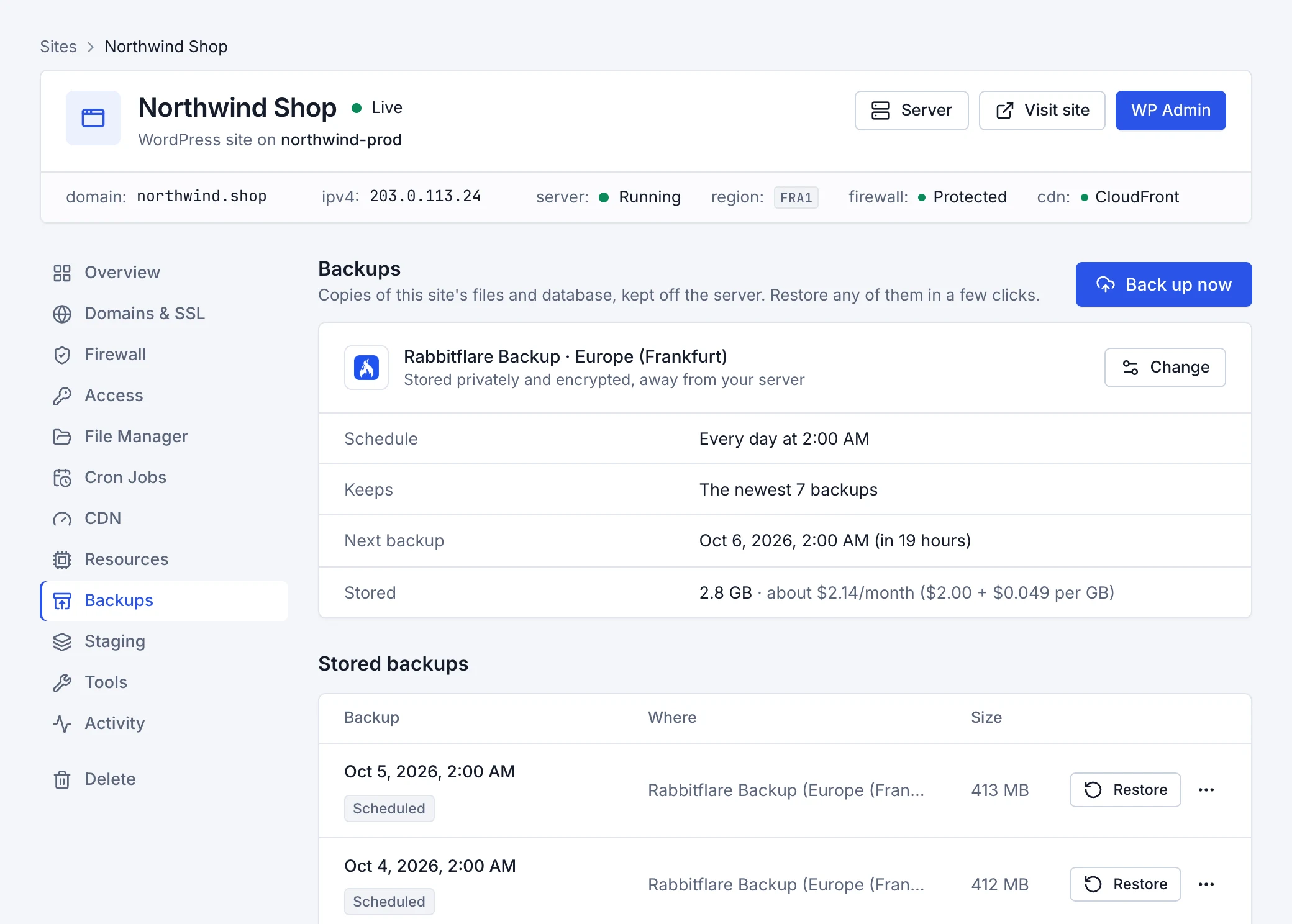
Backups run in the background; you can leave the page. Up to 10 backups a day can be started by hand.
Restore a backup
-
Pick the backup
Under Stored backups, find the one you want and choose Restore.
-
Choose what to restore
- Everything
- The site's files and database, as they were.
- Files only
- WordPress, plugins, themes and uploads. The database stays as it is.
- Database only
- Posts, pages, settings, users and orders. The files stay as they are.
-
Keep a copy of the site as it is now
Leave Back up the site as it is now first (recommended) ticked, so you can go back if the restore isn't what you wanted.
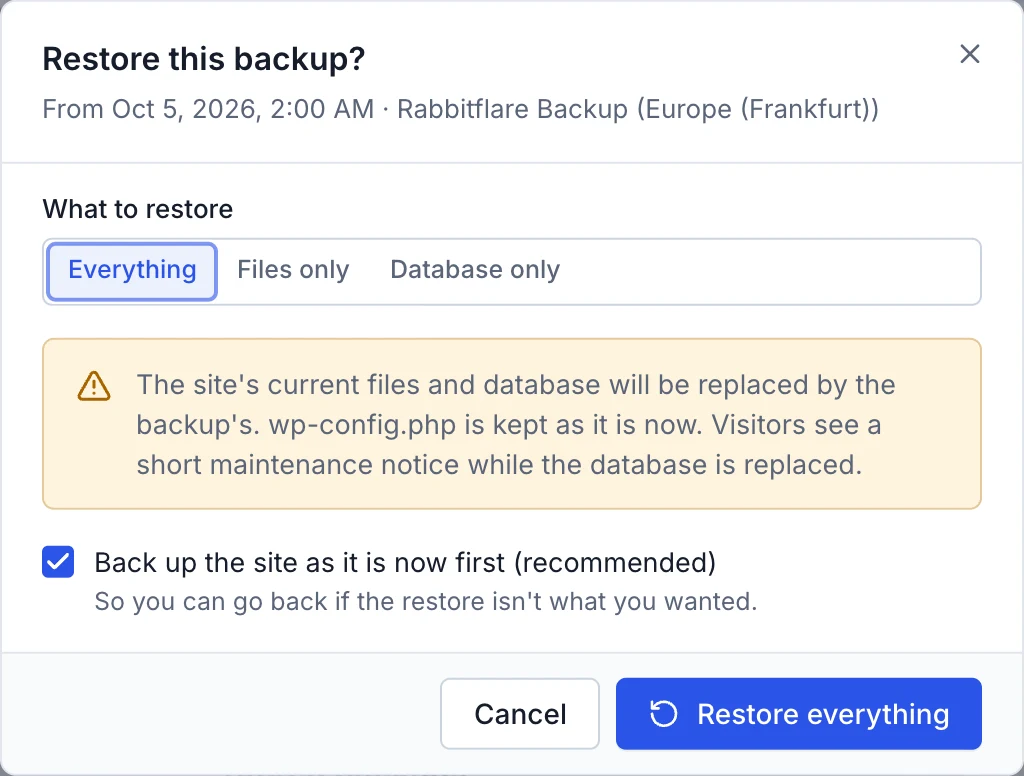
Visitors see a short maintenance notice while the database is replaced.
Download a backup
From a stored backup's menu, choose Download files (.tar.gz) or Download database (.sql.gz) to keep your own copy, or to move the site somewhere else. Downloads work for backups in Rabbitflare Backup, Google Drive, Dropbox and S3-compatible storage; backups on an SFTP server are already yours to fetch.
Connect your own storage
Your storage connections live in Settings Backups , where Connect storage adds one. You can use the same storage for several sites.
- Google Drive and Dropbox
- Sign in and allow access. We can only see the files we create: a “Rabbitflare Backups” folder in Google Drive, or our own folder in Dropbox's Apps folder.
- S3 and S3-compatible storage
- Enter the bucket and an access key that can read, write, list and delete in it, and an optional folder inside the bucket.
- SFTP
- Enter the server's address and sign in with a password, or with a key made just for this connection that you add to the server.
Then Test connection. Once it's connected, choose it on a site's Backups tab.
Turn off backups
Choose Turn off backups on the Backups tab. No more backups are made; the ones already stored stay listed until you delete them.
When a site is deleted, its backups in Rabbitflare Backup are deleted with it, so download one first if you might want the site again. Backups in your own storage stay there.