Choose a cloud, location and plan
Where your server runs, how big it should be, and how to change your mind later.
2 min read Updated
When you create a server you make three choices: the cloud it runs on, its location and its size. This page explains each one, so you can pick with confidence, and what you can change later.
Choose a cloud
Everything Rabbitflare includes, from the firewall to staging copies and the free CDN, is the same on every cloud. They differ in where they have locations, the sizes they offer and how whole-server backups work.
| Cloud | Locations | Plans | Server backups |
|---|---|---|---|
 DigitalOcean DigitalOcean | 11 locations in North America, Europe, Asia and Australia | Starter to Enterprise | Weekly, 4 kept |
 Vultr Vultr | 32 locations on six continents | The same plans as DigitalOcean, on NVMe SSD | Automatic, by Vultr |
 Hetzner Hetzner | 3 locations in Germany and Finland | Its own: Cost-Optimized and Regular Performance | Daily, 7 kept |
 Rabbitflare Edge Rabbitflare Edge | 17 locations worldwide | Balanced, Compute and Pro, priced by location | Site by site, with Rabbitflare Backup |
Rabbitflare Edge is our own cloud, on Amazon EC2. Its plans run on AWS Graviton processors: Balanced gives full speed for the bursts websites have, Compute and Pro have dedicated CPUs for busy stores and heavy plugins. Each plan includes data transfer every month; beyond it, each GB is charged to your card at the location's rate, which is why Edge servers are paid by card.
Already have a server somewhere else? Connect your own server instead: one plan of $3.50 a month covers all of them, whichever provider they're at.
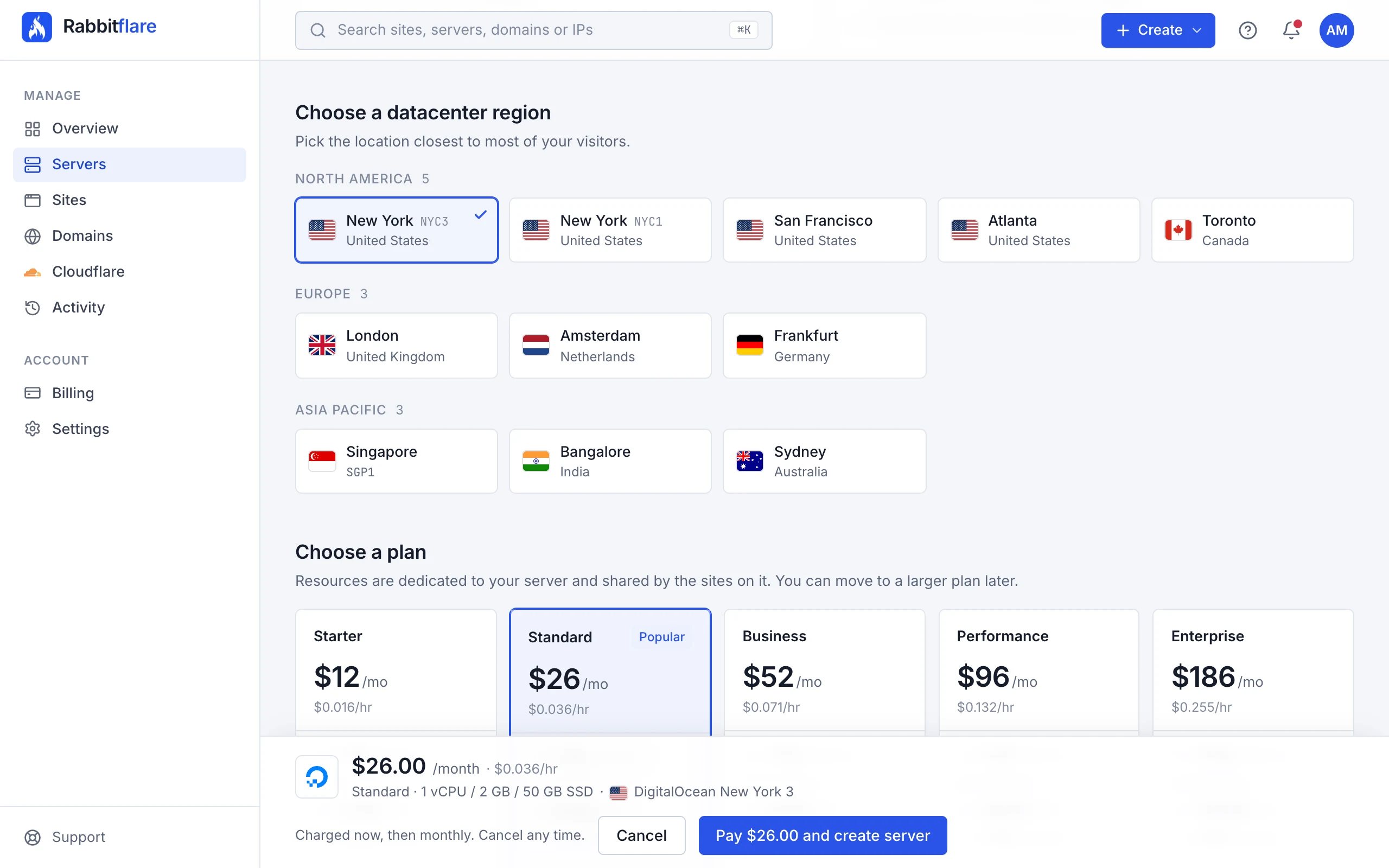
Choose a location
Pick the location closest to most of your visitors: pages load faster the shorter the distance. If your visitors are everywhere, a central location plus the free CDN serves them well. Sizes that have sold out in a location are marked, so you can choose another size or a location nearby.
Choose a plan
A plan's CPU, memory and disk belong to your server alone, and are shared by the sites on it. Memory matters most for WordPress: each visit that runs PHP uses some, and busy stores use more. On DigitalOcean and Vultr:
| Plan | CPU | Memory | Disk | Price | Good for |
|---|---|---|---|---|---|
| Starter | 1 vCPU | 1 GB | 25 GB | $12/mo | Personal sites, portfolios and small blogs. |
| Standard | 1 vCPU | 2 GB | 50 GB | $26/mo | Business sites and content-heavy blogs. |
| Business | 2 vCPU | 4 GB | 80 GB (100 GB on Vultr) | $52/mo | WooCommerce stores and membership sites. |
| Performance | 4 vCPU | 8 GB | 160 GB (180 GB on Vultr) | $96/mo | High-traffic publications and busy stores. |
| Enterprise | 8 vCPU | 16 GB | 320 GB (350 GB on Vultr) | $186/mo | Large catalogs, LMS platforms and heavy plugins. |
On Hetzner, in two families:
| Plan | CPU | Memory | Disk | Price | Good for |
|---|---|---|---|---|---|
| Cost-Optimized: shared Intel or AMD vCPUs, the most memory and disk for the money | |||||
| CX23 | 2 vCPU | 4 GB | 40 GB | $12.59/mo | Personal sites, portfolios and small blogs. |
| CX33 | 4 vCPU | 8 GB | 80 GB | $18.89/mo | Business sites and a few client sites together. |
| CX43 | 8 vCPU | 16 GB | 160 GB | $34.19/mo | WooCommerce stores and busy agency servers. |
| CX53 | 16 vCPU | 32 GB | 320 GB | $63.89/mo | Many sites, or a few very busy ones. |
| Regular Performance: shared AMD EPYC vCPUs, faster per core | |||||
| CPX12 | 1 vCPU | 2 GB | 40 GB | $25.19/mo | A single site on faster AMD EPYC cores. |
| CPX22 | 2 vCPU | 4 GB | 80 GB | $42.29/mo | Business sites that need snappier CPUs. |
| CPX32 | 4 vCPU | 8 GB | 160 GB | $76.49/mo | WooCommerce stores and membership sites. |
| CPX42 | 8 vCPU | 16 GB | 320 GB | $148.49/mo | High-traffic publications and busy stores. |
| CPX52 | 12 vCPU | 24 GB | 480 GB | $215.09/mo | Large catalogs and heavy plugins. |
| CPX62 | 16 vCPU | 32 GB | 640 GB | $276.29/mo | The biggest sites, with room to spare. |
Rabbitflare Edge prices depend on the location; the Create server page shows them as you choose.
Traffic
Traffic is unlimited on DigitalOcean, Vultr and Hetzner servers. Rabbitflare Edge plans include a set amount of data transfer each month, and the panel shows how much each server has used on its Overview tab.
Changing your mind later
- A bigger server: resize it from its Resize tab. Its sites are offline for a few minutes while it restarts.
- Another cloud or location: create a new server there and move your sites to it. Our team can help: open a ticket.
- Fewer servers: destroy a server you no longer need, and its billing stops.