
Sign in to WordPress
Find your WordPress admin login, reset the password, and see how each site is kept separate.
2 min read Updated
Every site is installed with one WordPress administrator: the username you chose when you added it, and a strong password we generate. This page shows where to find them, how to reset the password, and what access the panel gives you to a site's server.
Open WP Admin
The WP Admin button at the top of every site's page opens the site's WordPress dashboard, at /wp-admin/ on its primary
domain. Visit site next to it opens the site itself.
Find your username and password
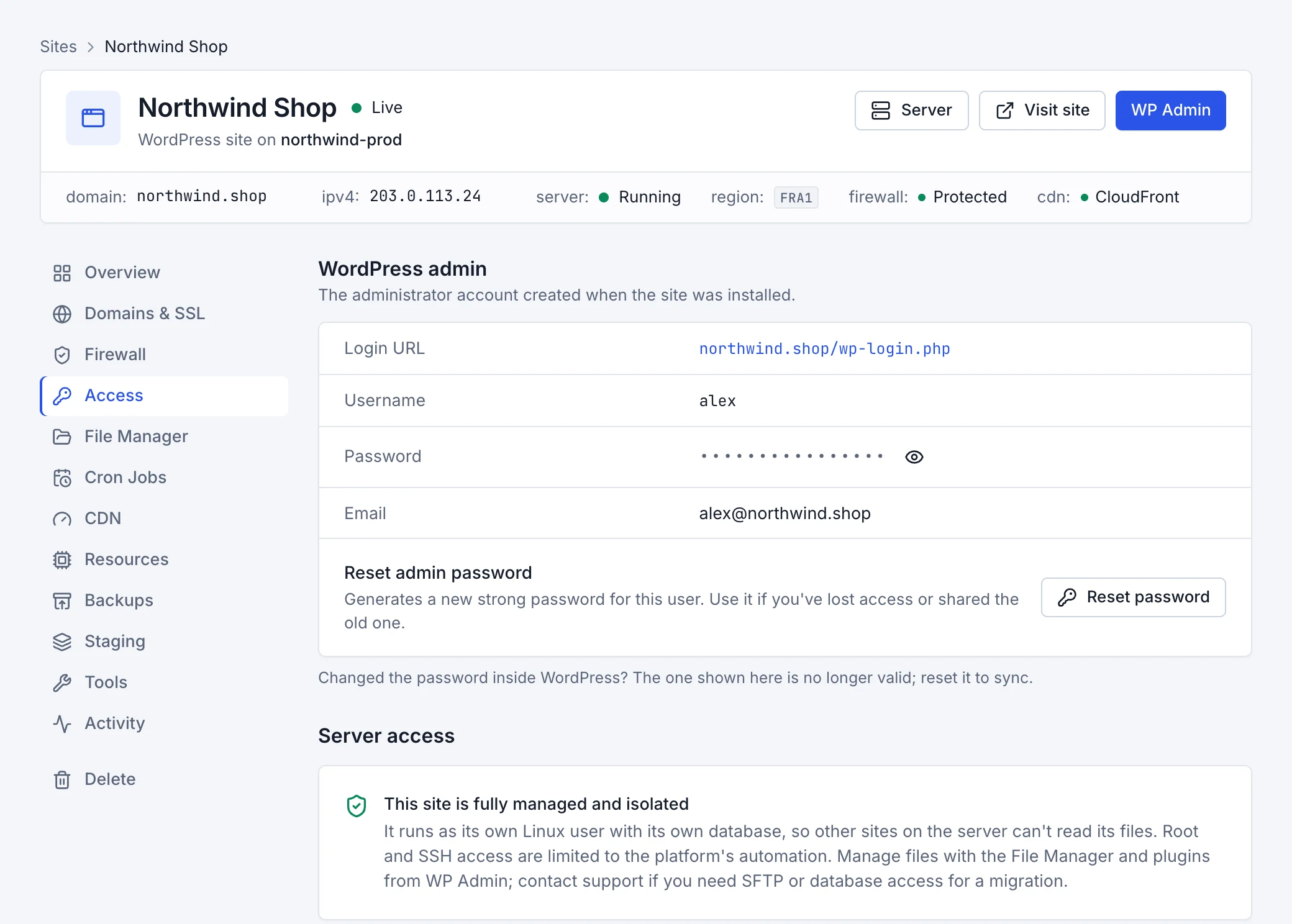
Open the site's Access tab. Under WordPress admin you'll see the administrator's username, the login address, and the password: choose Show password to reveal it, or copy it straight away.
Reset the admin password
Lost the password, or shared it with someone who shouldn't keep it? On the Access tab, under Reset admin password, choose Reset password and confirm. A new strong password is generated and shown on the tab. The old one stops working immediately, and anyone signed in as that user is signed out.
More WordPress users
Add editors, authors and other administrators in WordPress itself, under Users. The Access tab only looks after the first administrator, created with the site.
How sites are kept separate
Each site runs as its own Linux user, with its own PHP process and its own database, so other sites on the same server can't read its files. Root and SSH access to the server are kept to Rabbitflare's automation, which is how it stays secure and up to date.
- Manage the site's files with the File Manager, and its plugins and themes from WP Admin.
- Run commands on a schedule with cron jobs, including WP-CLI commands.
- Need SFTP or database access for a migration? Contact support.