
Site resources and PHP settings
Limit the CPU, memory and processes a site may use, set its CPU priority and tune its PHP.
3 min read Updated
Sites on the same server share its CPU and memory. Usually that's what you want: each site uses whatever is free. But a busy store, a runaway plugin or a broken import can take more than its share and slow the others down. The Resources tab lets you give any site limits of its own, a CPU priority, and the PHP settings it needs.
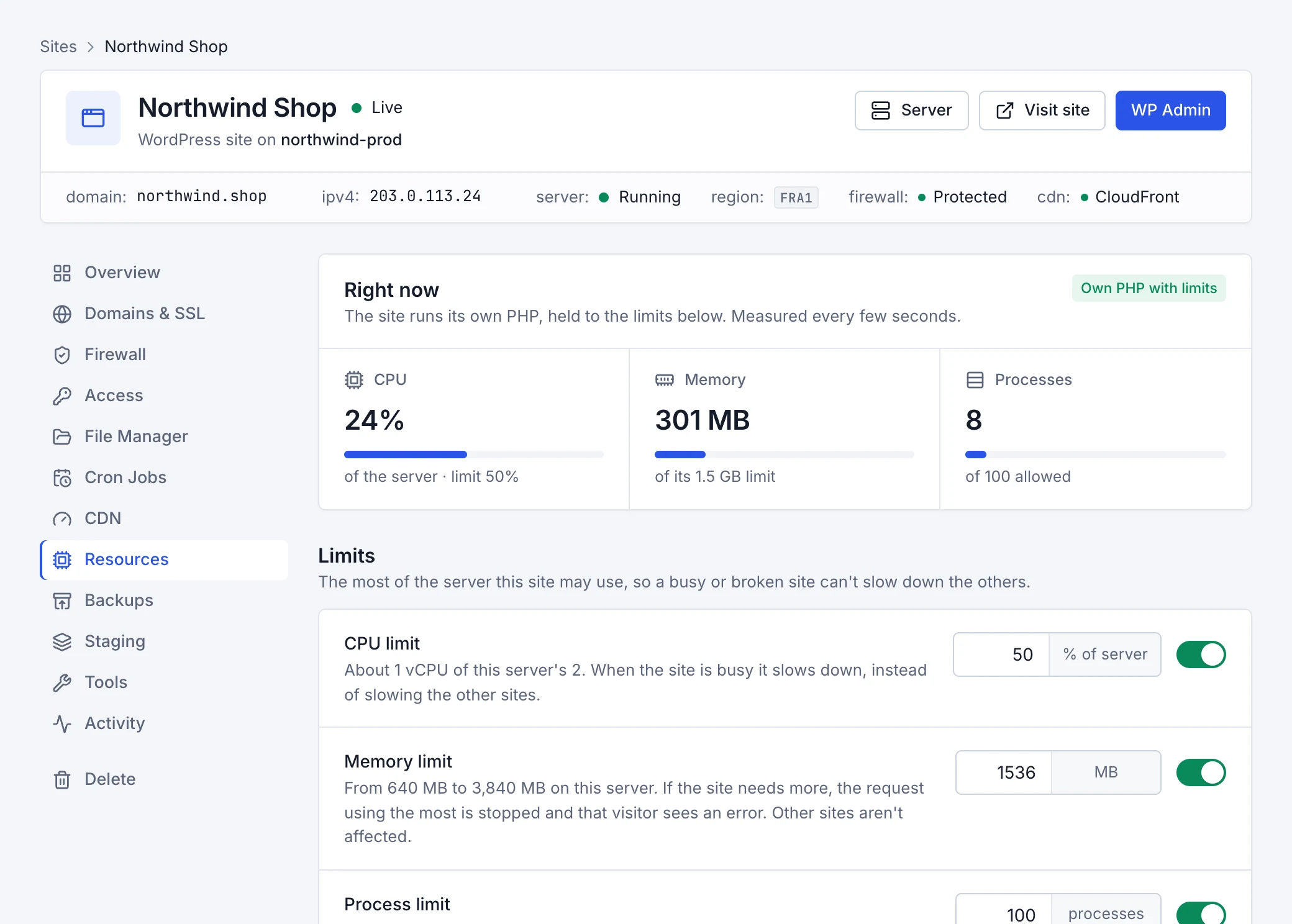
What the site uses right now
The top of the tab shows the site's CPU, memory and processes, measured every few seconds, next to its limits. A site with limits runs its own PHP, so it's measured exactly; one without them is measured from its own processes.
Limits
Each limit is off until you turn it on with its switch. Then:
- CPU limit
- The most of the server's processing power the site may use, from 5% to 100% of the whole server. 50% of a 2 vCPU server is about 1 vCPU. When the site is busy it slows down, instead of slowing the other sites.
- Memory limit
- The most memory the site's PHP may use in all. If the site needs more, the request using the most is stopped and that visitor sees an error; the site's other visitors and the server's other sites aren't affected. The tab shows the range your server allows.
- Process limit
- The most programs the site may run at once: its PHP workers, scheduled tasks and anything they start.
- CPU priority
- Low, Normal or High: who goes first when the server is busy. A high-priority site gets more of its time, a low-priority one less. Nothing changes while the server has time to spare, so it's a gentle way to protect your most important site.
PHP settings
These work with or without limits. The defaults suit most sites.
| Setting | What it does | Default | Range |
|---|---|---|---|
| PHP workers | How many visits the site handles at once (pm.max_children). | Automatic, by the server's memory | 1 to 64 |
| Memory per request | The most memory one visit may use (memory_limit). | 256 MB | 64 to 1,024 MB |
| Time limit | How long one visit may run before it's stopped (max_execution_time). | 2 minutes | 30 seconds to 5 minutes |
| Upload size | The largest file that can be uploaded through WordPress (upload_max_filesize). | 64 MB | 8 to 512 MB |
| Form fields | How many fields one form may send (max_input_vars). | 5,000 | 1,000 to 20,000 |
When to change them:
- WordPress says the allowed memory size is exhausted: raise Memory per request.
- Large imports or exports stop half way: raise the Time limit.
- WordPress refuses a file as too big: raise the Upload size.
- Big menus or page-builder pages lose changes when saved: raise Form fields.
- The site gets busy moments and has memory to spare: raise PHP workers. Each worker can use up to its memory per request.
Save and apply
Choose Save changes. The server applies the settings within a few seconds, and the site keeps running while they change. If the server can't apply them, the tab says why and the site keeps its previous settings. Remove all limits puts the site back to the server's defaults.
The server's other sites
At the bottom of the tab, On this server lists the limits of the server's other sites. Limits are the most a site may use, not memory set aside for it, so together they may add up to more than the server has. That's fine as long as they aren't all busy at once.
Good to know
- The limits cover the site's PHP and its scheduled tasks. The database and the Redis cache are shared by every site on the server and aren't counted.
- Staging copies use the server's settings, and so do sites on a server's original one-site setup.
- When you resize a server, sites with limits get them again, sized for its new CPUs.