
Team members and permissions
Invite people to help run your account, choose exactly what each can do and on which servers, and remove access at any time.
6 min read Updated
Team members are people you invite to help run your Rabbitflare account: a developer, a virtual assistant or your bookkeeper. Each person signs in with their own login, so you never share your password, and sees and does only what you allow, on all of your servers or only some of them.
For example, a virtual assistant with the Site manager access level can create WordPress sites on your servers and look after them, but can't add servers, see billing or delete anything.
Invite someone
-
Open Team
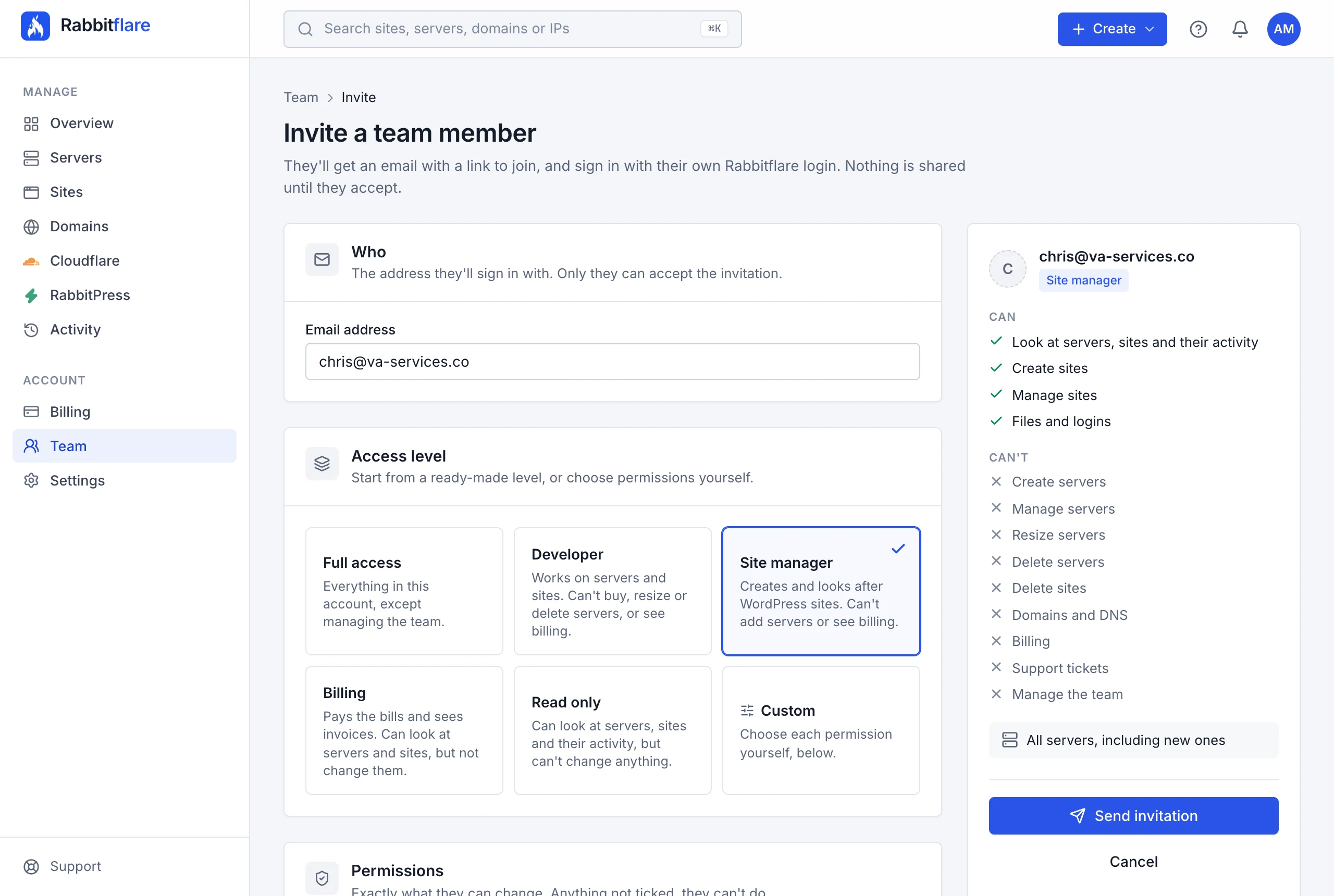
In the panel, open Team under Account in the sidebar, and choose Invite member.
-
Enter their email address
Type the address they'll sign in with. Only someone signed in with that address can accept the invitation.
-
Choose what they can do
Pick an access level, or choose Custom and tick each permission yourself. The summary beside the form says what they will and won't be able to do.
-
Choose their servers
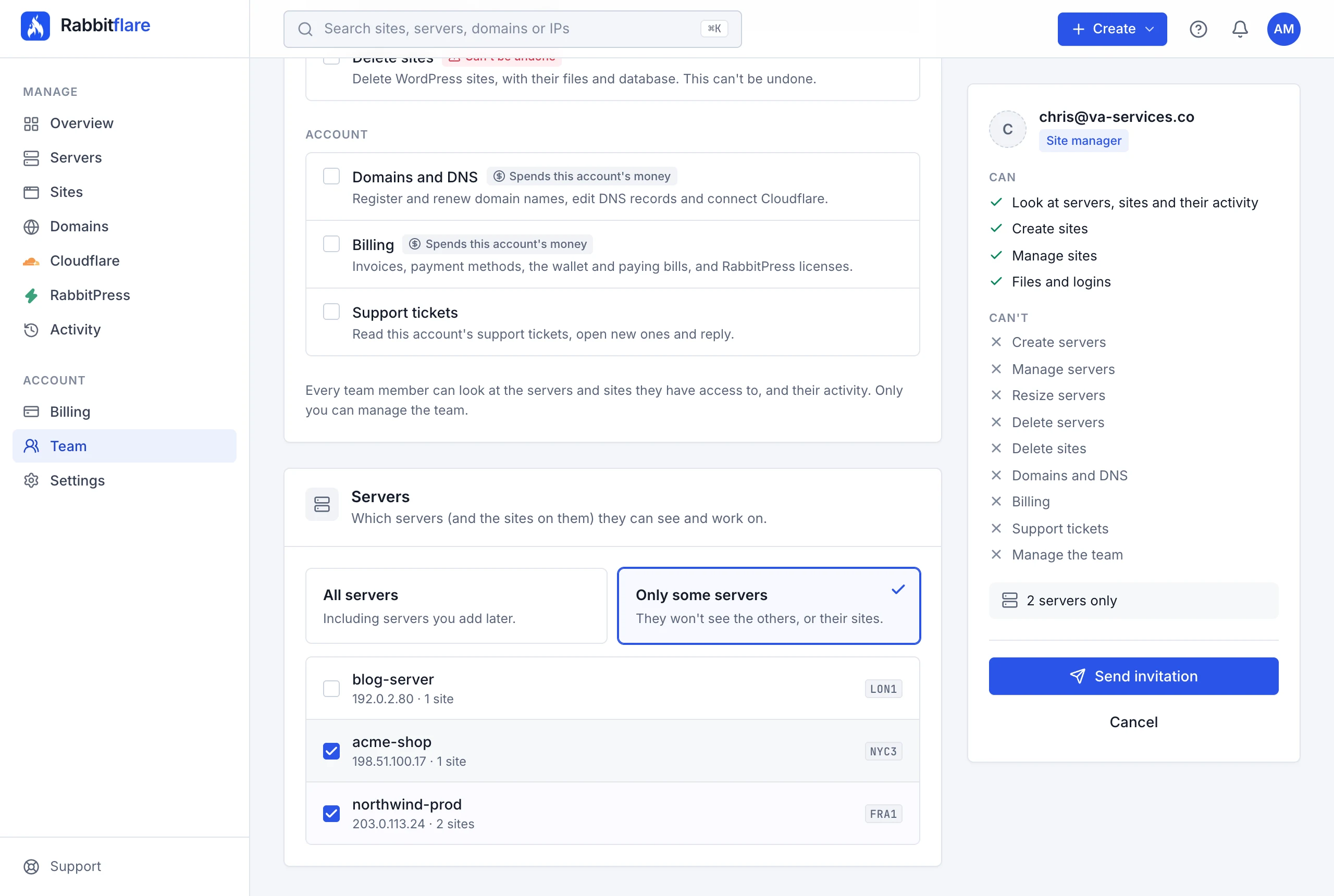
All servers includes servers you add later. With Only some servers, tick the servers they can work on: they won't see the others, or the sites on them.
-
Send the invitation
Choose Send invitation. We email them a link that works for 7 days. The panel also shows the link, so you can send it yourself, by chat for example.
Access levels
Each access level is a ready-made set of permissions. Start from one and change its permissions, and it becomes Custom.
| Access level | What they can do |
|---|---|
| Full access | Everything in this account, except managing the team. |
| Developer | Works on servers and sites. Can't buy, resize or delete servers, or see billing. |
| Site manager | Creates and looks after WordPress sites. Can't add servers or see billing. |
| Billing | Pays the bills and sees invoices. Can look at servers and sites, but not change them. |
| Read only | Can look at servers, sites and their activity, but can't change anything. |
Permissions
Every team member can look at the servers and sites they have access to, and their activity. Each permission adds something they can change.
Servers
| Permission | What it allows |
|---|---|
| Create servers | Order new servers and connect servers from other providers. They're billed to this account. |
| Manage servers | Restart and power, snapshots and restores, server logs and server tools. |
| Resize servers | Change a server's size, which changes its monthly price. |
| Delete servers | Destroy servers and every site on them. This can't be undone. |
Sites
| Permission | What it allows |
|---|---|
| Create sites | Install new WordPress sites on the servers they can access. Free on your servers. |
| Manage sites | Domains, SSL, CDN, cache, firewall, PHP and resources, backups and staging. Cloning also needs Create sites. |
| Files and logins | File Manager, WordPress logins, cron jobs, backup downloads and backup storage. Full access to the sites' code and data. |
| Delete sites | Delete WordPress sites, with their files and database. This can't be undone. |
Account
| Permission | What it allows |
|---|---|
| Domains and DNS | Register and renew domain names, edit DNS records and connect Cloudflare. |
| Billing | Invoices, payment methods, the wallet and paying bills, and RabbitPress licenses. |
| Support tickets | Read this account's support tickets, open new ones and reply. |
How someone joins
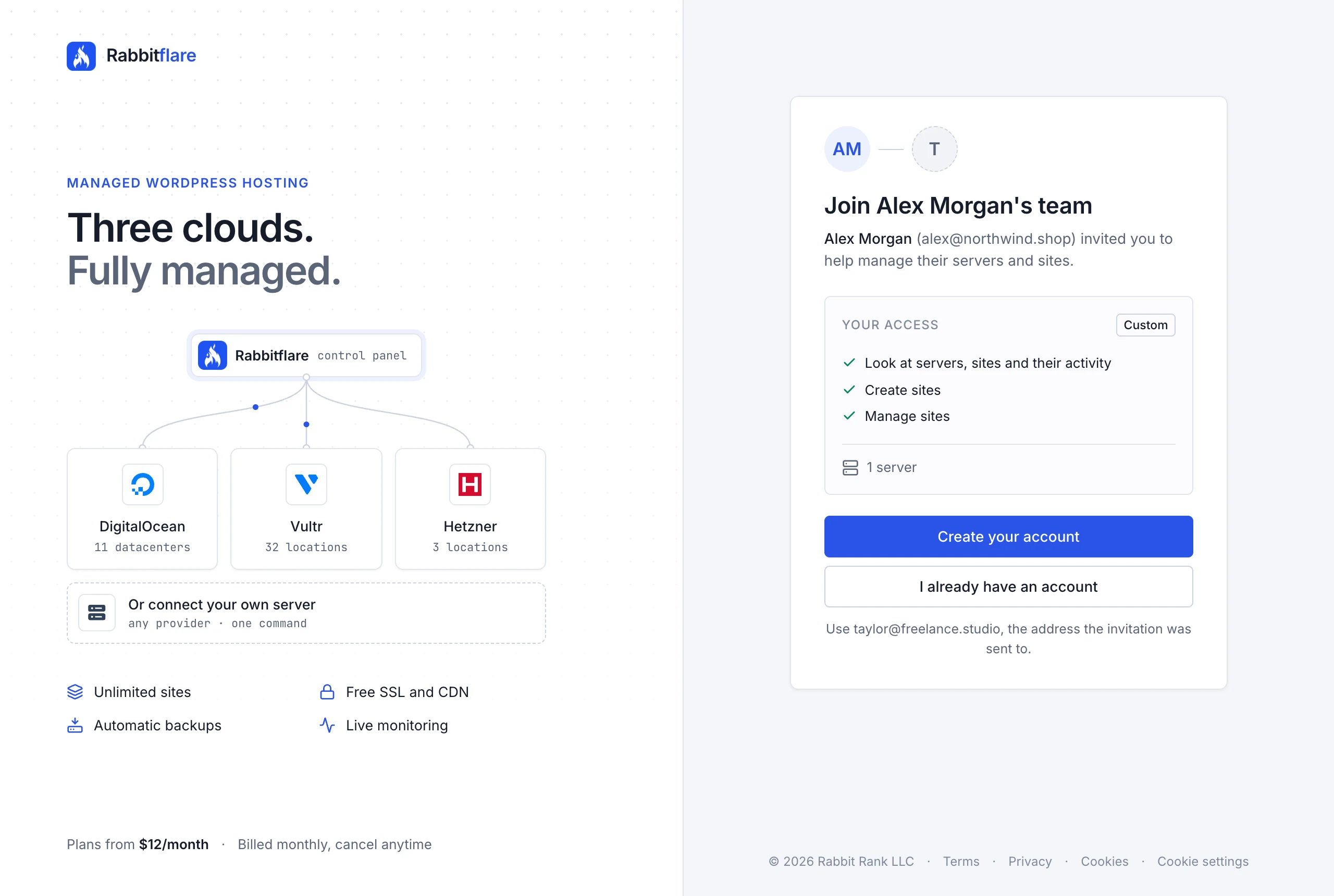
The person you invite opens the link in our email, creates a Rabbitflare account or signs in to theirs with the address the invitation was sent to, and chooses Accept invitation. Someone who's already signed in to Rabbitflare also sees the invitation at the top of the panel.
Before they can open your account, they turn on two-factor authentication on their own login, if it isn't on yet. See Two-factor authentication.
Working in your account
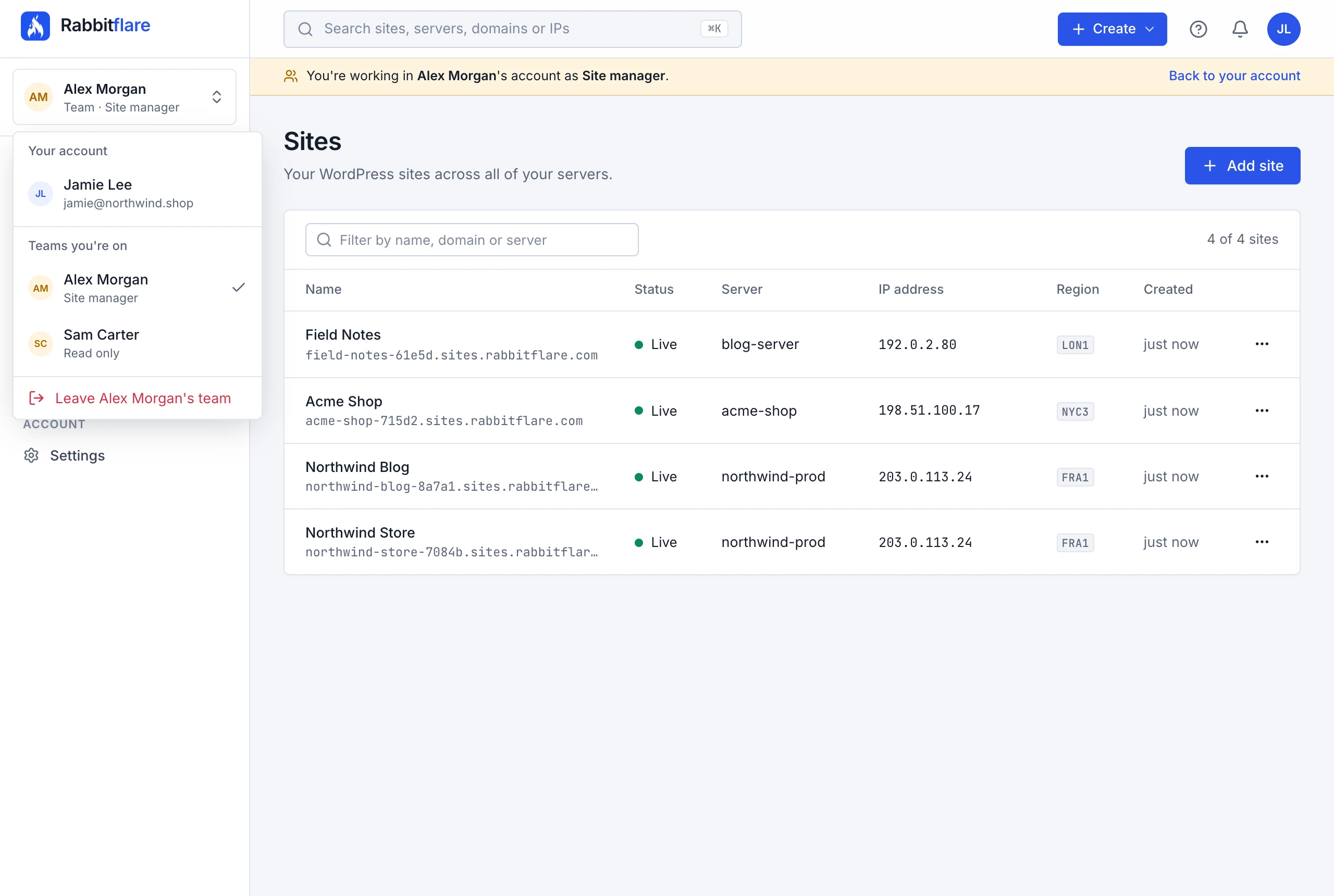
Once they've joined, a bar at the top of the panel tells them whose account they're working in, and as what. The account switcher at the top of the sidebar moves between their own account and the teams they're on, and Back to your account takes them home.
Buttons and pages they don't have permission for don't appear. If they open one anyway, the panel tells them which permission it needs and to ask you.
They can leave your team at any time, from the bottom of the account switcher. Their access ends straight away, and we email you.
What team members can't do
- Manage the team. Only you can invite people, change their access or remove them.
- Change your sign-in details. Your name, email address, password and two-factor settings stay yours, and theirs stay theirs.
- Add a card or pay with PayPal, unless they have Billing. With Create servers or Domains and DNS, they pay with a card already saved on your account.
- Go beyond their permissions and servers. Every action is checked on our side too, not only hidden on screen.
Change or remove access
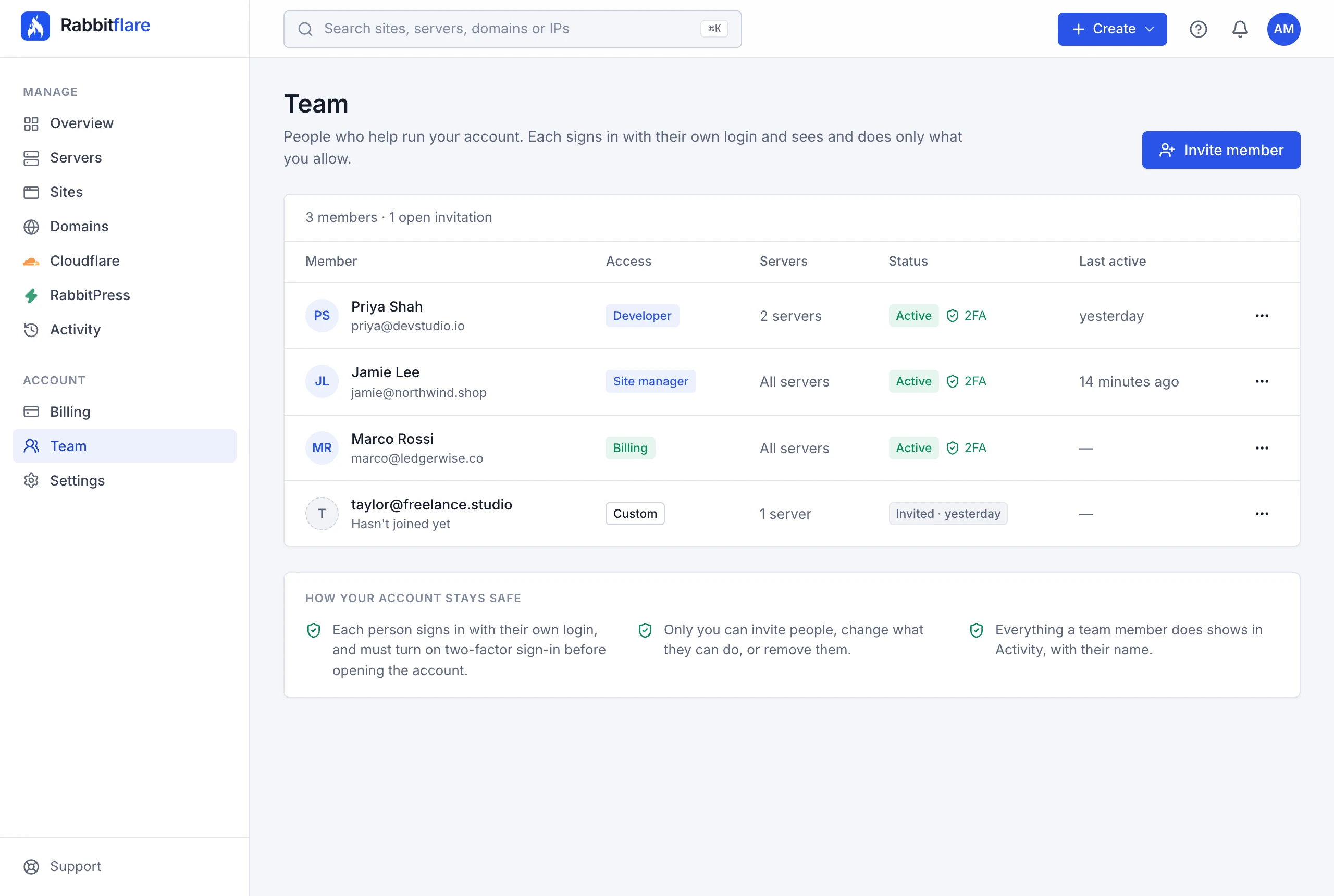
On the Team page, choose a person to edit their access. Change their access level, permissions or servers, then choose Save changes. Changes apply straight away, even if they're signed in.
To take access away, choose Remove from team in the ⋯ menu, or Remove at the bottom of their page. They lose access the next time they click anything, and we email them to let them know. Their own account isn't affected, and what they did stays in your activity.
An invitation that hasn't been accepted yet can be sent again from the same menu (the old link stops working), or cancelled.
See who did what
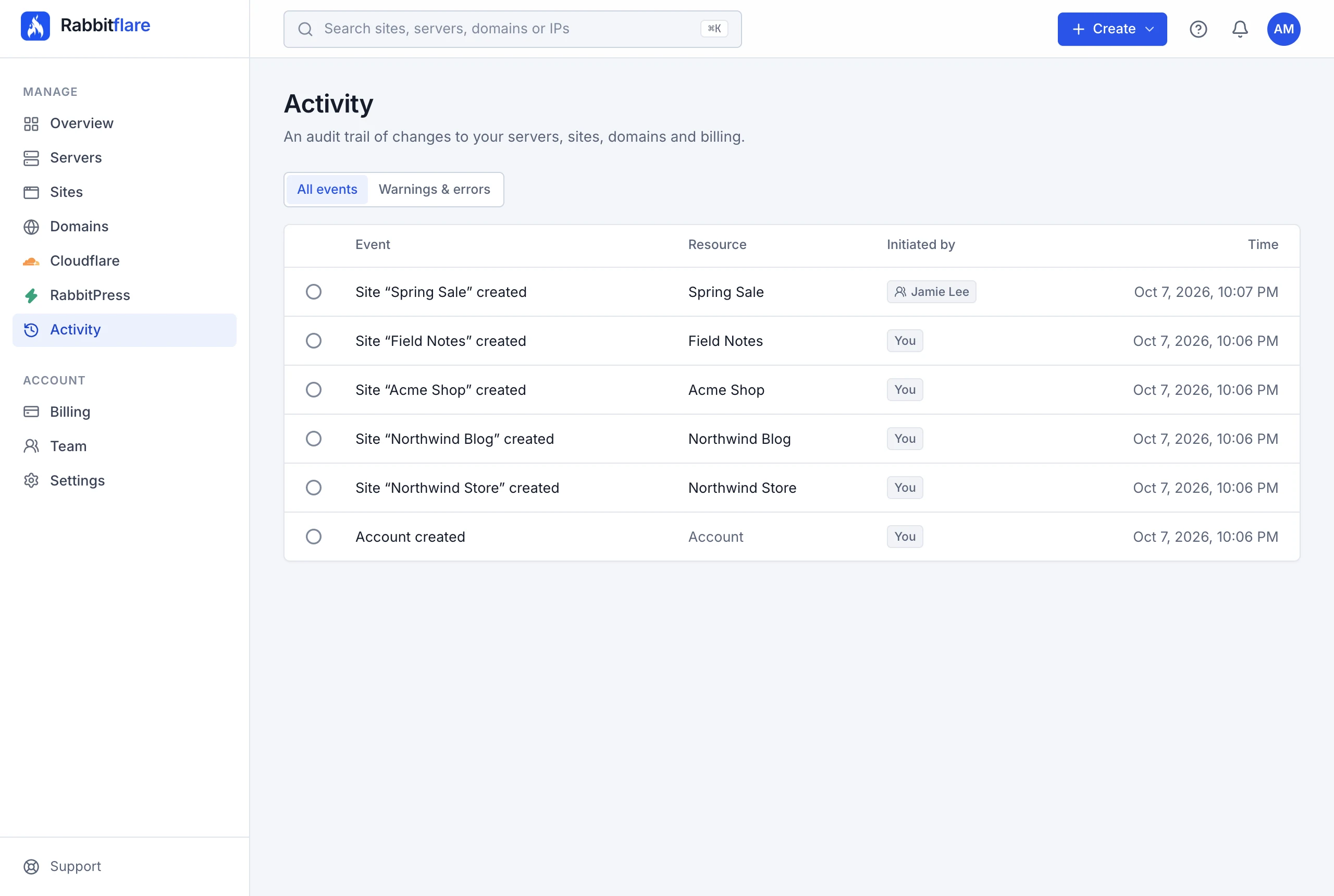
Everything a team member does shows in Activity, with their name under Initiated by. The Team page shows when each person was last active, and whether their two-factor sign-in is on.
Emails
We email the person you invite, you when they join or leave your team, and them if you remove them from it.
Questions
- Who pays for what team members do?
- Your account does. Servers they create and domains they register are billed to your account, like your own. Without the Billing permission, they can only pay with a card already saved on your account.
- Can team members see my billing?
- Only with the Billing permission. Without it, they don't see your invoices, payment methods or what your account costs each month.
- Can a team member also have their own servers?
- Yes. Their own account stays separate: they switch between it and yours, and nothing moves from one to the other.
- Can I join someone else's team?
- Yes. Accept their invitation, then use the account switcher at the top of the sidebar to move between their account and yours. You can leave their team from the same menu.
- They didn't get the invitation email
- Ask them to check their spam folder. You can also choose Send invitation again in the ⋯ menu on the Team page: we email them a new link.