
Try changes on a staging copy
Copy a site to a private address, try updates there, then push them to the live site, with undo.
4 min read Updated
A staging copy is a private copy of a live site, on its own address on the same server. Try plugin updates, a new theme or a redesign there, and when it's right, push it to the live site. If the push isn't what you wanted, undo it. Staging is free with every site.
Create a staging copy
-
Open the Staging tab
On the live site's page, open Staging and choose Create staging copy.
-
Wait a few minutes
The site's files and database are copied in the background; you can leave the page. Your live site isn't affected. A site can have one staging copy, created up to 3 times a week.
-
Open it
The Staging tab shows the copy's address. Open opens it and WP Admin signs you in; staging has the live site's user accounts, so you sign in with your usual WordPress username and password.
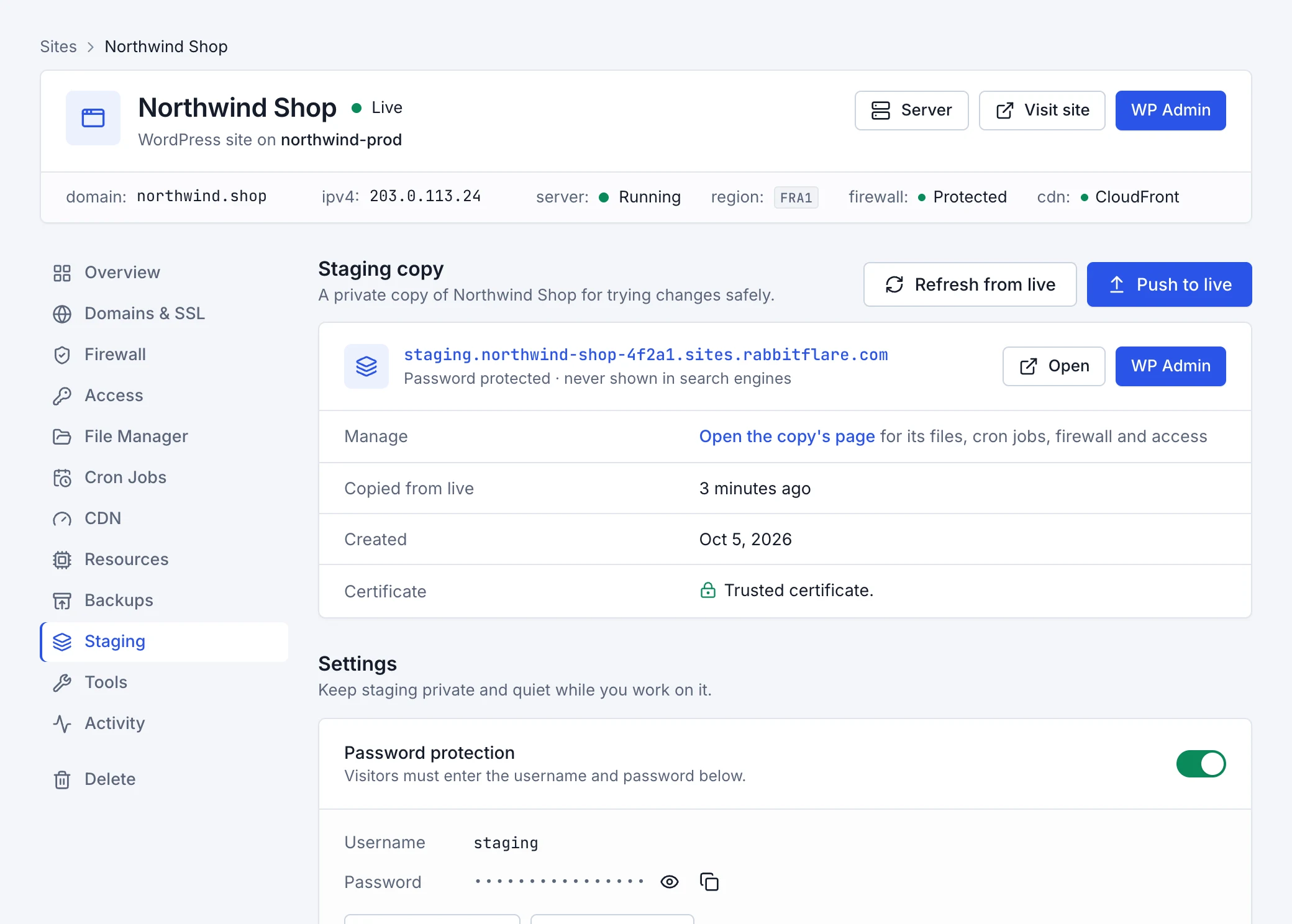
Private and quiet by default
A staging copy is kept out of sight and out of trouble while you work on it:
- Password protection
- Your browser asks for a username and password before staging opens; the tab shows them, and New password or Set your own changes them. It isn't a WordPress password: after it, you sign in to WordPress as usual. Search engines never show staging.
- Hold outgoing email
- Emails stay on staging, so customers don't get order or password emails from it. See them in WordPress under Tools › Held emails. A plugin with its own mail service could still send.
- Run scheduled tasks
- Off by default: scheduled posts, renewals, reminders and other background tasks wait until you turn this on.
Refresh staging from live
To start again from the live site as it is now, choose Refresh from live and what to copy: Everything (staging becomes an exact copy of the live site), Files only or Database only. What staging had is replaced.
Push to live
When your changes are ready, choose Push to live and what to push:
- Code
- WordPress, plugins, themes and translations. The live site's posts, pages, orders, users and media stay as they are. Usually what you want after updates or a redesign.
- Database and media
- Staging's database replaces the live site's: posts, pages, settings, users and orders. New and changed media files are added; nothing in the live media library is deleted.
- Everything
- Code, database and media together.
Before anything changes, the push checks the live site and warns you when something would be lost:
- Orders, users, comments, form entries or posts added on the live site since staging was copied, which pushing the database would remove.
- Plugins or themes that are older on staging than on the live site.
- Subscriptions or other repeat payments, which pushing the database would replace with staging's.
The live site isn't touched until the last few seconds, when visitors see a short maintenance notice. The push is checked straight after: if the live site wouldn't load, it's put back by itself.
Undo a push
Every push keeps a restore point of what it replaced on the live site, for 7 days. Under Restore points, choose Undo push to put the live site back as it was. The undo is checked first in the same way, and it can be reversed too.
The copy's own page
The copy has its own page in the panel, reached with Open the copy's page: its files, cron jobs, firewall and access, like any site. A banner reminds you it's staging. Changes made there stay on staging until you push them.
Delete the copy
At the bottom of the Staging tab, Delete staging deletes the copy's files, database and address. Changes you haven't pushed are lost; the live site keeps running as it is.