
Manage a server
Your server's overview and graphs, power, restarting PHP, resizing, and destroying a server.
3 min read Updated
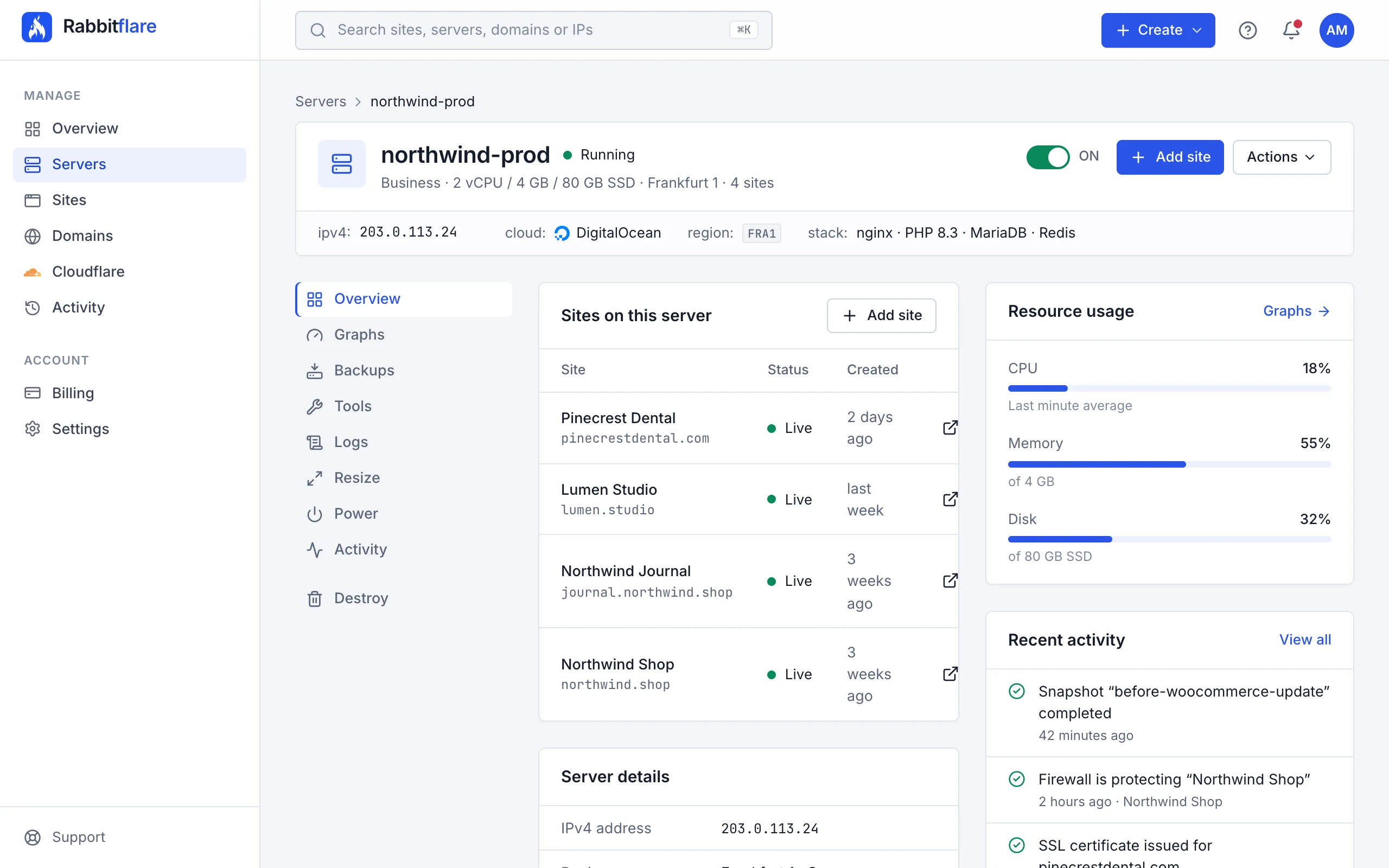
Each server has its own page in the panel: open it from Servers. The top shows its plan, location and addresses, and the tabs below hold everything you can do with it.
Overview
The Overview tab brings together:
- Sites on this server, with Add site to install another.
- Server details: its IPv4 and IPv6 addresses, location, plan, and software (Ubuntu 24.04, nginx, PHP, MariaDB and Redis). On Rabbitflare Edge, how much of the month's data transfer it has used.
- Backups: the server's automatic backup schedule.
- Resource usage over the last hour, and its recent activity.
Graphs
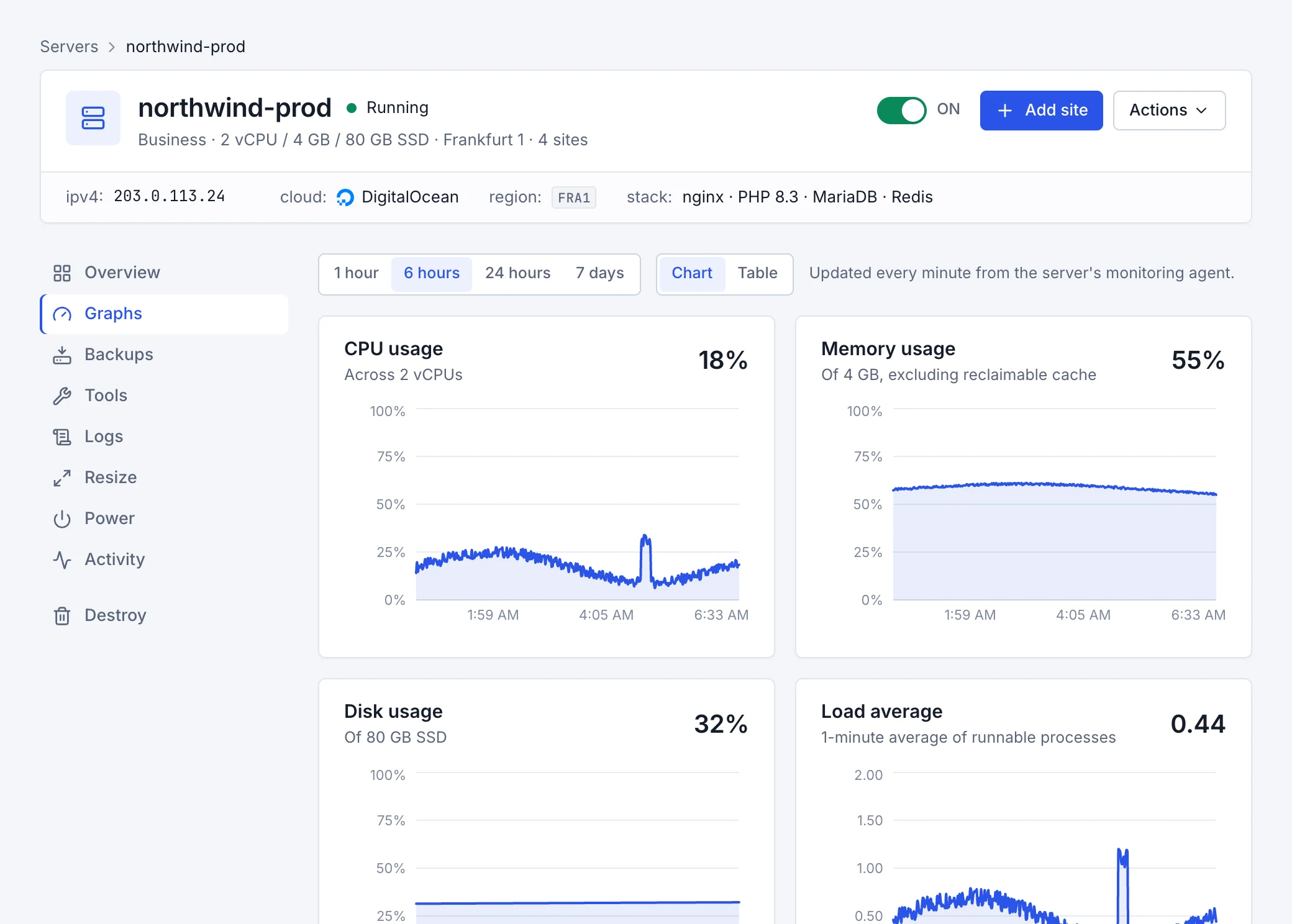
The Graphs tab charts the server's CPU, memory (excluding cache the system can reclaim), disk, load average and public bandwidth, collected every minute. Choose the last hour, 6 hours, 24 hours or 7 days. Graphs are the quickest way to answer “is it slow because the server is busy?”
Restart PHP
On the Tools tab, Restart PHP restarts PHP for every site on the server. Requests in progress are completed first. It helps when sites are slow or show 502 errors, and it's much quicker than a reboot. The same tab shows the PHP version and its extensions: PHP 8.3 with OPcache, Redis, Imagick, intl and the extensions WordPress recommends.
Power
From the Power tab, or the buttons at the top of the page:
- Reboot
- Restarts the operating system. Every site is unavailable for about a minute. Use it if the server is unresponsive; for most problems, restarting PHP is faster.
- Power off
- Shuts the server down gracefully. Its sites are offline until you power it on again. A powered-off server is still billed, because its resources stay reserved.
- Power on
- Boots the server. Its sites are back online in under a minute.
Resize a server
When your sites need more CPU, memory or disk, move the server to a larger plan. Its sites, settings and addresses stay as they are.
-
Choose the new plan
On the Resize tab, select a larger plan. The table shows each plan's CPUs, memory, disk and price.
-
Confirm
Choose Resize now. The server powers off, its CPU, memory and disk are upgraded, and it boots again, usually within 5 minutes. Every site on it is offline meanwhile, so pick a quiet time. Paying with PayPal? Approve the new monthly price there first; the server is resized as soon as PayPal confirms it.
Activity
The Activity tab lists everything that happened to the server and its sites: snapshots, resizes, restarts, sites added and more.
Destroy a server
On the Destroy tab, Destroy server deletes the server, every site on it, their databases and files, its backups and snapshots, and the sites' free addresses. Type the server's name to confirm. Its billing stops: you aren't charged for it again.
For servers you connected yourself, the same tab offers Disconnect server instead; see Connect your own server.