
Get work done with the AI agent
Describe a job in plain words and Claude does it on your site or server: it investigates, makes the change, checks the result, and asks before it changes anything.
19 min read Updated
The AI agent does jobs on your sites and servers for you. Describe what you need in plain words, the way you'd brief a WordPress developer or a server engineer, and Claude, made by Anthropic, gets to work on the server itself: it reads the logs and the code, finds the cause, makes the change, and checks the result. Every task starts by saving a restore point, so anything it changes can be undone in one click, and it asks before it changes anything unless you tell it not to. You pay only for what each reply uses, from prepaid AI credits.
 Claude works on it reads, investigates and proposes changes
 What it can do
Anything you'd ask a WordPress developer and a server engineer, on any site or server in your account. For example:
- Fix errors
- White screens, PHP errors, broken plugins and “critical error” pages: found in the logs and fixed.
- Customize your theme
- Colours, layouts, headers and footers, done the right way, with a child theme or additional CSS.
- Build custom plugins
- Describe a feature; the agent writes a small, clean plugin for it and switches it on.
- Speed up your site
- Slow pages, heavy plugins, database clean-up and caching, measured before and after.
- Clean up malware
- Suspicious files and injected code found and removed, with advice on keeping it out.
- Fix server issues
- PHP, memory, disk space and services, in a whole-server task with root access.
Some things stay with the panel, because the panel manages them: domains, SSL certificates, DNS, the CDN, the firewall's settings, backups, staging copies, cloning, site resources and PHP settings, cron jobs, and server power and resizing. If a job needs one of these, Claude tells you where to find it in the panel instead of changing it by hand.
Switch it on
-
Open the AI agent
Choose AI agent in the sidebar. The first time, it shows what the agent does, how it keeps your sites safe, and the models and their prices.
-
Agree to how it works
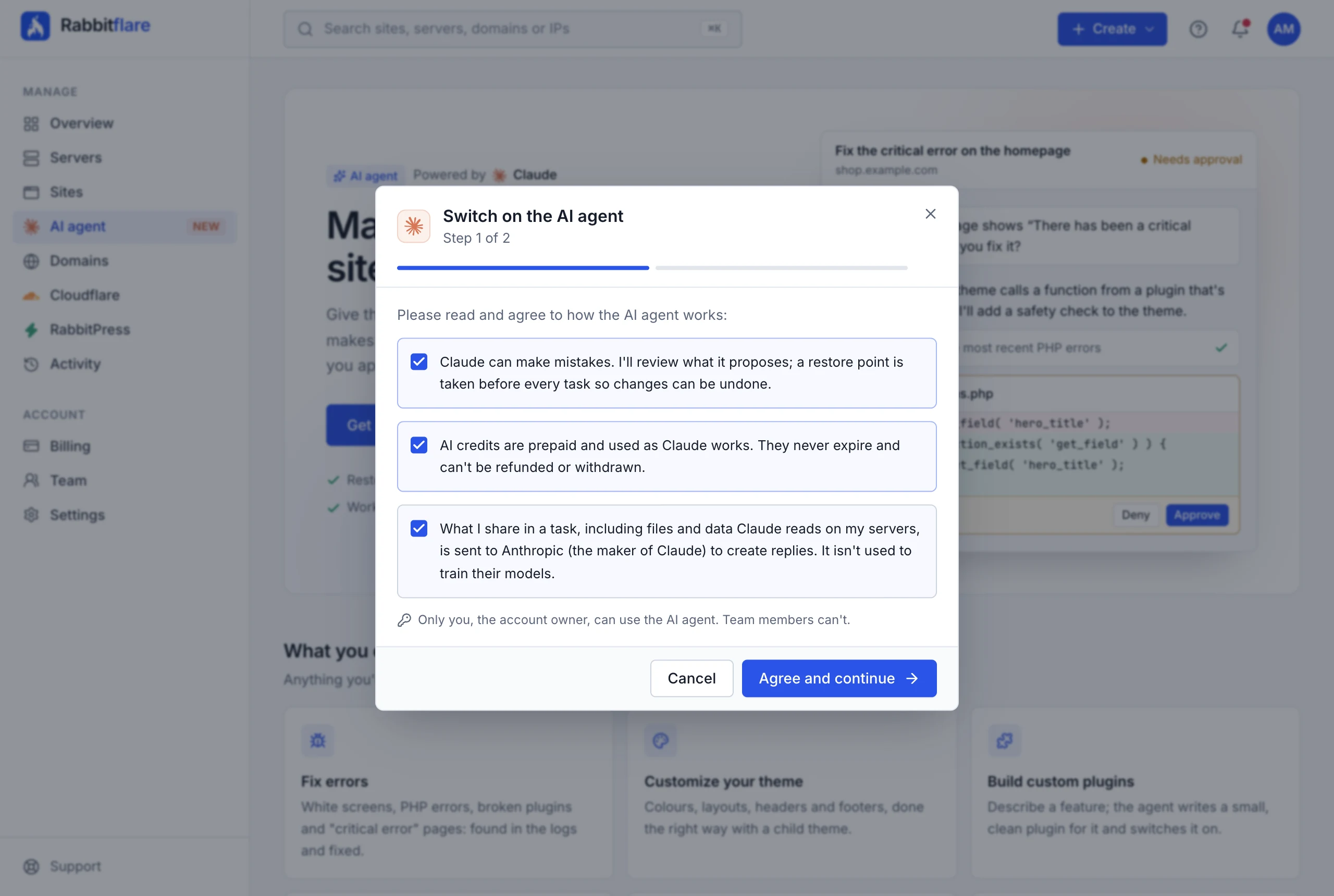
Choose Get started and tick the three points:
- Claude can make mistakes. You review what it proposes, and a restore point is taken before every task so changes can be undone.
- AI credits are prepaid and used as Claude works. They never expire, and can't be refunded or withdrawn.
- What you share in a task, including files and data Claude reads on your servers, is sent to Anthropic, the maker of Claude, to create replies. It isn't used to train their models.
-
Add your first credits
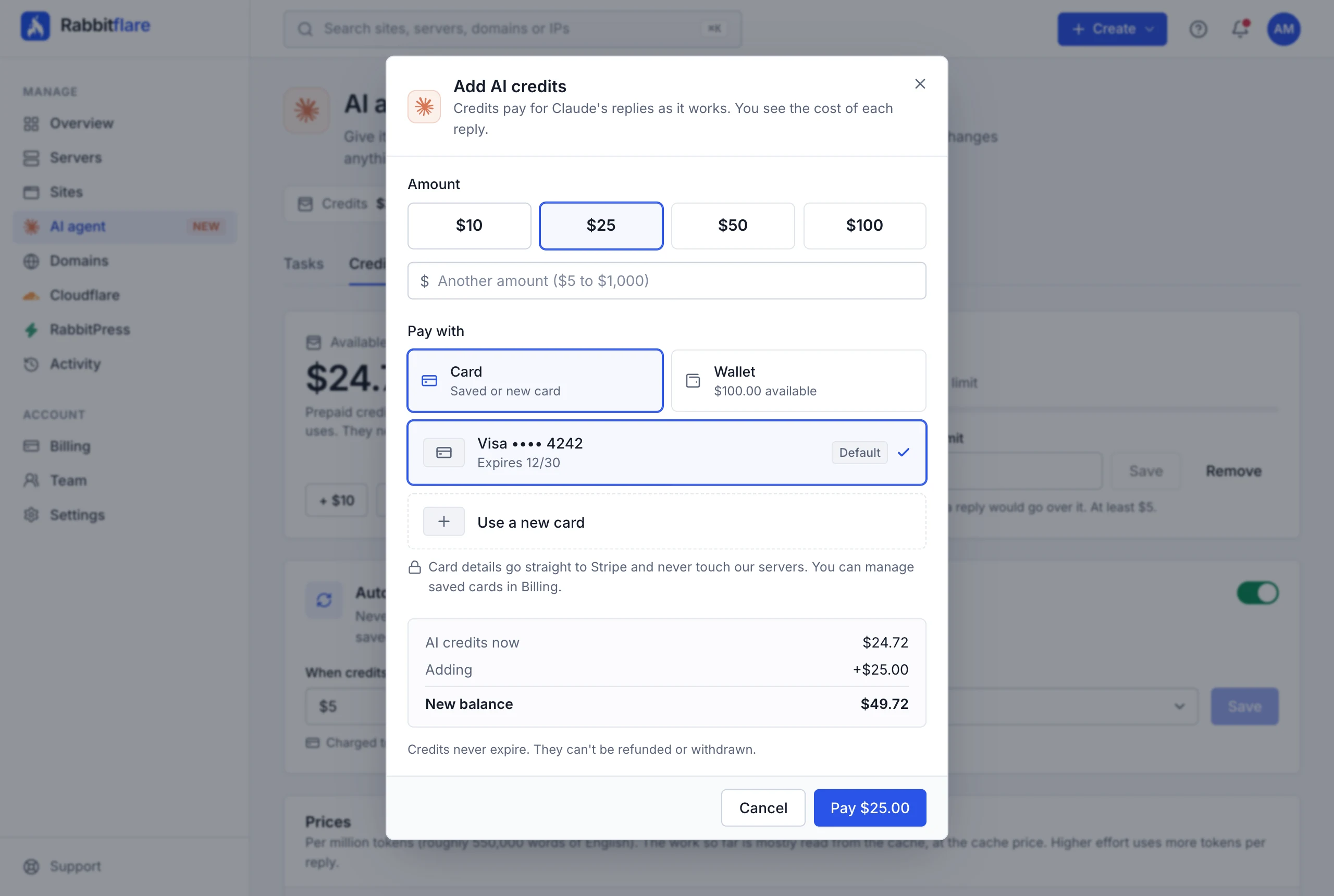
Choose an amount and pay by card, or move money in from your wallet. You can also choose Skip for now and add credits later.


Start a task
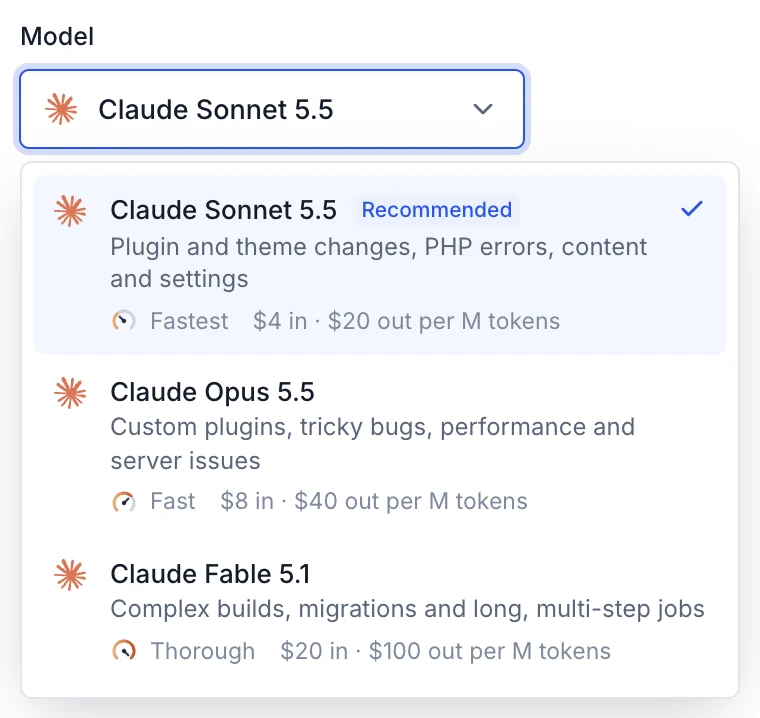
Each job is a task: one site or one whole server, the model you choose, and the conversation about it.
-
Choose where it works
Under Work on, pick one of your sites, or Whole server.
- A site: Claude works only on that site, as the site's own Linux user. It can use WP-CLI, PHP and the site's files, but can't reach your other sites or the server's settings.
- Whole server: Claude works as root, for problems beyond one site, like PHP, memory, disk space and services. Rabbitflare's own parts stay protected, and changes still wait for your approval.
A task needs a running server and a site that's ready. A server that's switched off or still being built shows why it can't be chosen.
-
Choose a model
Pick the Claude model that suits the job. You can't change the model of a task later; start another task to use another model.
-
Choose the effort
How hard Claude works on each reply. Each model starts at its own default; see Effort below.
-
Describe the job
Say what's wrong or what you want, the way you'd tell a person. Mention the page, the plugin or the error message if you know it. The Quick start buttons fill in common jobs for you to finish, and you can attach screenshots and files: see Attach files and images.
-
Choose Start task
The task opens on its own page and saves a restore point first. Claude starts on your instructions as soon as it's ready.
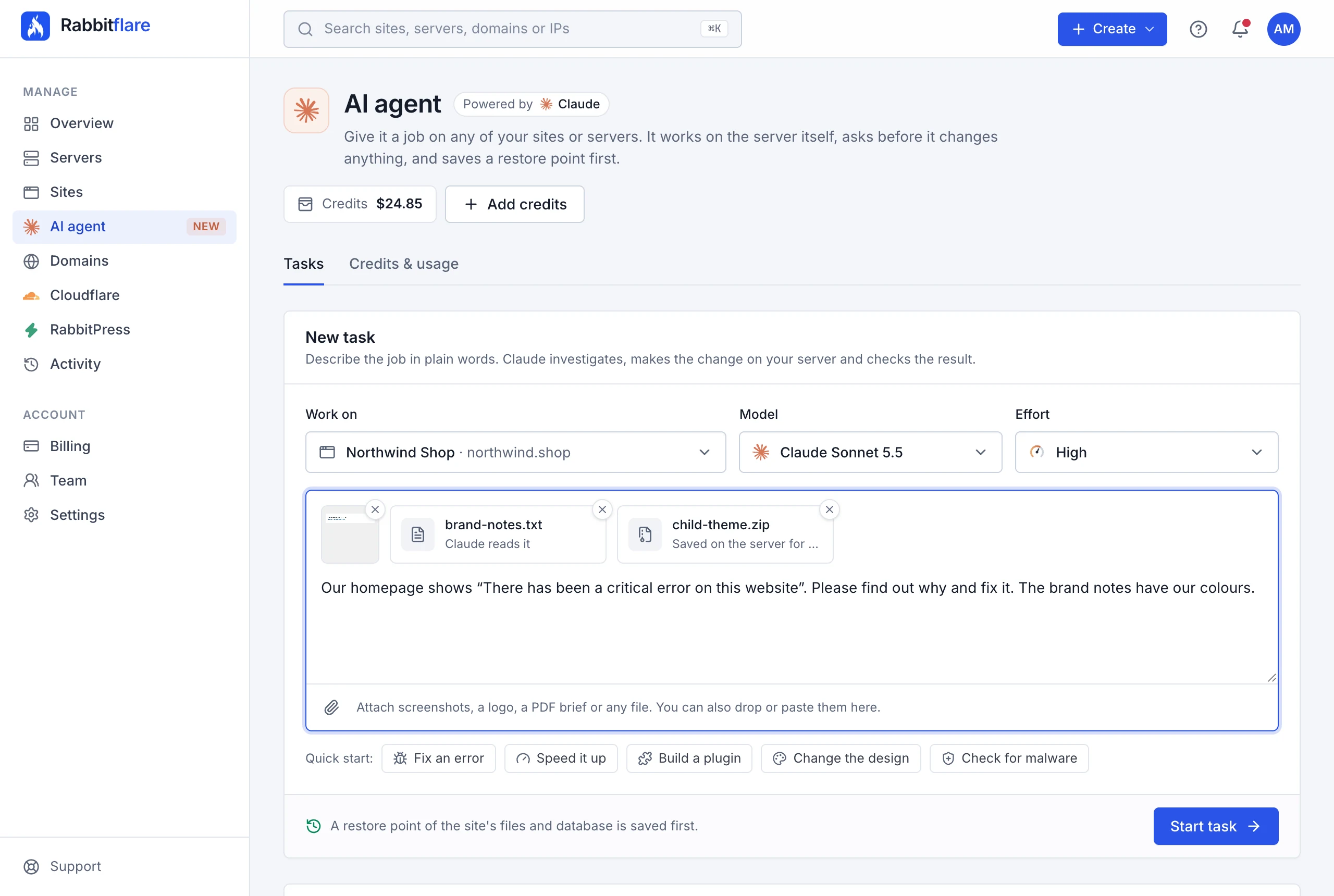

The models
| Model | Best for | Speed |
|---|---|---|
| Claude Sonnet 5.5 (recommended) | Plugin and theme changes, PHP errors, content and settings: most everyday jobs. | Fastest |
| Claude Opus 5.5 | Custom plugins, tricky bugs, performance and server issues: deeper reasoning for harder problems. | Fast |
| Claude Fable 5.1 | Complex builds, migrations and long, multi-step jobs. Anthropic's most powerful model. | Thorough |
Effort
Effort is how hard Claude works on each reply: how much it thinks, how many steps it takes and how carefully it checks. Higher effort gives better results on hard problems, but uses more tokens, so each reply costs more. The gauge beside each level shows how much.
| Effort | Good for |
|---|---|
| Low | Quick, simple jobs. Fastest, and uses the fewest credits. |
| Medium | Everyday fixes and small changes. Claude Opus 5.5 starts here. |
| High | Harder problems and bigger changes. Claude Sonnet 5.5 and Claude Fable 5.1 start here. |
| Extra high | Long, complex jobs, like building a custom plugin. |
| Max | The deepest thinking, for the hardest problems. Uses the most credits. |

You can change the effort during a task, for your next messages: see Give more instructions. Changing it doesn't make the conversation so far cost more.
The restore point
Before Claude does anything, the task saves a restore point on the server itself. It's kept for 7 days, so anything Claude changes in that time can be put back. The task's page shows it being saved, and Claude starts as soon as it's ready.
- Site task
- The site's files and its database.
- Whole-server task
- The server's settings (web server, PHP, database server, cron and firewall settings) and every site's database.
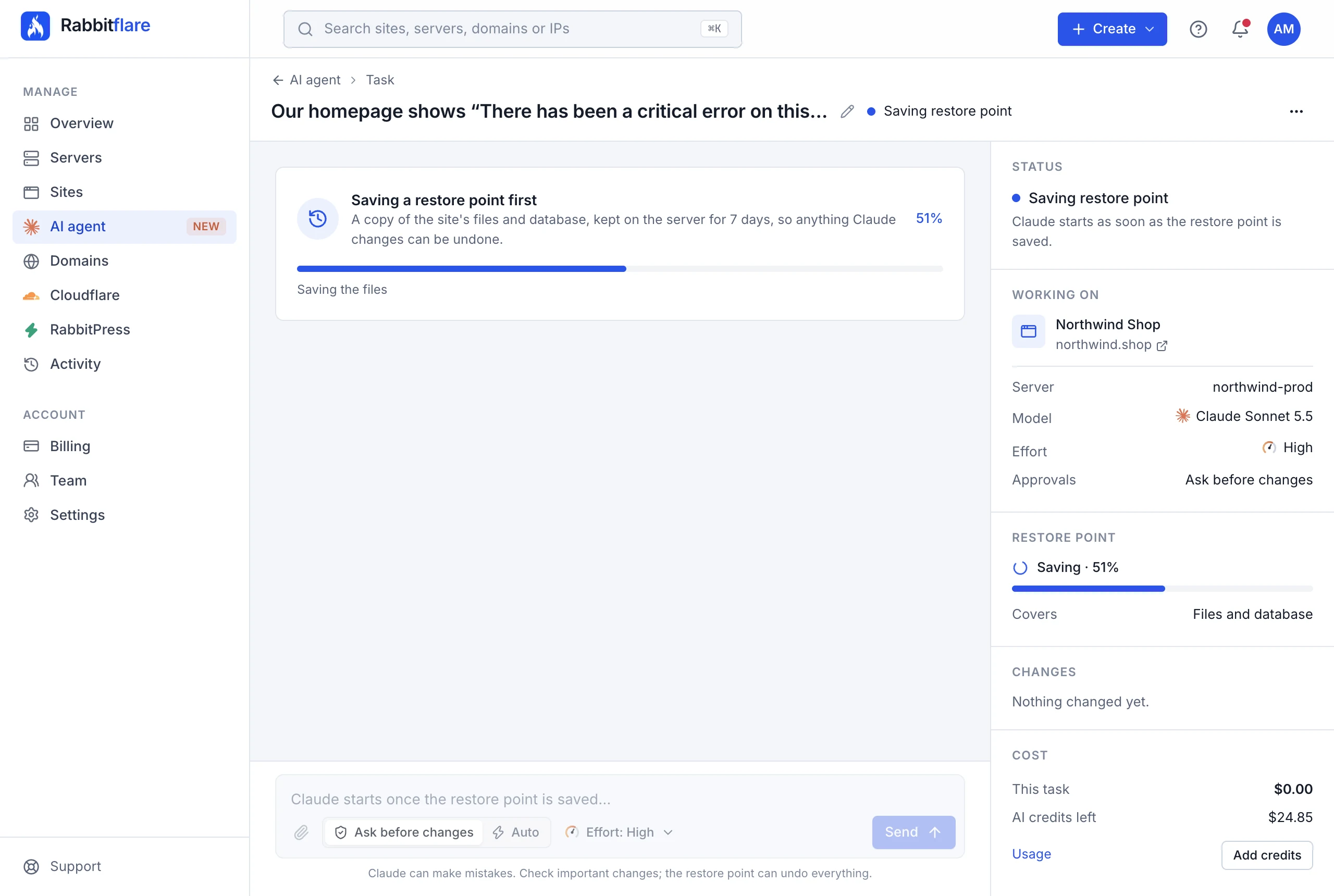
If the restore point can't be saved, the task says why and Claude doesn't start: for your safety, it only works when there's a restore point to go back to. Choose Try again. When the server is short of disk space, Try without the media library saves everything but the site's uploads; putting such a restore point back keeps your current images and uploads as they are.
Follow Claude's work
A task's page shows everything as it happens, from the top down:
- Your instructions, with the files you attached.
- Thought: what Claude is thinking, in short. Choose it to read it all.
- Steps: each command it ran, each file it opened or changed, and each check it made, with a tick and the time it took. Choose a step to see the command, its output or the change to the file.
- Its replies: what it found, what it changed, and anything you should check or do next.
- At the end of each reply, the model, the effort and what your message cost, all steps together, for example Sonnet 5.5 · High effort · $0.13.
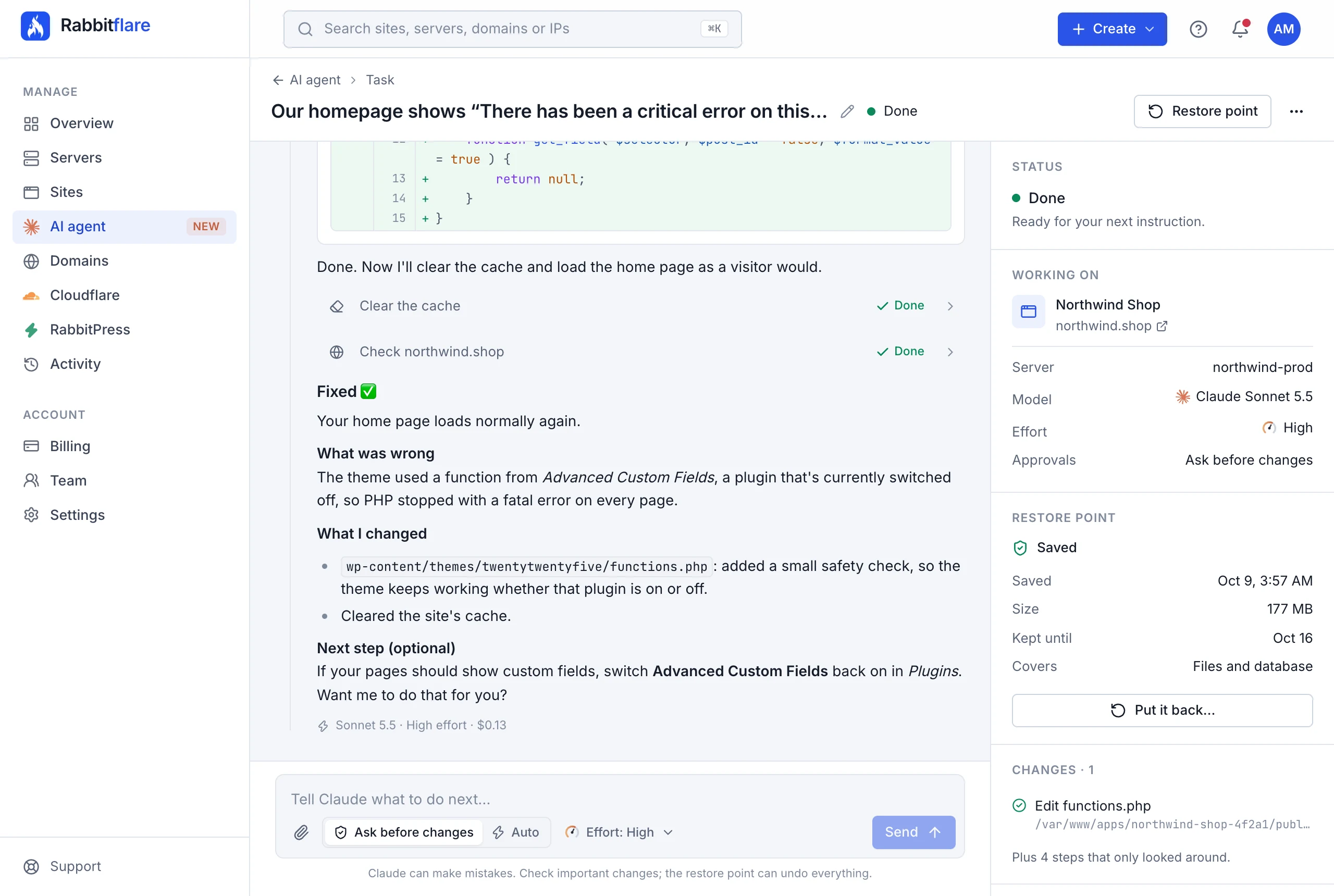
The task's details
Beside the work, the details panel keeps track of the task. On smaller screens, open it with Details at the top of the page.
- Status
- What's happening now, with Review the change when Claude is waiting for your approval.
- Working on
- The site (with links to it in the panel and on the web) or the whole server, the model, the effort and how approvals work.
- Restore point
- When it was saved, its size, how long it's kept, what it covers, and Put it back….
- Changes
- Every change Claude made or asked to make. Choose one to jump to it in the work. Steps that only looked are counted below.
- Cost
- What this task has cost so far, and the AI credits you have left.
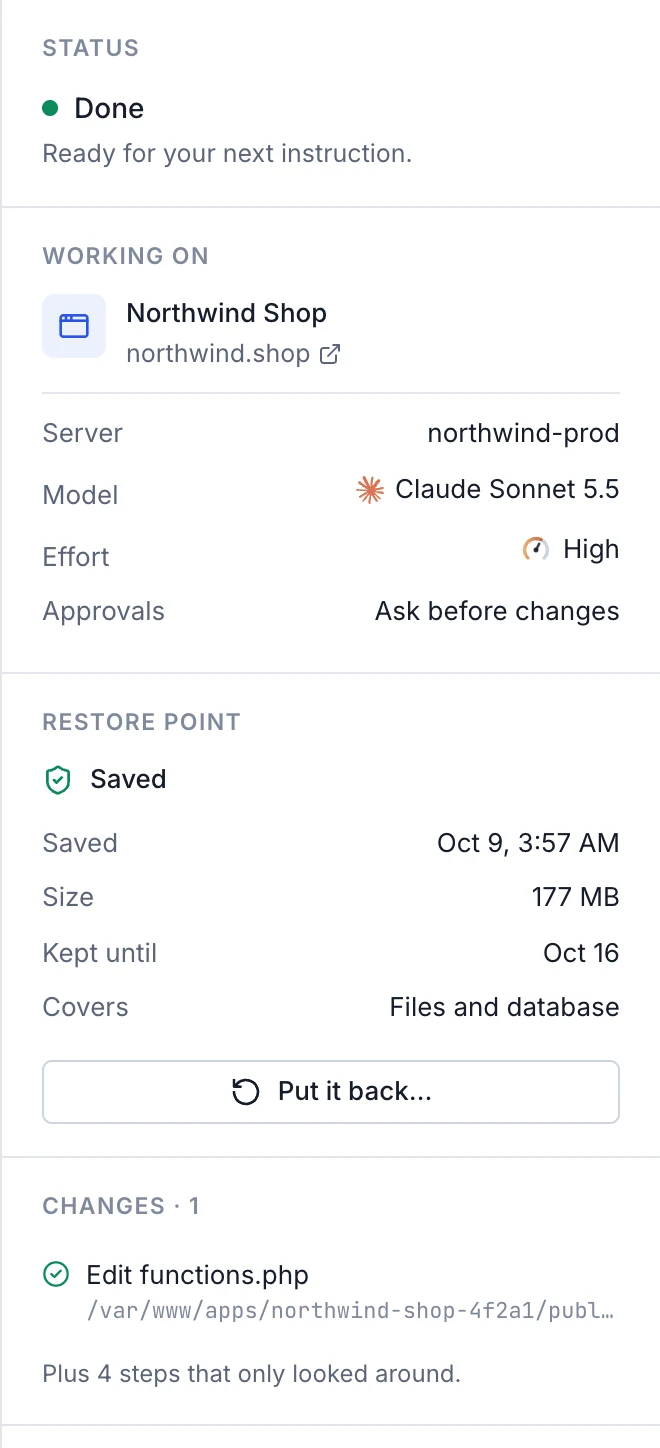
Approve or deny changes
Tasks start in Ask before changes. Claude can look around freely: commands that only look, like reading a log or listing plugins, run straight away. Anything that changes something waits for you, with the command it wants to run or the exact change to the file, in red and green.
- Approve runs it, and Claude carries on.
- Deny doesn't run it. Claude is told, won't try it again, and asks what you'd like instead.
- Allow all in this task approves it and lets the rest of the task run without asking (Auto).
You can also write a new message instead of deciding: the change that was waiting doesn't run, and Claude follows your new instructions.
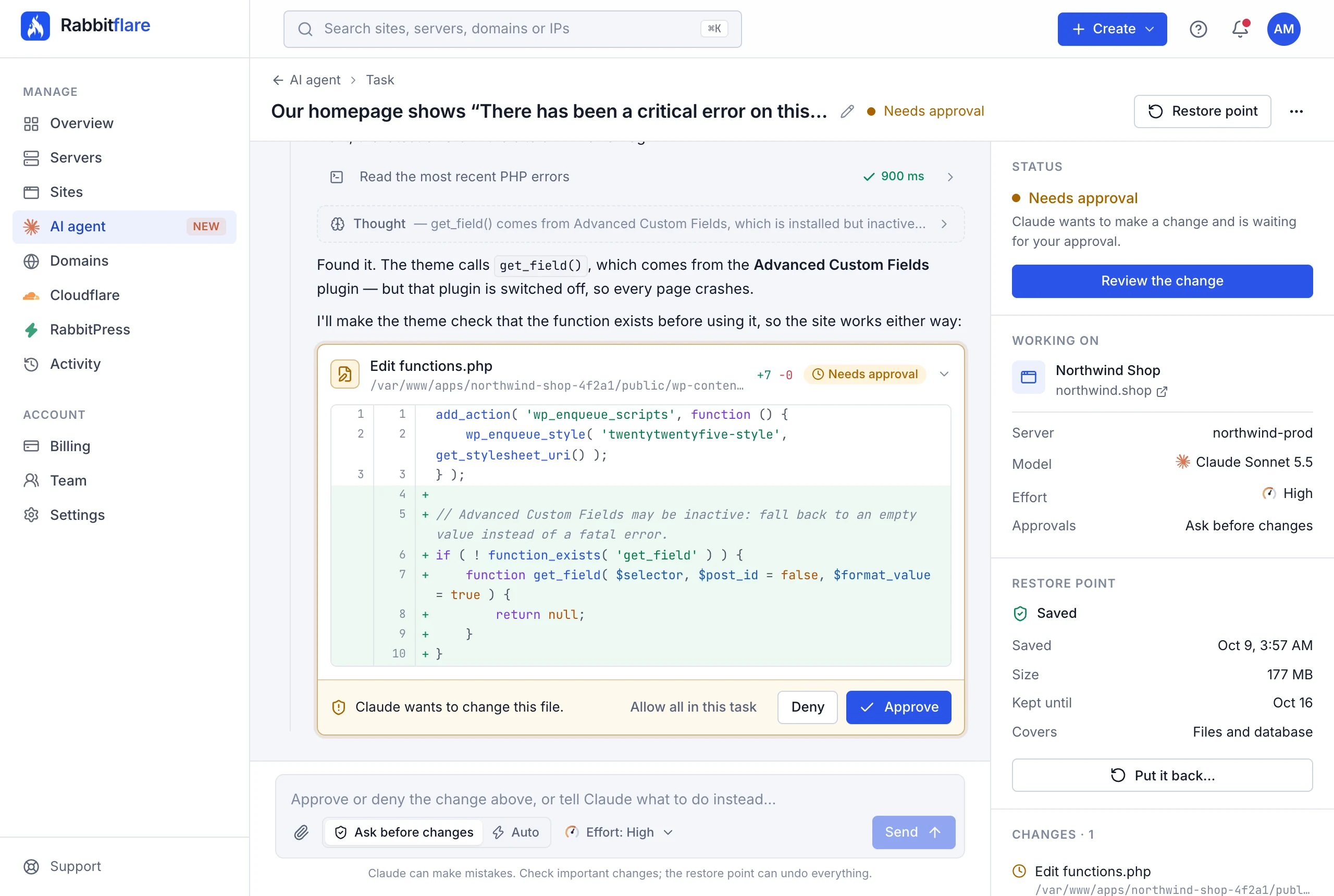
Auto mode
In Auto, Claude runs commands and edits files without waiting for your approval, for the rest of the task. Rabbitflare's protections still apply, and the restore point can still undo everything. Switch back to Ask before changes at any time, at the bottom of the task.

What's refused automatically
Some commands are never run, whatever the mode, and show as Blocked by Rabbitflare with the reason. In a whole-server task, these are the ones that would cut Rabbitflare off from your server or break how it manages it: stopping or changing SSH, its keys and sudo rules, and changing Rabbitflare's own tools and settings. Site tasks can't reach them at all.
Give more instructions
When Claude finishes, write your next instruction in the box at the bottom of the task. Press Enter to send, and Shift + Enter for a new line. Claude remembers the whole task, so you can say things like “now do the same on the shop page” or “undo that, and try another way”.
- Stop stops Claude at once, even in the middle of a command. Send a message when you want it to carry on.
- The effort for your next messages is beside the approval switch. A message that changes it shows Effort: Max from here, or whichever level you chose.
- After 50 steps in a row, or a very long reply, Claude pauses and asks you to reply “continue”.
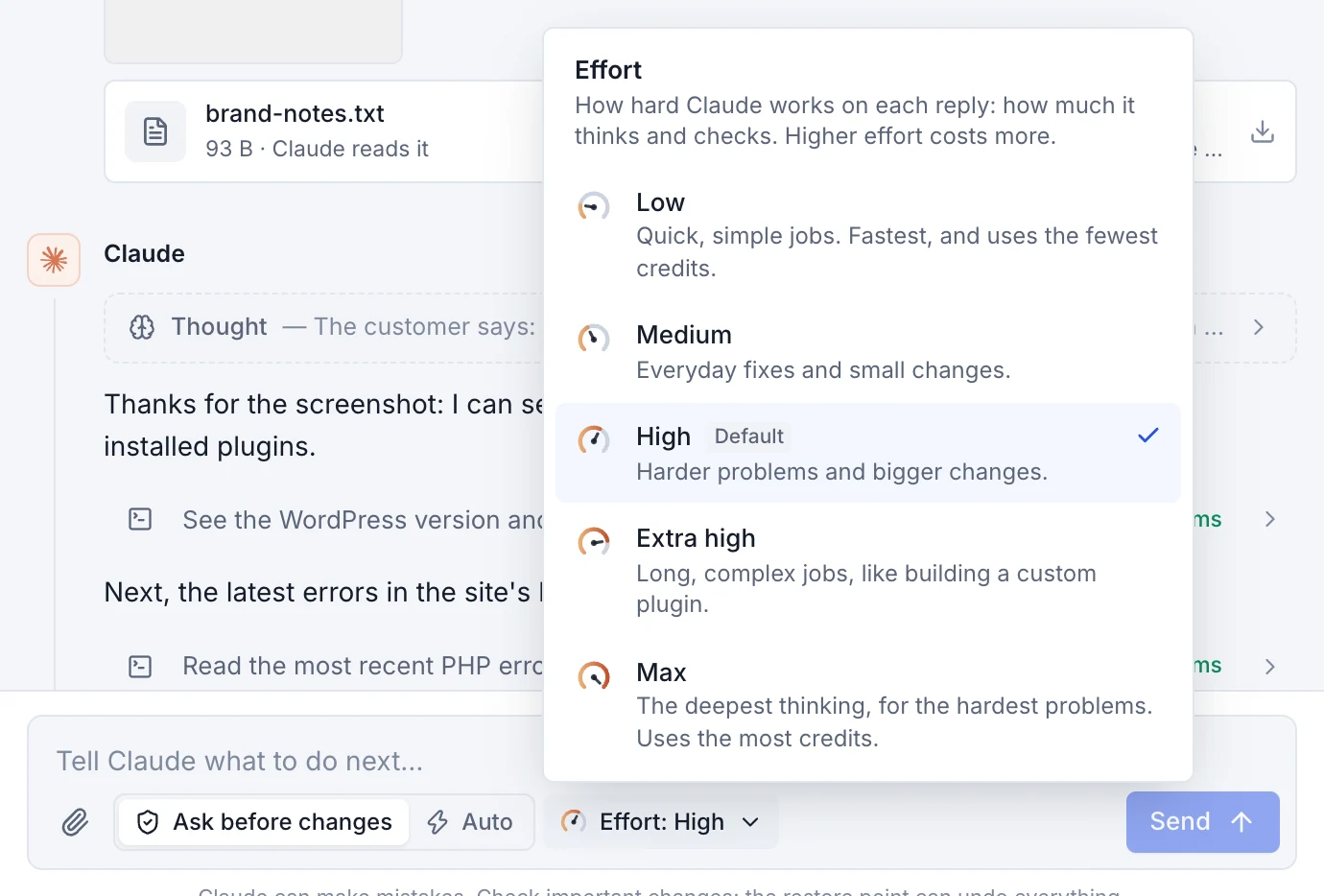
Attach files and images
Add files to a new task or to any message: choose the paperclip, drag files onto the task, or paste a screenshot straight into the box. Up to 5 files a message, 10 MB each and 25 MB in all.
- Images
- Claude sees them: screenshots of an error, a design to copy, a logo to use. PNG, JPEG, GIF and WebP.
- PDFs
- Claude reads them, up to 5 MB: a design brief, a list of changes. One Claude can't open is still saved on the server, and says so.
- Text and code
- Claude reads them, up to 200 KB: notes, CSV files, PHP, CSS, JavaScript and the like.
- Anything else
- Zip files, fonts and other files are saved on the server for Claude to use with its tools, like installing a theme from its zip.
Every file is also saved on the server the task works on, so Claude can use the real thing, for example by putting your logo in the theme. In a
site task it goes in the site's own temporary folder, tmp/ai-files in the site's home (for example
/var/www/apps/your-site/tmp/ai-files/), which isn't reachable from the web. In a whole-server task it goes in
/root/ai-files/. A file with the same name as one already there gets -2, -3 and so on.
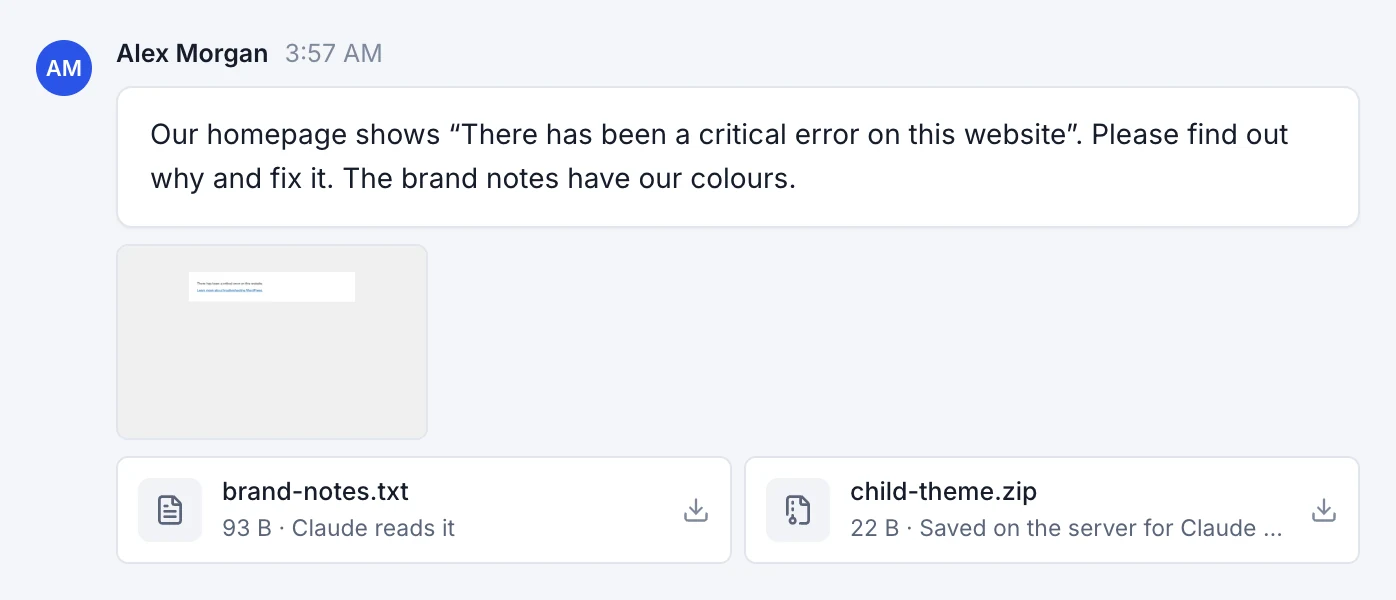
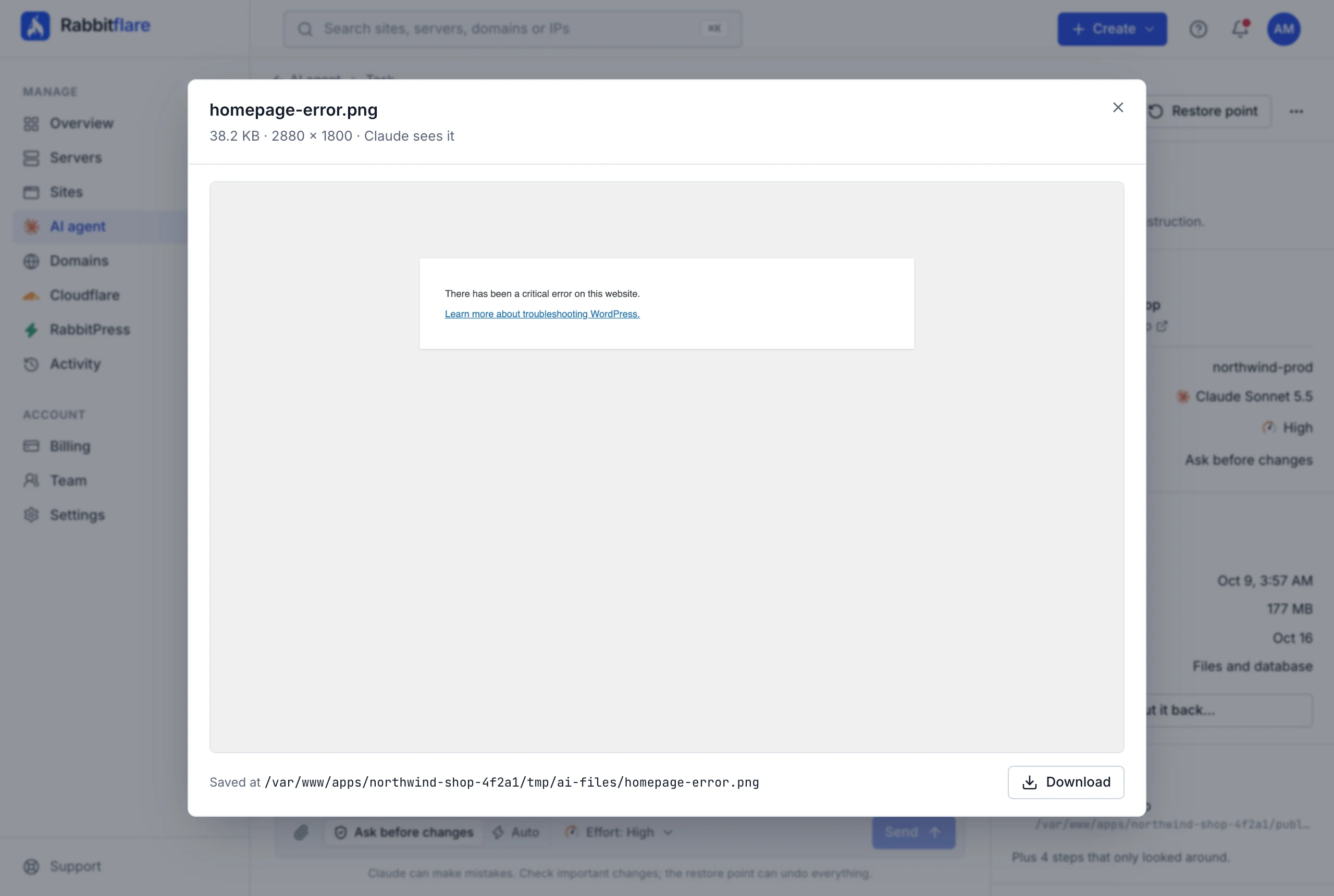
Files you add but don't send are removed after a day. Deleting a task removes its files from our storage; the copies saved on your server stay where they are.
Put the restore point back
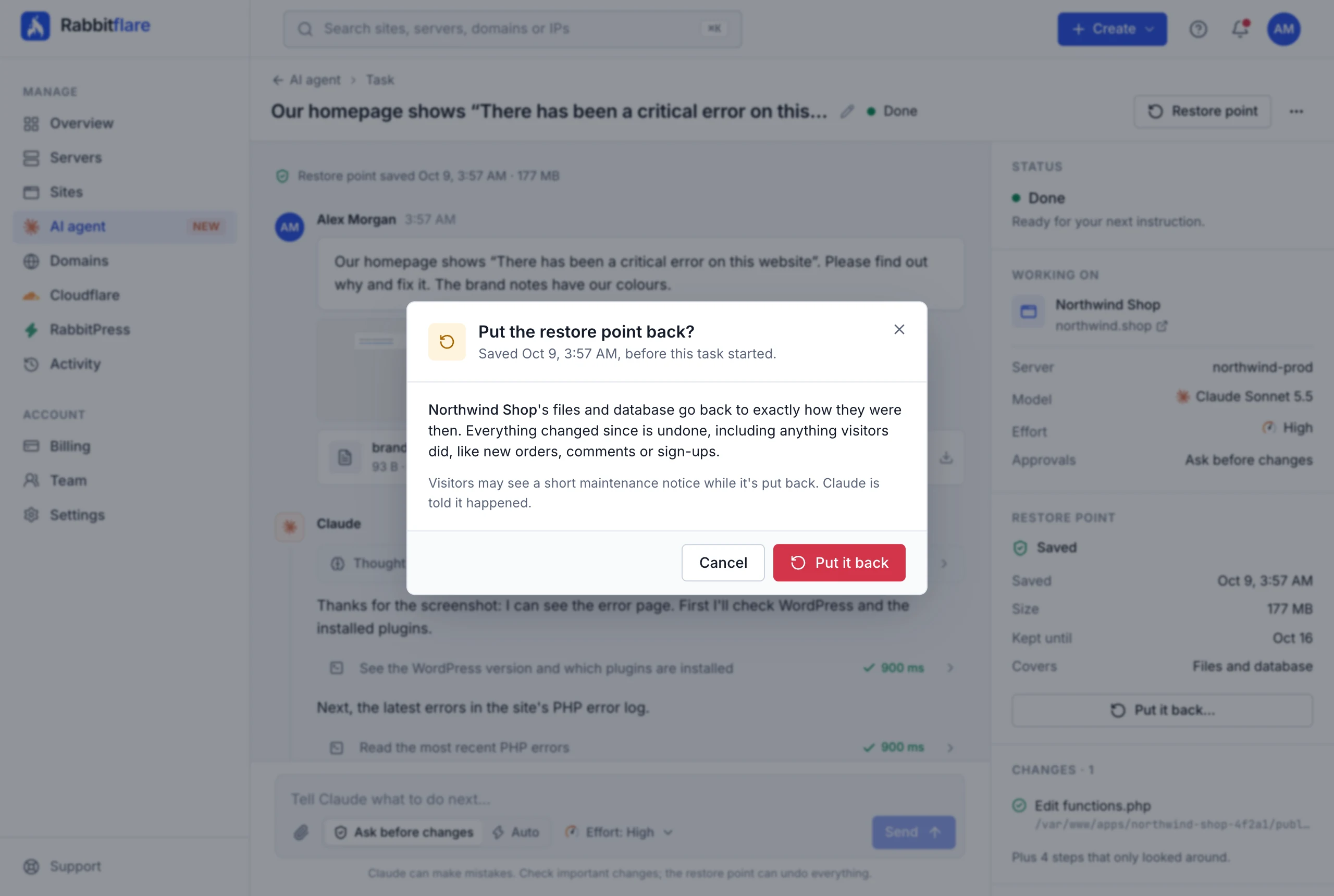
If you don't like what changed, choose Restore point at the top of the task (or Put it back… in its details), then Put it back.
- A site: its files and database go back to exactly how they were when the task started. Everything changed since is undone, including anything visitors did, like new orders, comments or sign-ups.
- The whole server: its settings go back. Tick Also put back every site's database to restore those too; content changed since then is lost on every site.
Visitors may see a short maintenance notice while it's put back. Claude is told it happened, so you can carry on with the task.
Your tasks
The AI agent page lists your tasks under the New task form, most recent first, with their site or server, model and effort, what each cost and when it last changed. Find one with the search box, or show only the tasks that need your approval, are working, or are done.
| Status | What it means |
|---|---|
| Saving restore point | The task has just started; Claude starts once the restore point is saved. |
| Working | Claude is working on your last message. |
| Needs approval | Claude wants to make a change and is waiting for you. |
| Done | Claude has finished and is ready for your next instruction. |
| Restore point failed | The restore point couldn't be saved, so Claude hasn't started. Open the task to try again. |
| Restoring | The restore point is being put back. |
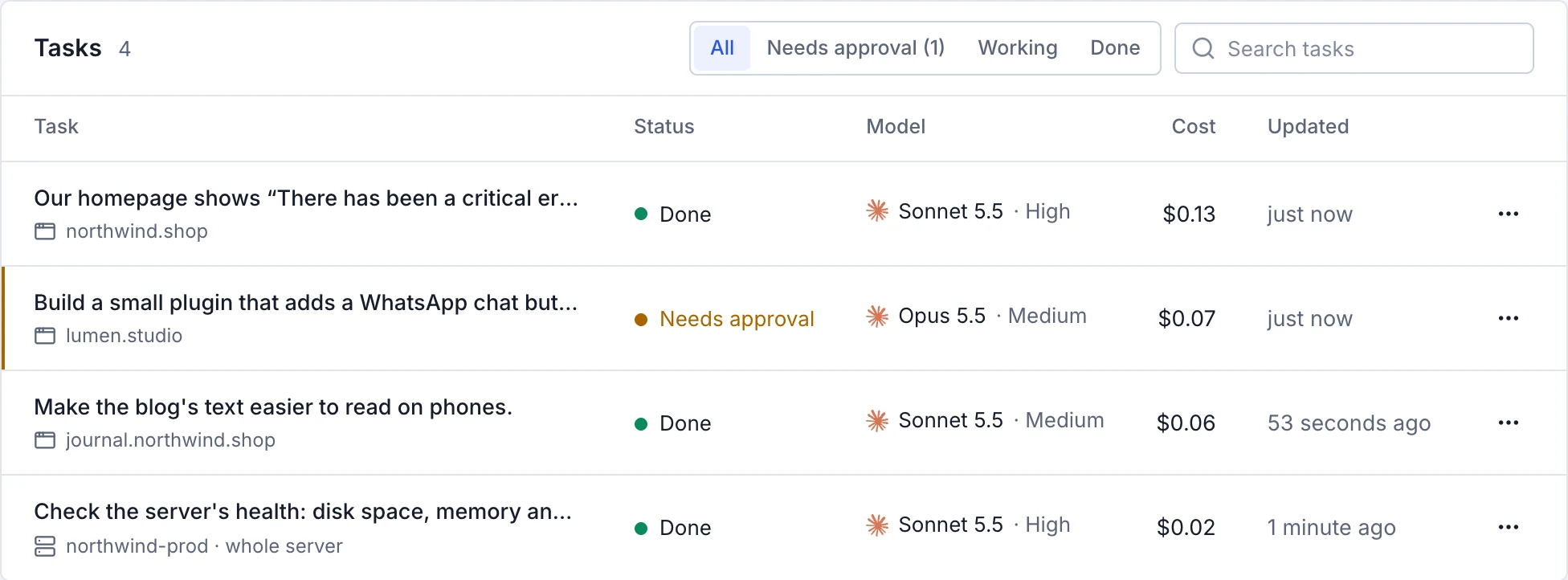
Rename or delete a task from its ⋯ menu, in the list or on the task's page. Deleting a task deletes its conversation and its restore point; the changes Claude made stay as they are.
AI credits and prices
AI credits pay for Claude's replies as it works, and you see what each one cost. They're separate from your wallet and your server bills, never expire, and can't be refunded or withdrawn. Your balance is at the top of the AI agent page; Credits & usage has the rest.

Add credits
Choose Add credits, pick an amount ($10, $25, $50 or $100, or any amount from $5 to $1,000), and pay with a saved card, a new card, or from your wallet. Card payments go straight to Stripe; the credits appear as soon as the payment goes through.
Automatic top-ups and a monthly limit
- Automatic top-ups keep a long job from stopping halfway: when your credits fall below the amount you choose ($2, $5, $10 or $25), we add $10, $25, $50 or $100 from the default card in Billing, with a receipt by email each time. If a payment fails, we email you and automatic top-ups switch off until you've checked your card.
- A monthly spending limit (at least $5) caps what the AI agent spends each calendar month (UTC). Claude stops before a reply would go over it.
Prices
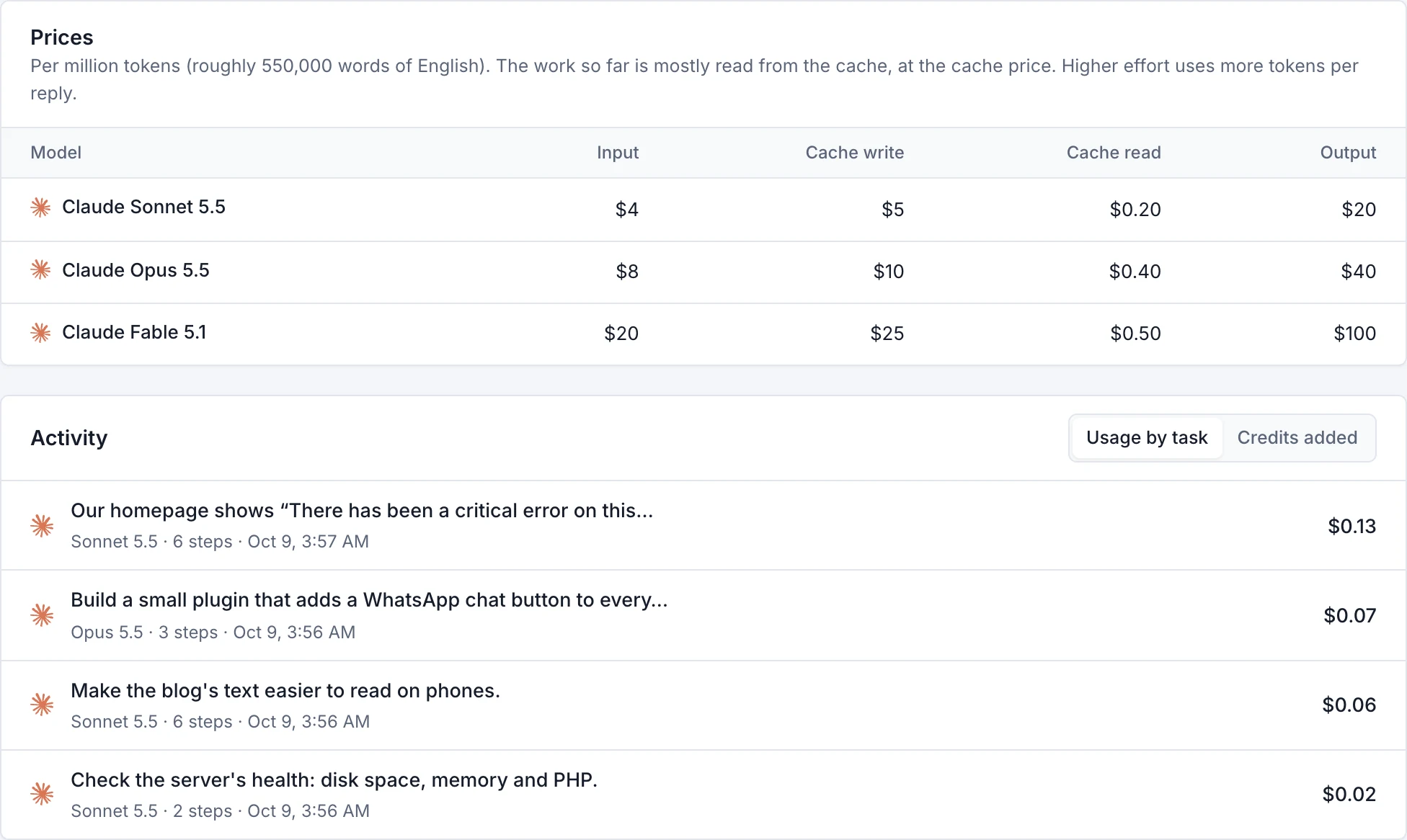
You pay for the text Claude reads and writes, in tokens, at each model's price per million tokens (a million tokens is roughly 550,000 words of English). As a task goes on, the conversation so far is mostly read from a cache, at the much lower cache price. Images, PDFs and higher effort use more tokens. Prices are per million tokens:
| Model | Input | Cache write | Cache read | Output |
|---|---|---|---|---|
| Claude Sonnet 5.5 | $4 | $5 | $0.20 | $20 |
| Claude Opus 5.5 | $8 | $10 | $0.40 | $40 |
| Claude Fable 5.1 | $20 | $25 | $0.50 | $100 |
Activity, at the bottom of Credits & usage, shows what each task cost and how many steps it took, and every time credits were added, with card receipts.
How your sites stay safe
- A restore point first
- Every task starts by saving one. One click puts everything back.
- You approve changes
- Claude looks around freely, but asks before it changes anything, unless you switch the task to Auto.
- Kept in its lane
- Site tasks run as the site's own user, so they can't touch other sites or the server's settings. Whole-server tasks can't touch SSH or Rabbitflare's own tools and settings.
- Secrets stay hidden
- Database passwords and WordPress keys are replaced with placeholders before anything reaches Claude. It can still use them in a command or a file, and Rabbitflare fills in the real value when it runs.
- On the record
- Every task and every change Claude makes is in your account's Activity, and on the site's or server's own activity.
Tips for good results
- Be specific. Name the page, the plugin or the exact error, and say what “done” looks like.
- Show it. A screenshot of the problem or the design you want saves a lot of back and forth.
- One job per task. Start a new task for an unrelated job: it keeps each task focused, and each restore point meaningful.
- Start with Claude Sonnet 5.5 at its default effort. Raise the effort, or choose Claude Opus 5.5 or Claude Fable 5.1, for hard problems and bigger builds.
- Read what it changes. Approve changes you understand; ask Claude to explain anything you don't.
- Check the result yourself on the site before you move on, especially on a shop.
When something goes wrong
- Your credits are too low
- Add credits, or turn on automatic top-ups. Then send a message to carry on.
- The monthly limit is reached
- Raise or remove the limit in Credits & usage, or wait for the next month.
- Claude paused, or the reply reached its length limit
- Reply “continue” and it carries on where it stopped.
- The server is switched off, or the site isn't ready
- Start the server, or wait for the site to finish, then send your message again.
- The restore point couldn't be saved
- Choose Try again. If the server is short of disk space, free some up or choose Try without the media library.
- Claude was interrupted
- Rabbitflare restarted while it worked. Steps that were running are marked interrupted; send a message to carry on.
- The AI agent is busy or unavailable
- Try again a little later. Your credits are safe: nothing is charged for a reply that didn't happen.
- Claude couldn't handle a request
- Try rephrasing it, or start a new task.
Still stuck? Open a support ticket and tell us which task it was.