
Use Cloudflare
Connect your Cloudflare account to manage DNS, point domains at sites and keep SSL set up right.
3 min read Updated
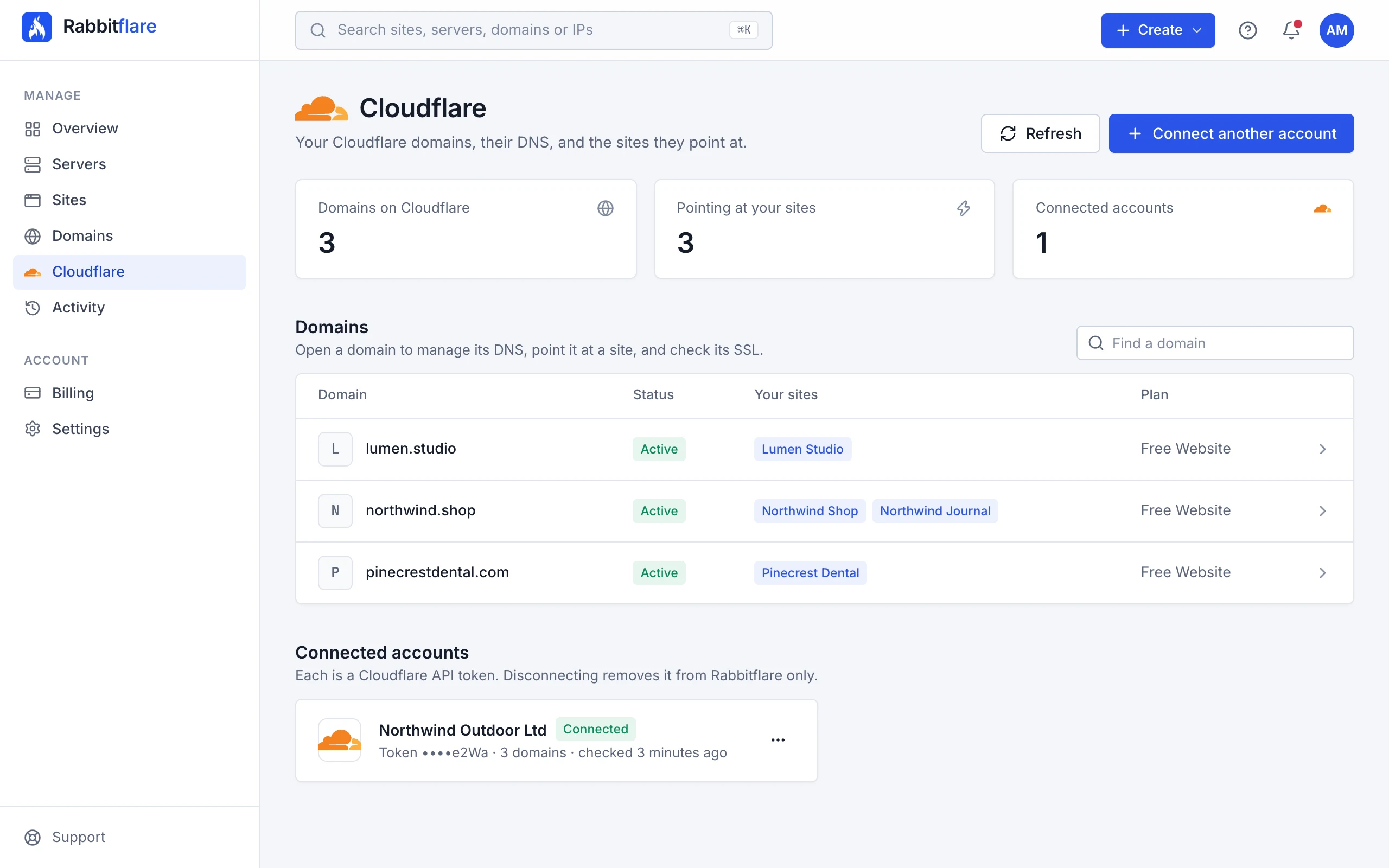
If your domains use Cloudflare for DNS, connect your Cloudflare account and manage them next to your sites: point a domain at a site in one step, edit its DNS records, keep its SSL set up correctly and clear Cloudflare's cache. It works with every Cloudflare plan, including Free.
Connect Cloudflare
Rabbitflare connects with a Cloudflare API token that only allows what's listed below. You can delete it in Cloudflare at any time.
-
Start from the Cloudflare page
Open Cloudflare in the sidebar and choose Connect Cloudflare.
-
Create the token in Cloudflare
Choose Open Cloudflare. Cloudflare's Create API token page opens with the permissions already filled in. Check them, choose Continue to summary, then Create Token, and copy the token.
Permission Used to Zone · ReadSee your domains Required DNS · EditRead and change DNS records Required Zone Settings · EditCheck and fix the SSL/TLS mode Optional Cache Purge · PurgeClear Cloudflare's cache Optional -
Paste the token
Paste it into the panel and connect. We check it with Cloudflare and list your domains.
Point a domain at a site in one step
Open a domain from the Cloudflare page and choose Point it at a site. Pick the site, and leave the name empty for the domain itself or
type a subdomain like shop. Rabbitflare then:
- sets the DNS record in Cloudflare,
- adds the domain to the site and verifies it,
- issues a free SSL certificate, usually in under a minute,
- turns Cloudflare's proxy on once the certificate is issued, with SSL/TLS set to Full (strict), if you chose that.
Tick Make it the site's main address to make it the primary domain. The same happens when you add a domain that's in your Cloudflare account from a site's Domains & SSL tab: choose Add and set up DNS, with no records to copy.
Keep SSL set up right
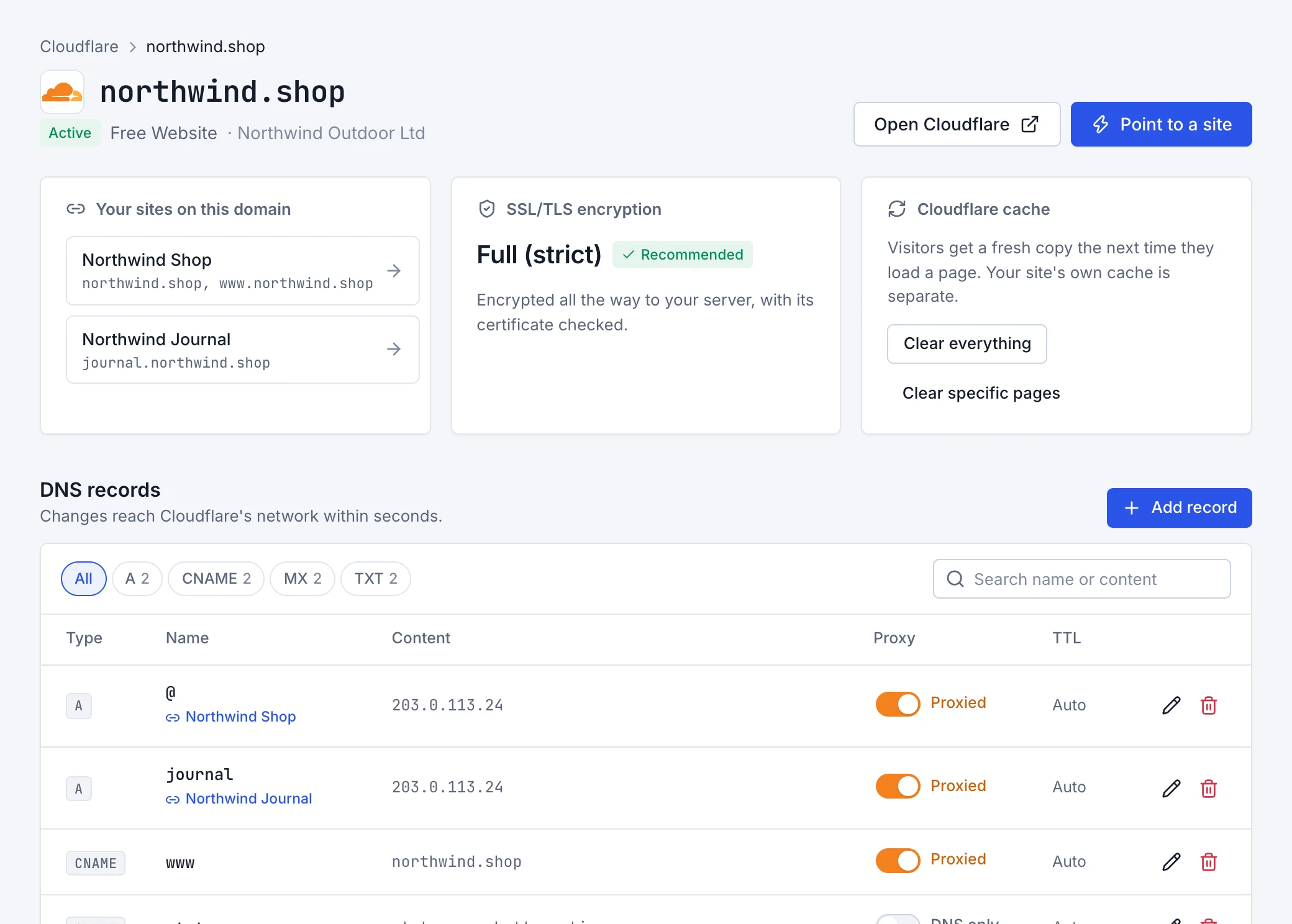
Cloudflare's Flexible SSL mode sends visitors round in a redirect loop with sites that have their own HTTPS, as yours do. The domain's page warns you when it's on, and Switch to Full (strict) fixes it: Cloudflare then connects to your server over HTTPS and checks its certificate. Your Rabbitflare sites are ready for this; if some records point at other servers, make sure those have valid certificates too.
Edit DNS records
The domain's page lists its DNS records. Add, edit and delete A, AAAA, CNAME, MX,
TXT and NS records, and turn Cloudflare's proxy on or off for each with its cloud icon. Changes reach Cloudflare's network
within seconds. Records of other types can be edited in Cloudflare.
Clear Cloudflare's cache
Under Cloudflare cache, choose Clear everything, or Clear specific pages and enter up to 30 full addresses, one per line. Pages may be a little slower for a few minutes while Cloudflare fetches them again.
Disconnect an account
Under Connected accounts, open the account's menu and choose Disconnect. Your domains, DNS records and sites keep working exactly as they are.