
Keep media in cloud storage with Media Offload
Keep a site's media library in Rabbitflare's cloud storage and free up the server's disk, with every file at its usual address. 100 GB comes with every server.
10 min read Updated
Media Offload keeps a site's media library in Rabbitflare's cloud storage: the images, videos, documents and other files WordPress keeps in its uploads folder. Every file keeps its address, so pages, links, search engines and your CDN work exactly as before. You choose whether the server keeps its own copies too, or frees up its disk. Every server from Rabbitflare includes 100 GB of storage, shared by its sites.
Where you can use it
Media Offload works for sites on servers bought through Rabbitflare, on DigitalOcean, Vultr, Hetzner or Rabbitflare Edge. It isn't available on servers you connected yourself, or on a free-trial server until you keep it. A staging copy shows its live site's media, so turn Media Offload on for the live site.
Turn it on
-
Open the site's Offload tab
On the site's page, open Offload. The tab looks through the site's uploads folder and lists what's in it, kind by kind: how many files, how much space, and how much would be offloaded.
-
Check what would move
Files in folders that are private or rebuilt by plugins stay on the server, and the tab names those folders (see What's offloaded). Below, you see how much of the server's included storage the site would use, next to its other sites.
-
Choose how it works
Copy keeps every file on the server too. Free up disk lets older files live in storage only. Copy is chosen to start with, and you can switch at any time: see Copy or Free up disk.
-
Choose Turn on Media Offload
Setup takes a few seconds: the site gets its own place in storage, then the server is set up and checks it can deliver files from there. Then the whole library is copied.
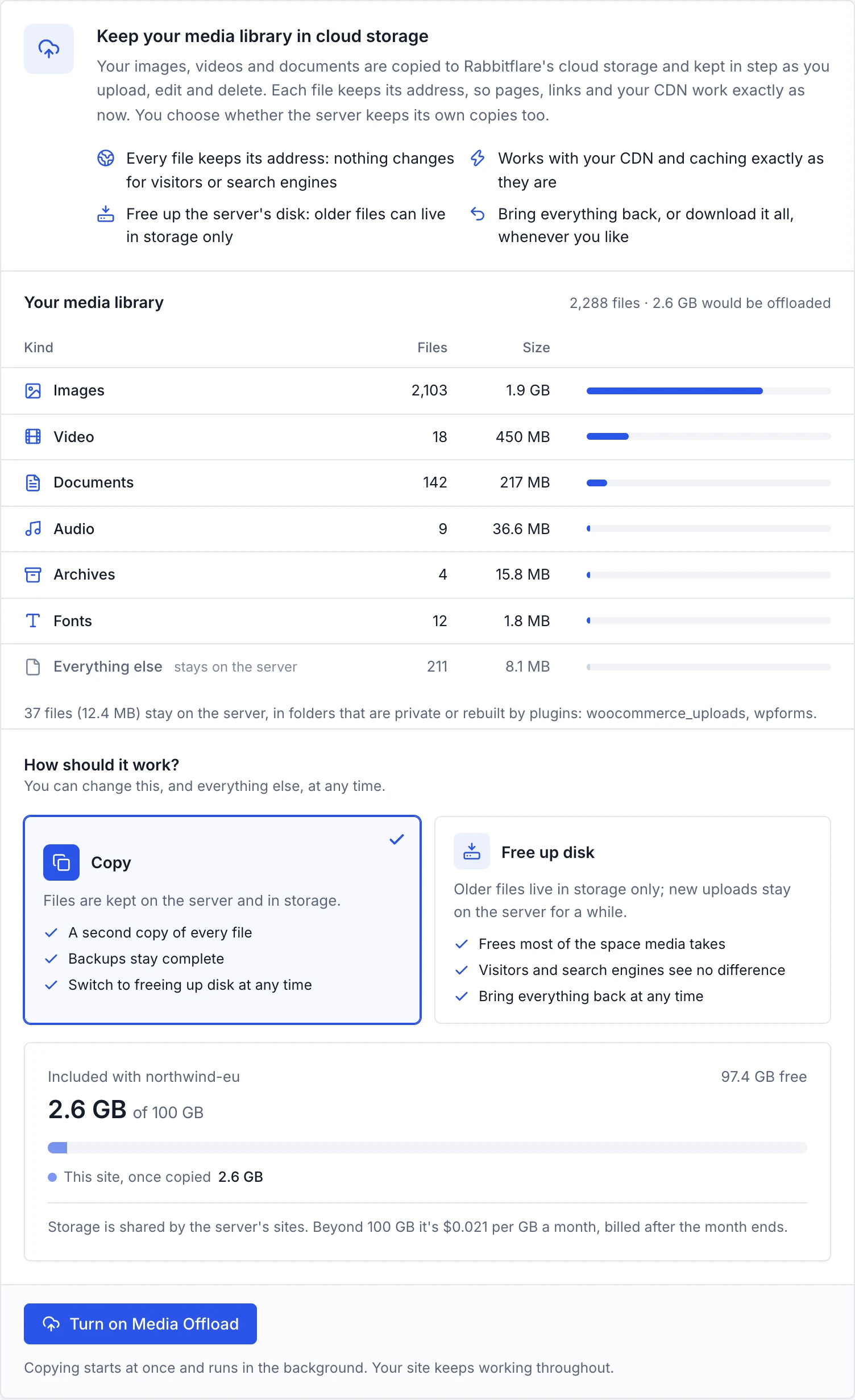
The first copy
The tab shows the copy as it happens: the files and size done so far, the speed and the time left. Each file is checked against its SHA-1 checksum as it's stored. Your site keeps working normally, and you can leave the page. Pause stops after the files in progress; what's left is copied later in the background, or straight away with Copy now.
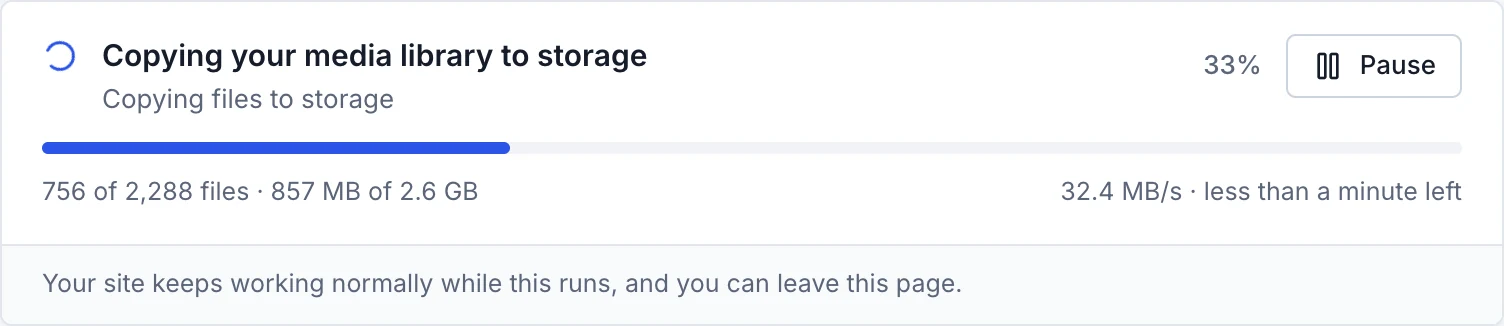
The Offload tab
Once Media Offload is on, the tab shows the site's media at a glance:
- In storage
- How much of the library is in storage, and how many files.
- Disk space freed
- In Free up disk mode: the space given back to the server, and how many files live only in storage.
- Waiting to be copied
- New or changed files not yet in storage. New uploads are copied within a minute or two.
- Fetched from storage
- What your server fetched from storage this month, for files that weren't on its disk.
Under What's in storage, the library is listed kind by kind, with what's only in storage. Below it: whether everything is up to date, when files were last copied, the last delivery check and full check, what's kept on the server, and the popular files back on the server.
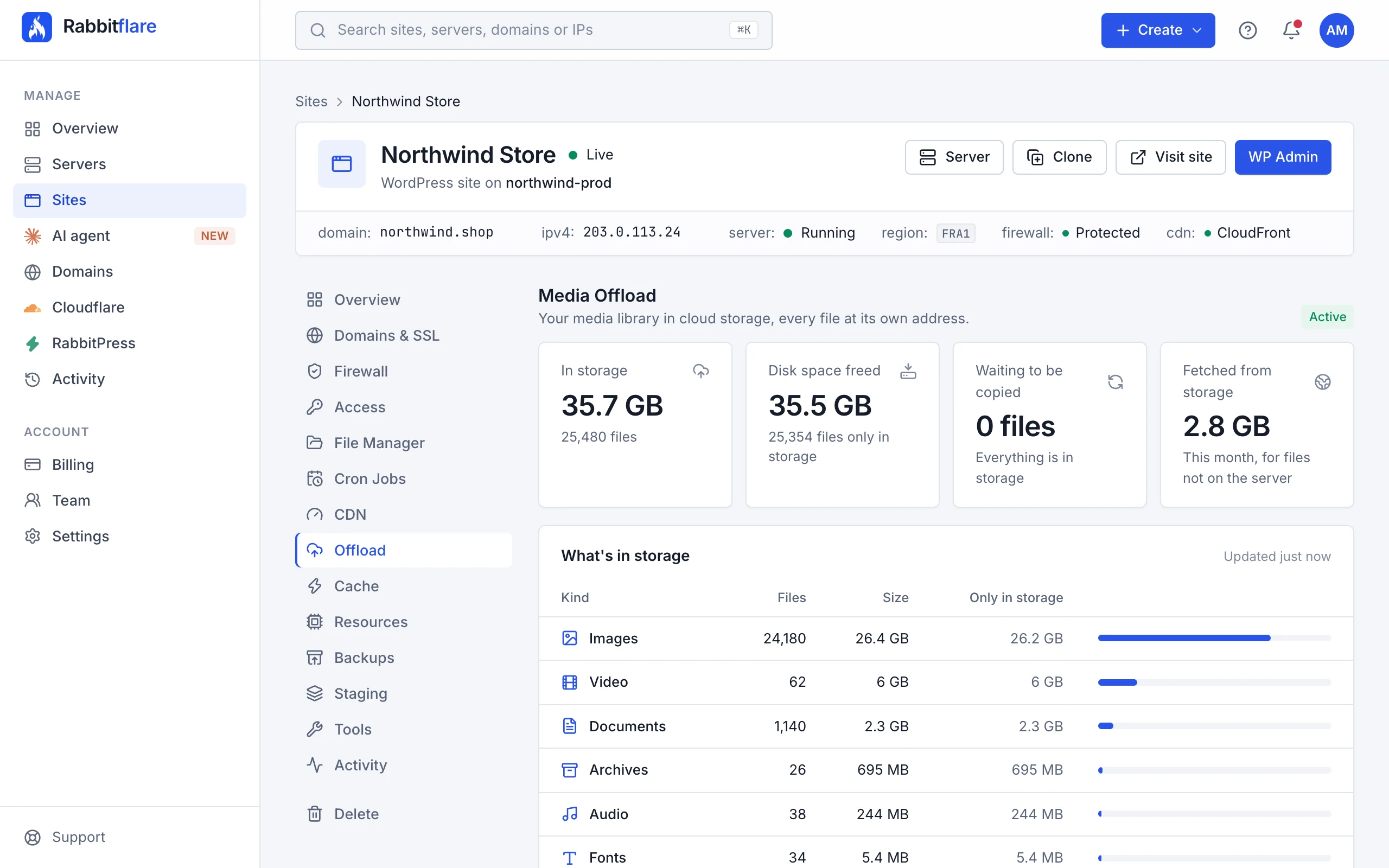
Copy or Free up disk
- Copy
- Every file stays on the server and storage holds a second copy. The server's backups stay complete, and you can switch to freeing up disk at any time.
- Free up disk
- Files live in storage only once they're older than the days you choose, so most of the space media takes comes back to the server. Visitors and search engines see no difference.
In Free up disk mode, Keep new uploads on the server for sets how long a new file stays: 1, 3, 7, 14, 30 or 90 days (7 to start with), so image and SEO plugins can finish their work first. Older files leave the server every hour, each only once storage holds the very same file.
A file that lives only in storage is still looked after:
- Your server keeps a copy of each file it fetches for a week, so the next visitors get it straight from its disk.
- Files visitors keep asking for come back to the server by themselves.
- When WordPress needs an original again, to crop, rotate or regenerate it, the original comes back to the server first, checked against storage.
- A new upload never takes the name of a file that's only in storage.
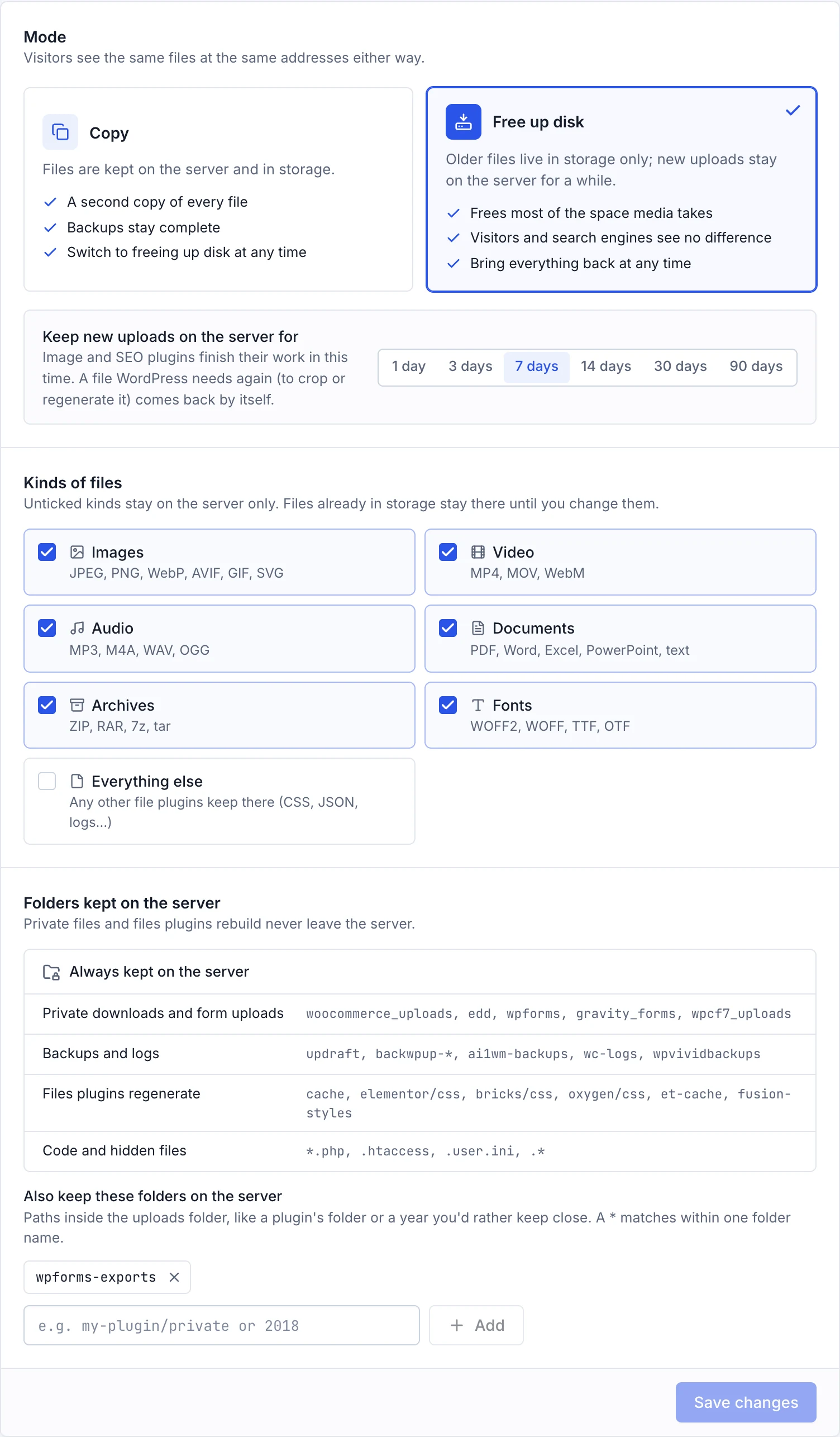
Change any setting and choose Save changes. Switching from Free up disk to Copy asks whether to bring the files that are only in storage back to the server too, or leave them in storage, where they're still served at the same addresses.
What's offloaded
Under Kinds of files, tick what goes to storage. Every kind is ticked to start with, except Everything else:
- Images
- JPEG, PNG, WebP, AVIF, GIF, SVG
- Video
- MP4, MOV, WebM
- Audio
- MP3, M4A, WAV, OGG
- Documents
- PDF, Word, Excel, PowerPoint, text
- Archives
- ZIP, RAR, 7z, tar
- Fonts
- WOFF2, WOFF, TTF, OTF
- Everything else
- Any other file plugins keep there (CSS, JSON, logs…)
Unticked kinds stay on the server only. Files already in storage stay there until you change them.
These folders always stay on the server, whatever you choose:
- Private downloads and form uploads
-
woocommerce_uploads, edd, wpforms, gravity_forms, wpcf7_uploads - Backups and logs
-
updraft, backwpup-*, ai1wm-backups, wc-logs, wpvividbackups - Files plugins regenerate
-
cache, elementor/css, bricks/css, oxygen/css, et-cache, fusion-styles - Code and hidden files
-
*.php, .htaccess, .user.ini, .*
To keep more on the server, add folders under Also keep these folders on the server: paths inside the uploads folder, like
my-plugin/private or 2018. A * matches within one folder name, and you can add up to 50.
Every day
- Upload as you always do, from the media library, a page builder, a form or a plugin. New files are copied to storage within a minute or two.
- Delete a file in WordPress and its copy in storage goes too. Deleted and replaced files can be recovered for 30 days: open a ticket and we'll bring one back.
- Your CDN, cache and image plugins keep working as they are: the addresses don't change.
To see where a file came from, open it in a new tab with your browser's developer tools on the Network tab. A file sent from storage has this response header:
x-rabbitflare-media: storageTools
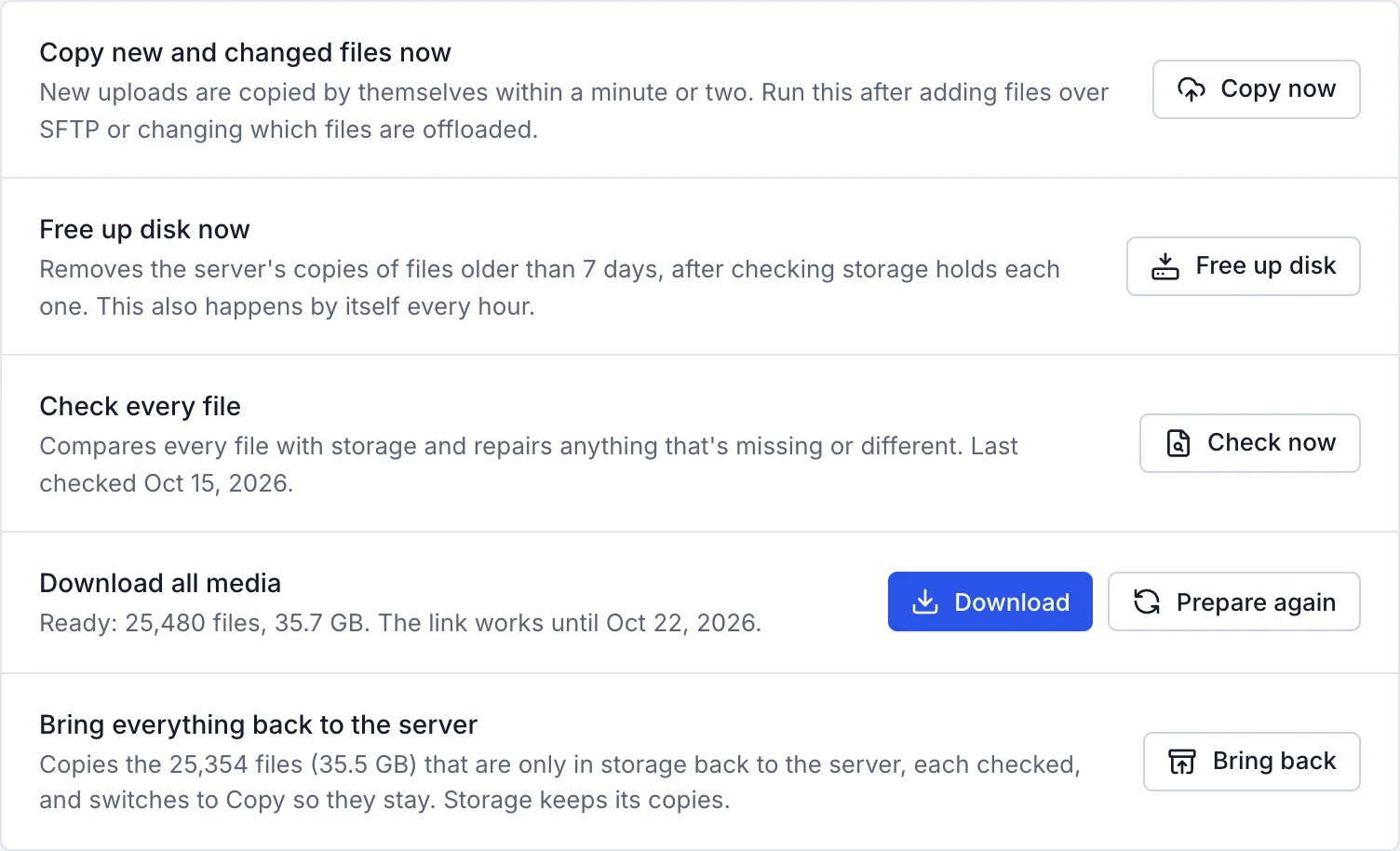
- Copy now
- Copies new and changed files straight away. Use it after adding files over SFTP or changing which files are offloaded.
- Free up disk now
- In Free up disk mode: removes the server's copies of files older than your setting, after checking storage holds each one. This also happens by itself every hour.
- Check now
- Compares every file with storage and repairs anything that's missing or different.
- Prepare download
- Packs the whole media library, on the server or only in storage, into one zip you download from your own site's address. The link works for 7 days.
- Bring back
- Copies every file that's only in storage back to the server, each checked, and switches to Copy so they stay. The server needs that much free disk space.
One operation runs at a time. We email you if one you started doesn't finish.
Included storage and price
Each server from Rabbitflare includes 100 GB of storage, shared by its sites. The Offload tab shows how much the server's sites use, and so does the Media Offload card on the server's Overview. We email you when a server's storage reaches 80% and 100% of what's included.
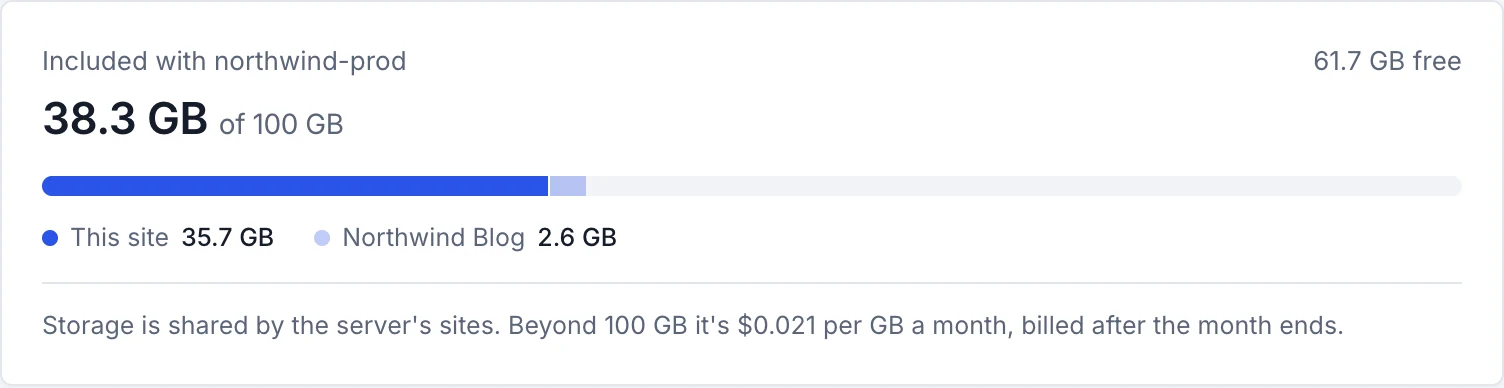
- Beyond 100 GB, it's $0.021 per GB a month. Storage is measured every day, and the month is charged after it ends, for what was stored: your wallet pays first, then your card. Less than 50¢ is added to the next month instead.
- Downloads by your visitors are free.
- Billing shows this month so far, what each server stores, and every month's charge.
- If a payment doesn't go through, it's tried again, and you can pay it from Billing. After two weeks unpaid, new files stop being offloaded; everything already in storage keeps being served.
Staging, clones and backups
- Staging
- A staging copy shows the live site's media straight from storage, and can't change it.
- Clones
- When a site has files only in storage, its clone gets Media Offload too, set up the same way, with its own copy of those files made inside storage. Such a site can be cloned to your Rabbitflare servers, not to servers you connected yourself. In Copy mode the clone simply gets every file on its own disk.
- Backups
- Files that live only in storage aren't in the server's backups, but they're kept safe in storage and stay in place when you restore one. In Copy mode the server keeps every file, so backups stay complete.
Turn it off
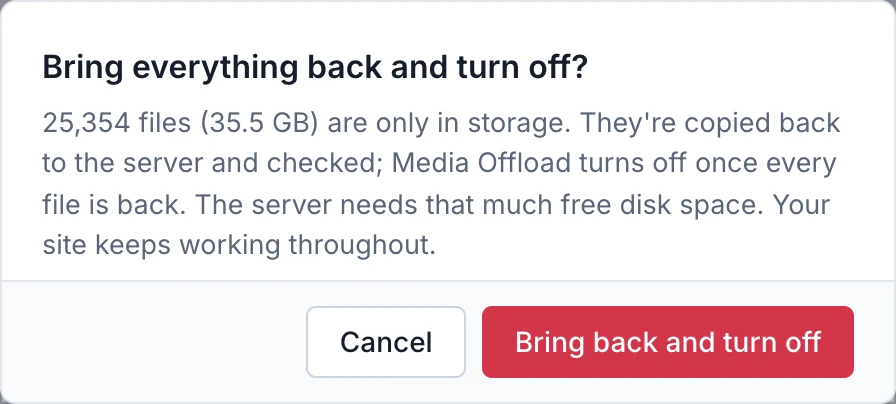
At the bottom of the tab, choose Turn off. Files that are only in storage come back to the server first, each checked, so the server needs that much free disk space; then new uploads stop being copied, and the server is left as it was. Storage keeps its copies for 7 days, so turning Media Offload on again in that time finds them there.
If something needs attention
- The delivery check didn't pass
- Before any file leaves the server, the server fetches a test file through your own site, the way a visitor would. Until that works, files stay on the server; the check runs again every 10 minutes and says what the site answered.
- Another offload plugin is active
- New files aren't offloaded while it is. Deactivate it in WordPress, and Media Offload carries on by itself.
- Files couldn't be copied or checked
- They're listed on the tab and tried again by themselves. They stay on the server meanwhile, so nothing is missing from the site.
- Files are staying on the server for now
- Visitors fetched a lot from storage this month, so no more files leave the server until it settles, and the ones fetched most come back. Nothing changes for visitors.
- New files aren't being offloaded
- A Media Offload payment is unpaid. Pay it from Billing, and new files are offloaded again.
- It can't be turned on
- The tab says why: the site is on a server you connected yourself or a free-trial server, it's a staging copy, it keeps its uploads outside its web folder, or it runs on its server's original one-site setup.
Team members need the Manage sites permission to change Media Offload. If you're stuck, open a ticket.