
Manage files with the File Manager
Browse, upload, edit, zip and unzip your site's files in the browser, without FTP.
2 min read Updated
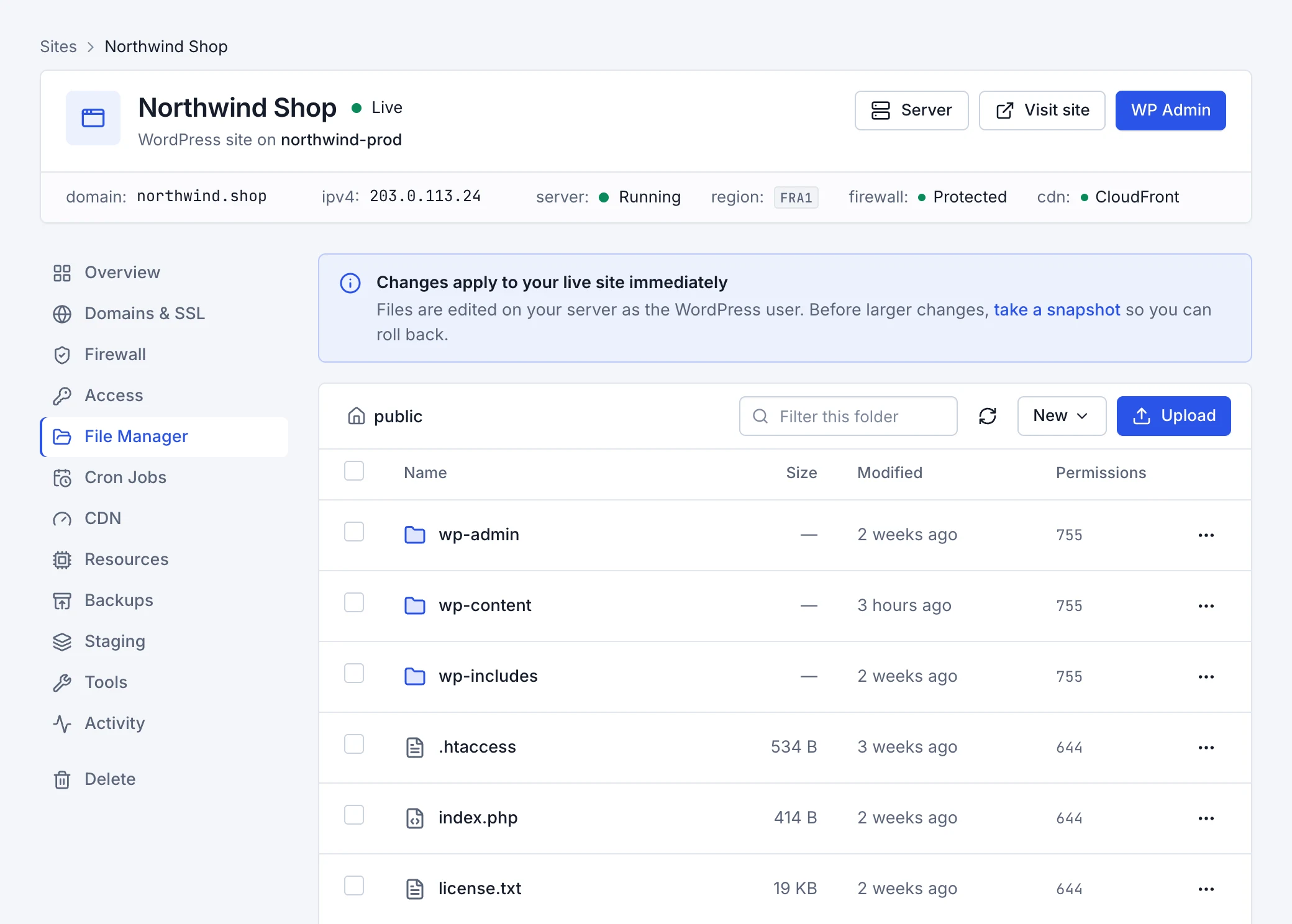
The File Manager tab shows your site's files, starting from its root folder, the one with wp-config.php in it. Browse,
upload, download, edit, zip and unzip files, and change their permissions, all in the browser: no FTP client needed.
Browse and find files
Click a folder to open it, and use the path at the top to go back up. Filter the folder you're in by typing part of a name. Tick files to act on several at once.
Upload files
Choose Upload, or drag files from your computer onto the list. Each file can be up to 100 MB. If a file with the same name is already there, you choose whether to replace it or skip it. To upload many files, zip them on your computer, upload the zip, then extract it.
Create files and folders
Choose New Folder or New File . A new file opens straight in the editor.
Rename, move, copy and delete
Each file's ⋯ menu has Rename, Move, Copy, Compress, Permissions, Download and Delete. To move or copy, enter the destination folder, starting from the site root. With several files ticked, the same actions appear above the list. Deleting a folder deletes everything inside it.
Zip and unzip
- Compress makes a
.zipof the chosen files or folders, in the folder you're in. - Extract here on a
.zipunpacks it into the folder it's in. Files with the same names are replaced. - Download as .zip downloads a folder in one go.
Edit a file
Click a text file to open it in the code editor, with syntax highlighting for PHP, JavaScript, CSS, HTML and more. Save with ⌘ S (Ctrl S on Windows) or the Save button.
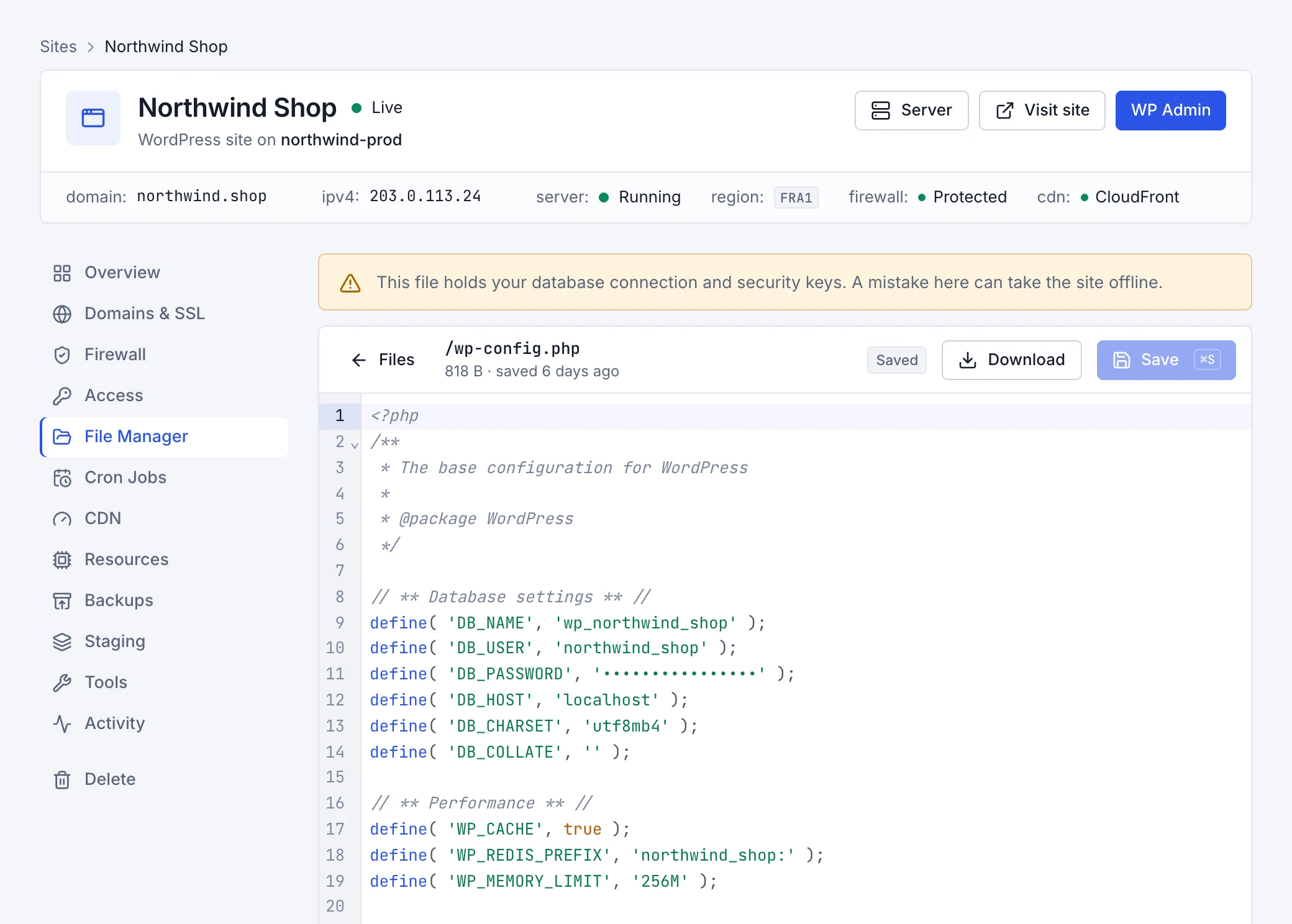
- PHP is checked before it saves. If the file has a syntax error, it isn't saved, so a typo can't take the site down. You can still choose Save anyway.
- Someone else changed the file? If a plugin or an update changed it after you opened it, you choose between reloading the new version and overwriting it with yours.
- Careful files are flagged:
wp-config.phpholds your database connection and security keys, and a mistake there can take the site offline.
Permissions
Permissions sets who may read, write and run a file, as checkboxes or a number like 644. Letting “others” write is rarely
needed and can be a security risk. The site's files belong to its own Linux user, so other sites on the server can't read them.