
Connect your domain
Point a domain you own at a site, verify it, and get a free SSL certificate that renews itself.
3 min read Updated
Every site starts with a free address, like northwind-shop-4f2a1.sites.rabbitflare.com. To go live on a domain you own, add it to the
site, point its DNS at your server, and verify it. Rabbitflare then issues a free SSL certificate and renews it for you.
The free address is for building and testing: it asks search engines not to list its pages, so your site shows up in Google and other search engines only on your own domain.
example.com A record → 203.0.113.24 Add the domain
-
Open the site's Domains & SSL tab
Open the site from Sites, then the Domains & SSL tab. (Or choose Create Custom domain and pick the site.)
-
Type the domain
Enter the domain, like
example.comorshop.example.com. Tick Make this the primary domain once it's verified if visitors should end up on this address. Then choose Add domain. -
Create the DNS records
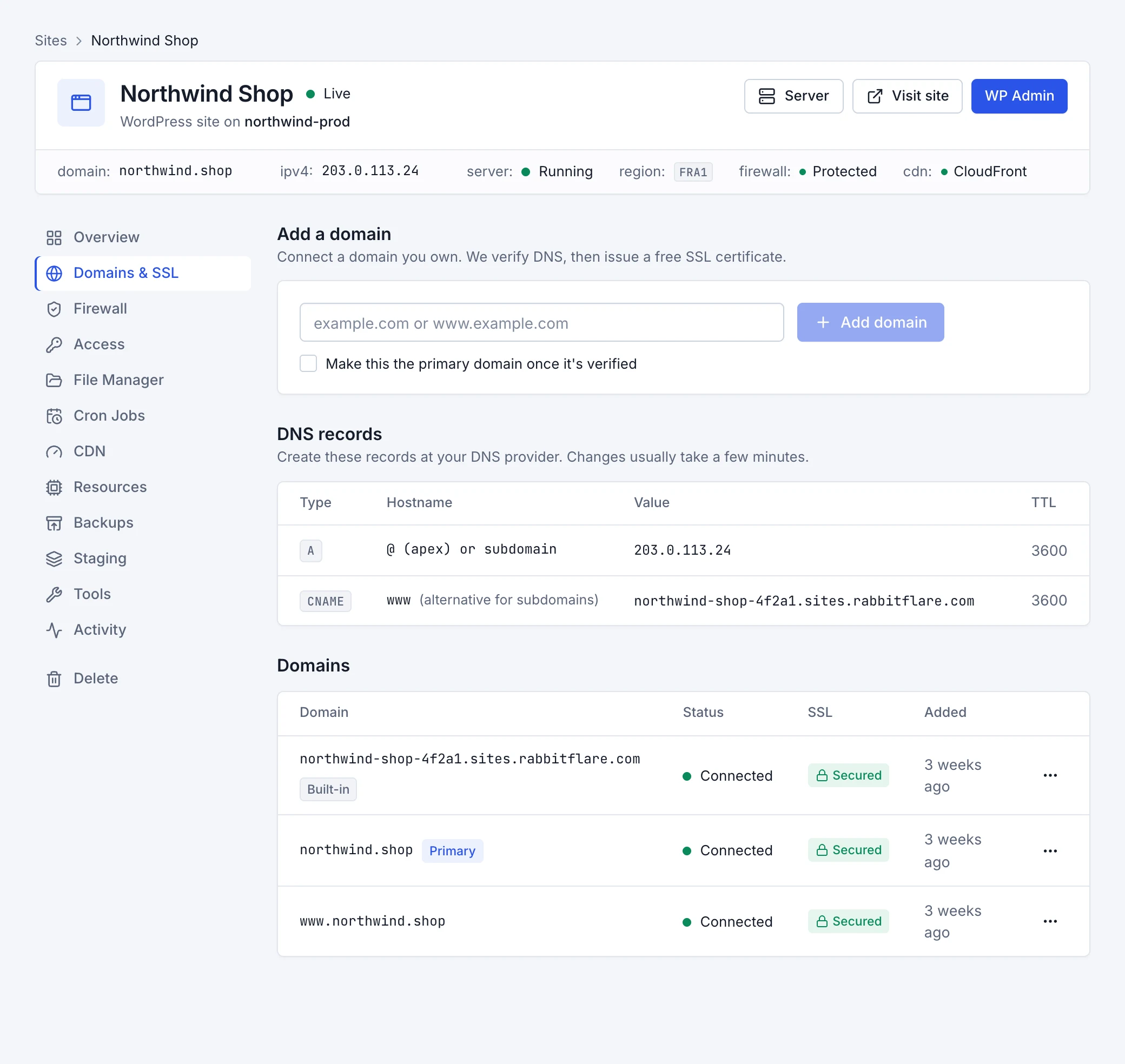
The tab shows the records to create at your DNS provider, with your server's own addresses:
Type Name Value TTL A@for the domain itself, or the subdomainYour server's IPv4 address, like 203.0.113.243600 AAAAThe same name (optional) Your server's IPv6 address 3600 CNAMEwwwor another subdomainThe site's free address (instead of an Arecord)3600 Replace any older
AorAAAArecords for the same name, so they don't send visitors somewhere else. -
Verify
Once the records are in place, choose Verify next to the domain. If they were already right when you added it, it's verified at once. Verification checks that the domain points at your server, then attaches it to the site and issues its certificate, usually within a minute.
www and the primary domain
example.com and www.example.com are two names: add each one you want to use, each with its own DNS record. One domain is
the site's primary domain: WordPress uses it for its links, and the site's other addresses send visitors to it.
- To change it, open the domain's ⋯ menu and choose Make primary. WordPress's addresses are rewritten to the new domain.
- A domain that's still waiting for DNS can be set to become primary as soon as it's verified.
- Remove the primary domain and the built-in address becomes primary again.
SSL certificates
Each verified domain gets a free certificate from Let's Encrypt, renewed automatically well before it expires; the SSL column shows its status. If a certificate couldn't be issued, fix the cause (usually DNS) and choose Retry SSL. After changing DNS later, you can also reissue it from the site's Tools tab.
Remove a domain
Open the domain's ⋯ menu and choose Remove. The site stops answering on that domain; you can add it again later. Remember to remove or change its DNS records too.
All your domains in one place
The Domains page in the sidebar lists every hostname connected to your sites, with its DNS and certificate status, and the domains you've registered in the panel.
If a domain won't verify
- DNS hasn't updated yet. Changes usually take a few minutes, sometimes longer. The error tells you where the domain points now; wait, then choose Verify again.
- The record has the wrong address. Compare it with the IPv4 address on the Domains & SSL tab.
- The record is proxied. With Cloudflare or another proxy, set the record to “DNS only” until the certificate is issued, or connect Cloudflare and let Rabbitflare handle it.
- An old AAAA record is left. Delete
AAAArecords that point anywhere other than your server's IPv6 address: certificate checks may use them.
More fixes are in Troubleshooting.