
Scan your sites for malware with Rabbit Shield
Turn on Rabbit Shield for a server: every site scanned each night, threats named in plain words, warnings about known holes, and an email when something's found.
6 min read Updated
Rabbit Shield scans every WordPress site on a server for malware, every night. It compares WordPress's own files and WordPress.org plugins with the official copies, reads every file with an antivirus engine, and runs our own checks for what scanners miss, like hidden plugins and scripts injected into the database. Whatever it finds shows in the site's Malware tab, in plain words, and you get an email about it. It's included with every server Rabbitflare creates for you.
Where you can use it
On servers bought through Rabbitflare, on DigitalOcean, Vultr, Hetzner, Linode, Google Cloud or Amazon EC2, and on free-trial servers too. It isn't available on servers you connected yourself with Bring your own server.
Turn it on
-
Open the server
In Servers, open the server whose sites you want scanned. Rabbit Shield's card is on its overview.
-
Turn Rabbit Shield on
Switch it on. Depending on the server, you may be asked to accept the antivirus engine's licence first. Setting it up takes a few minutes; you can leave the page.
-
That's it
Every site on the server, staging copies included, is scanned each night from then on. To scan a site straight away, open its Malware tab and choose Scan now.
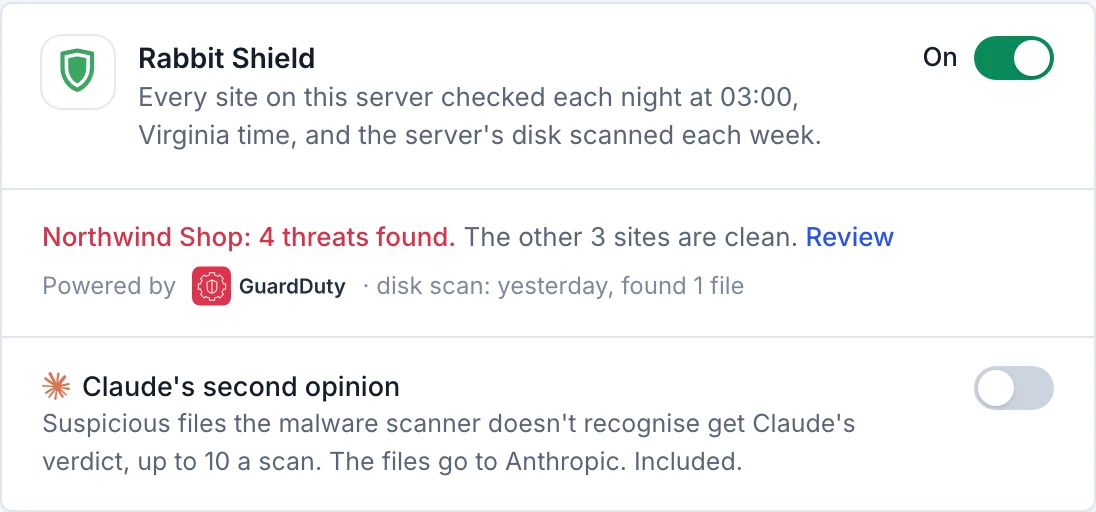
Turning it off removes the scanner from the server. What was found, the scan history and anything in quarantine stay, and Undo keeps working.
What it checks
- WordPress check
- WordPress's own files and every plugin from WordPress.org, compared with the official copy of the same version. A changed file, or a file WordPress doesn't ship in its own folders, is named. This runs without loading the site's PHP, so malware can't interfere.
- Rabbit checks
-
What scanners miss, learned from real hacked sites: plugins that hide themselves, unknown must-use plugins, PHP files in uploads, scripts from
other sites injected into posts, widgets and settings, a changed site address, new administrator accounts, suspicious lines in the site's
scheduled tasks, and tricks in
wp-config.phpand.user.ini. - Antivirus engine
- On every server except Amazon EC2, every file read each night against a malware signature list that's kept up to date. The top of the Malware tab shows which engine the server uses (“Powered by…”): ClamAV on Arm servers, for example.
- Amazon GuardDuty
- On Amazon EC2 servers, Amazon's own malware scanning reads a copy of the server's disk once a week, after every clean-up, and when you choose Scan now (at most once a day). Nothing extra runs on the server for it, and the nightly checks above still run every night.
- Claude's second opinion
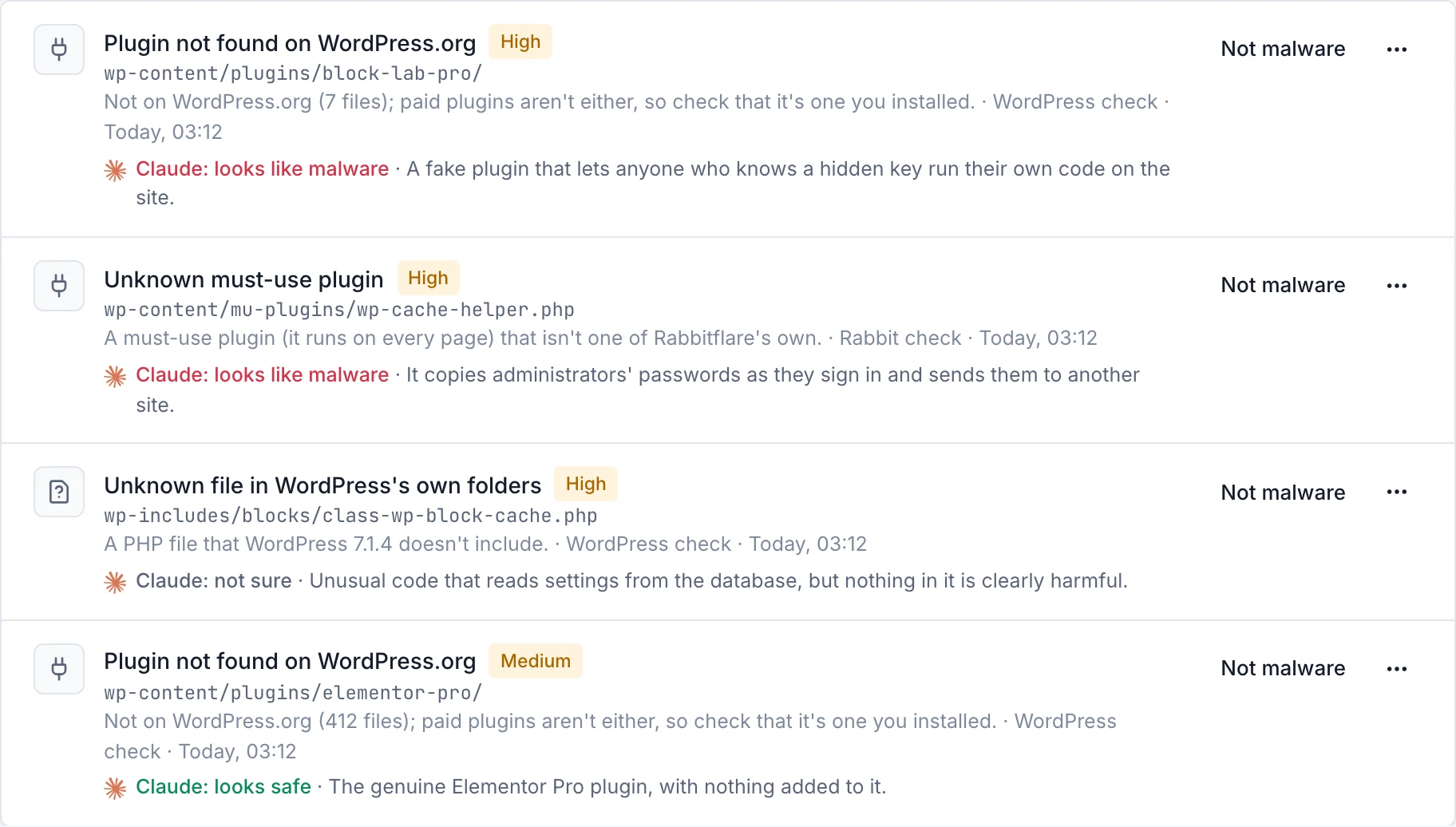
- Optional, per server. Some files are only suspicious: a plugin from outside WordPress.org, a file nobody expected. Turn on Claude's second opinion on the server's card, and Claude reads those files and gives a verdict in one sentence: looks like malware, not sure, or looks safe. Turning it on means agreeing that such files are sent to Anthropic. It doesn't use your AI credits.
Scans
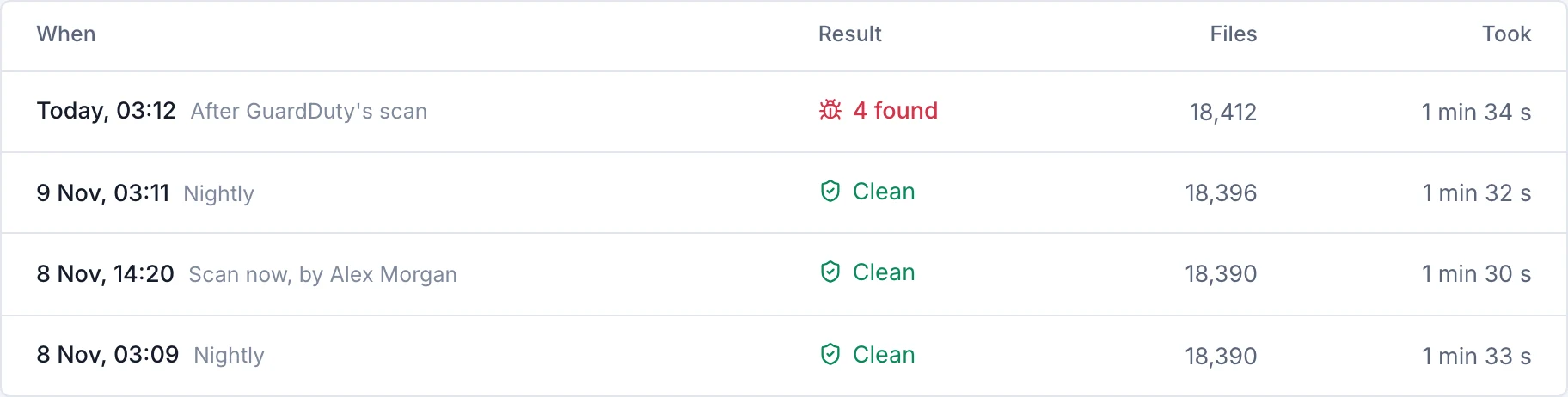
Scans run at 03:00 in the server's own time, one site at a time, at the lowest CPU and disk priority, with their CPU and memory capped. If the server is busy, a scan waits for a quieter moment. Scan now scans one site straight away, at most once every 10 minutes per site.
The Scan history tab lists the recent scans: when each ran, what started it, how many files it checked and what it found.
Threats
The Threats tab lists what was found, the most serious first. Each finding says what it is, where it is, which check found it and when.
- Critical and High
- Malware, or something that only malware does. The site's status says “found”, and you get an email.
- Medium
- Worth a look, not proof: a plugin from outside WordPress.org is often a paid plugin you installed. It shows as “to check”, without an email.
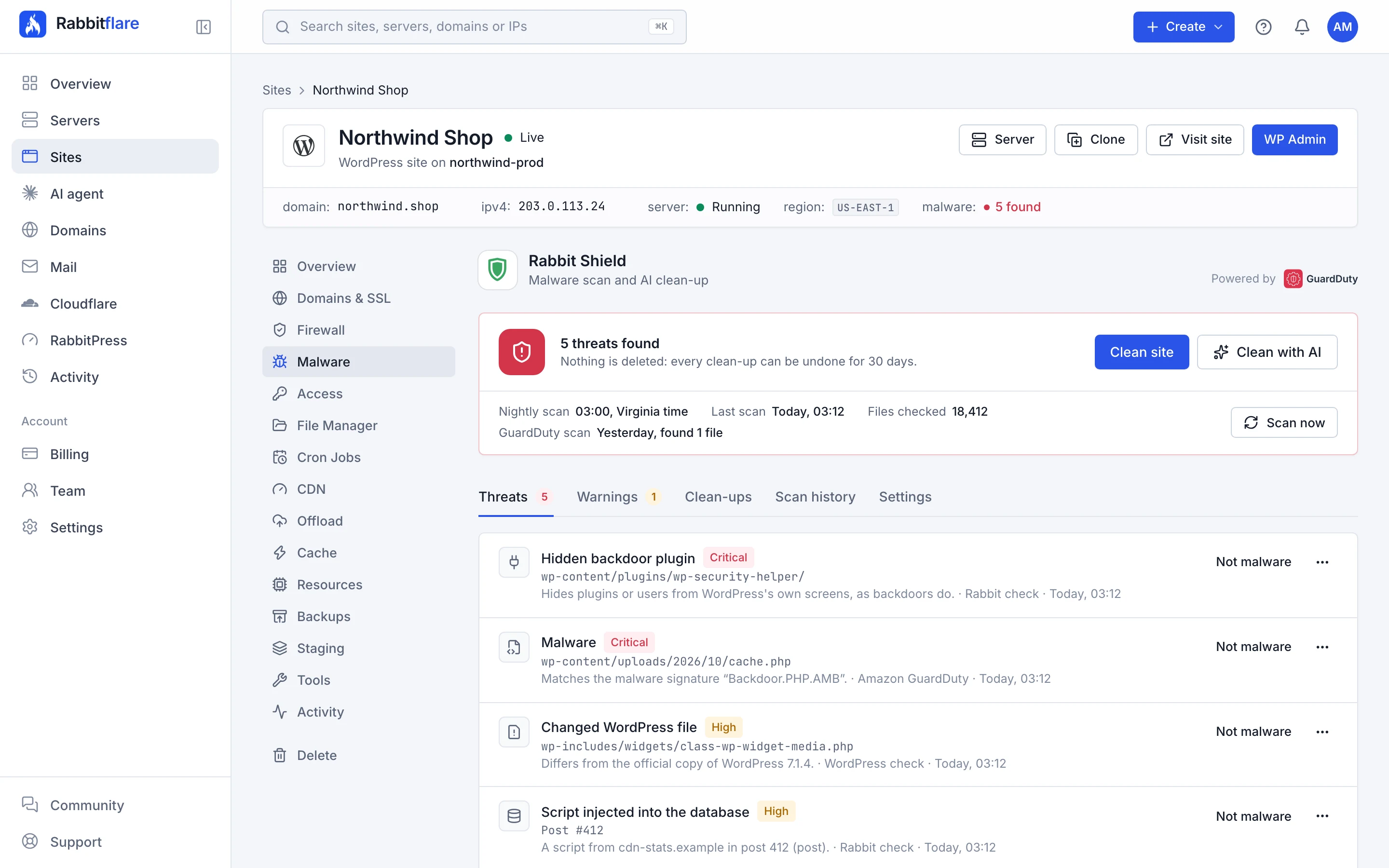
From a finding's menu you can copy its location, or move a file or folder to quarantine on its own. To deal with everything at once, see Clean a hacked site.
A false alarm
Choose Not malware on the finding. It's skipped from then on, for as long as the file stays the same: if it changes, it's checked again. You can undo it from the same finding.
Warnings
The Warnings tab shows ways into the site that aren't malware yet: a plugin, theme or WordPress version with a known security hole, from Wordfence's vulnerability list, and whether Google lists the site as dangerous. They're checked after each scan and every day. Each warning says what to do, usually updating to the version that closes the hole.
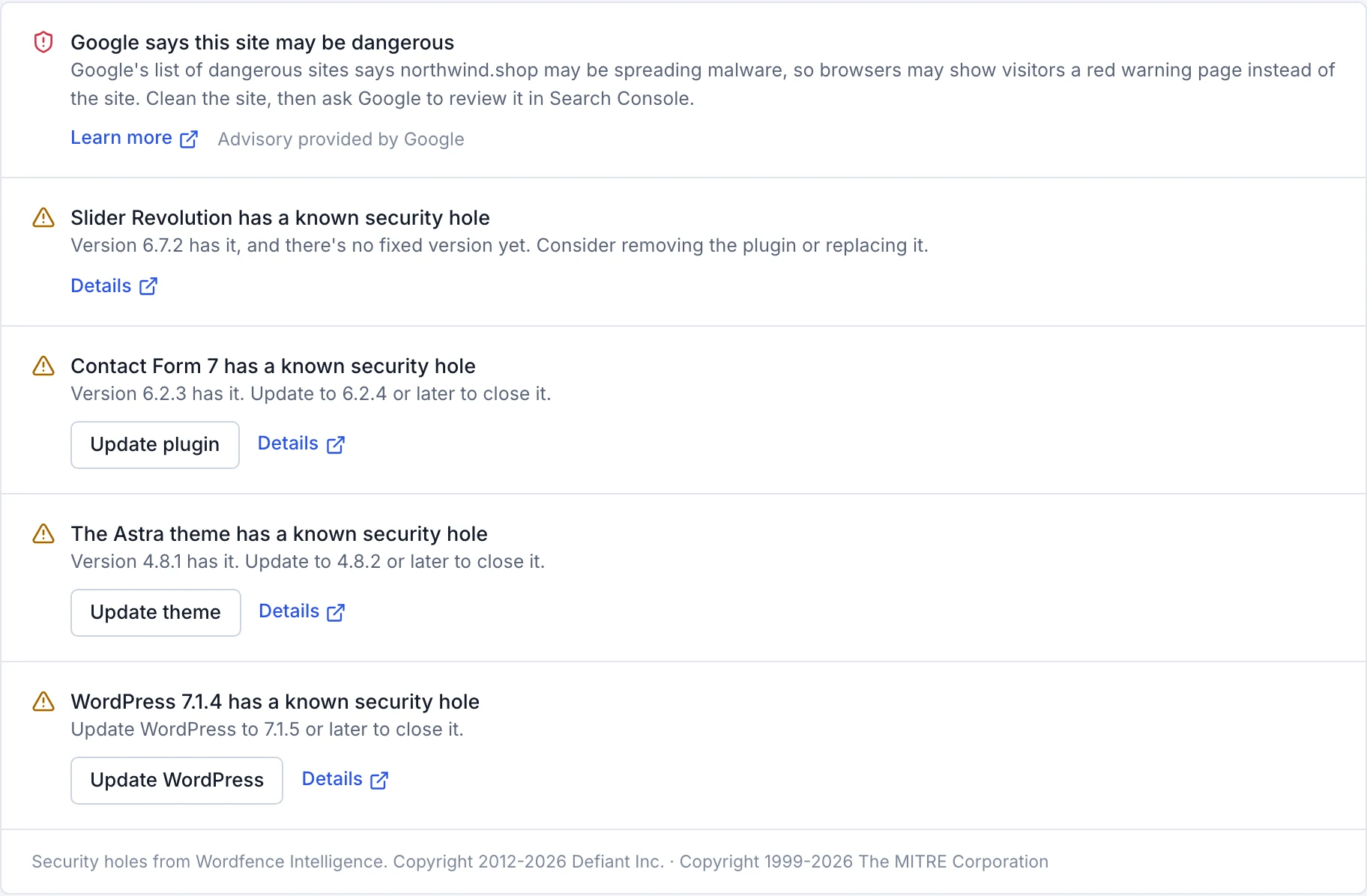
If Google flags the site, clean it first, then ask Google to review it in Google Search Console.
Alerts and settings
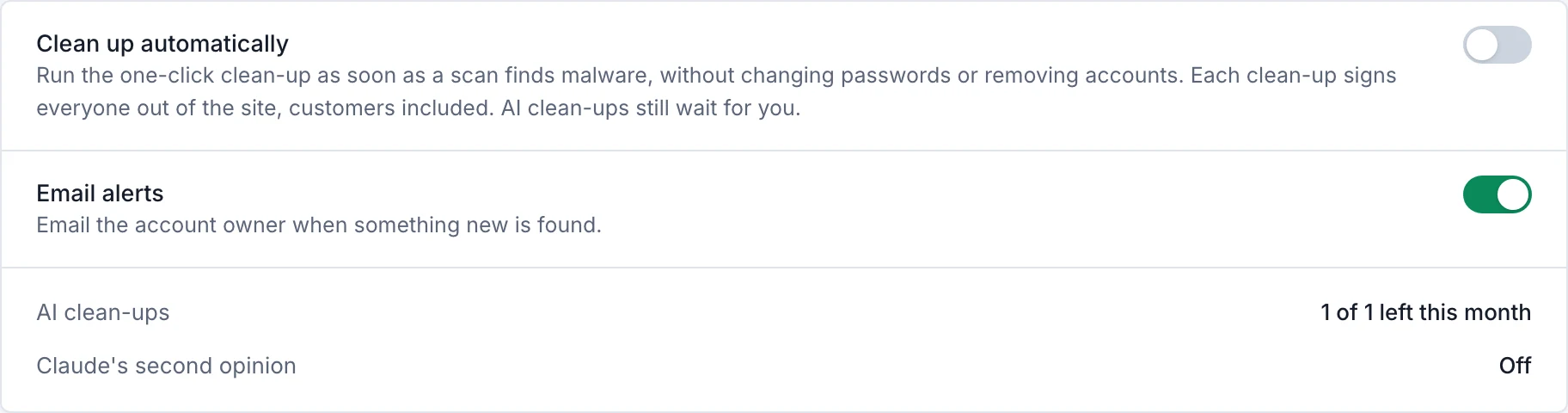
You get one email about each new threat, not one every night, and a badge shows on your sites and servers lists until it's dealt with. The site's Settings tab has two switches:
- Email alerts
- Email the account owner when something new is found. On to start with.
- Clean up automatically
- Run the one-click clean-up as soon as a scan finds malware, without changing passwords or removing accounts. Off to start with. Each clean-up signs everyone out of the site, customers included.
Team members
Everyone who can see a site can see its Malware tab. Cleaning, undoing, marking a false alarm and the settings need Manage sites; turning Rabbit Shield on or off for a server needs Manage servers. See Team members and permissions.